The image viewer
Every image a run saves shows next to the same image of its reference run. Flip between them, zoom to the pixel in both at once, read the values of the pixels, and let QA-Board find where they differ.
The basics
Images show in the Visualizations view of a commit, in each run's card, and in Output Files when you pick an image file.
Pick how to compare
Above each pair of images, pick a mode, or press its key:
| Mode | Key | What you see |
|---|---|---|
| Side by side | 1 | New on the left, reference on the right. A cross marks the pixel under your mouse on both. |
| Wipe | 2 | One image over the other: drag the divider across them. |
| Single | 3 | One image at a time, in place. Press t, or click the image, to flip to the other and back. Small changes jump out, like in a flicker test. |
| Difference | 4 | Where the images differ, between them. With the images, next to the modes, or 4 again, shows it alone, larger, and back. |
t never changes the mode: to go from the difference back to the images, pick Side by side or Single. The mode applies to every image viewer of the page, and the page's link keeps it: whoever opens the link sees the same comparison. It's also in the View options, under Viewers › Compare images. The keys work anywhere on the page, not only over an image.
Tell new from reference
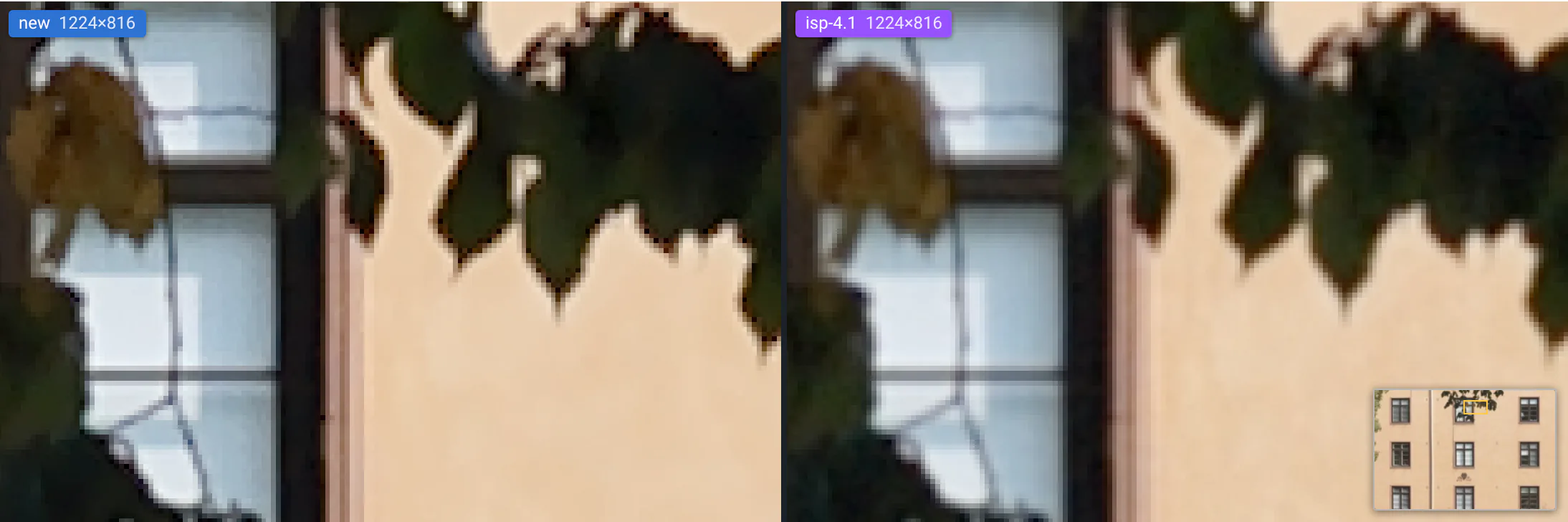
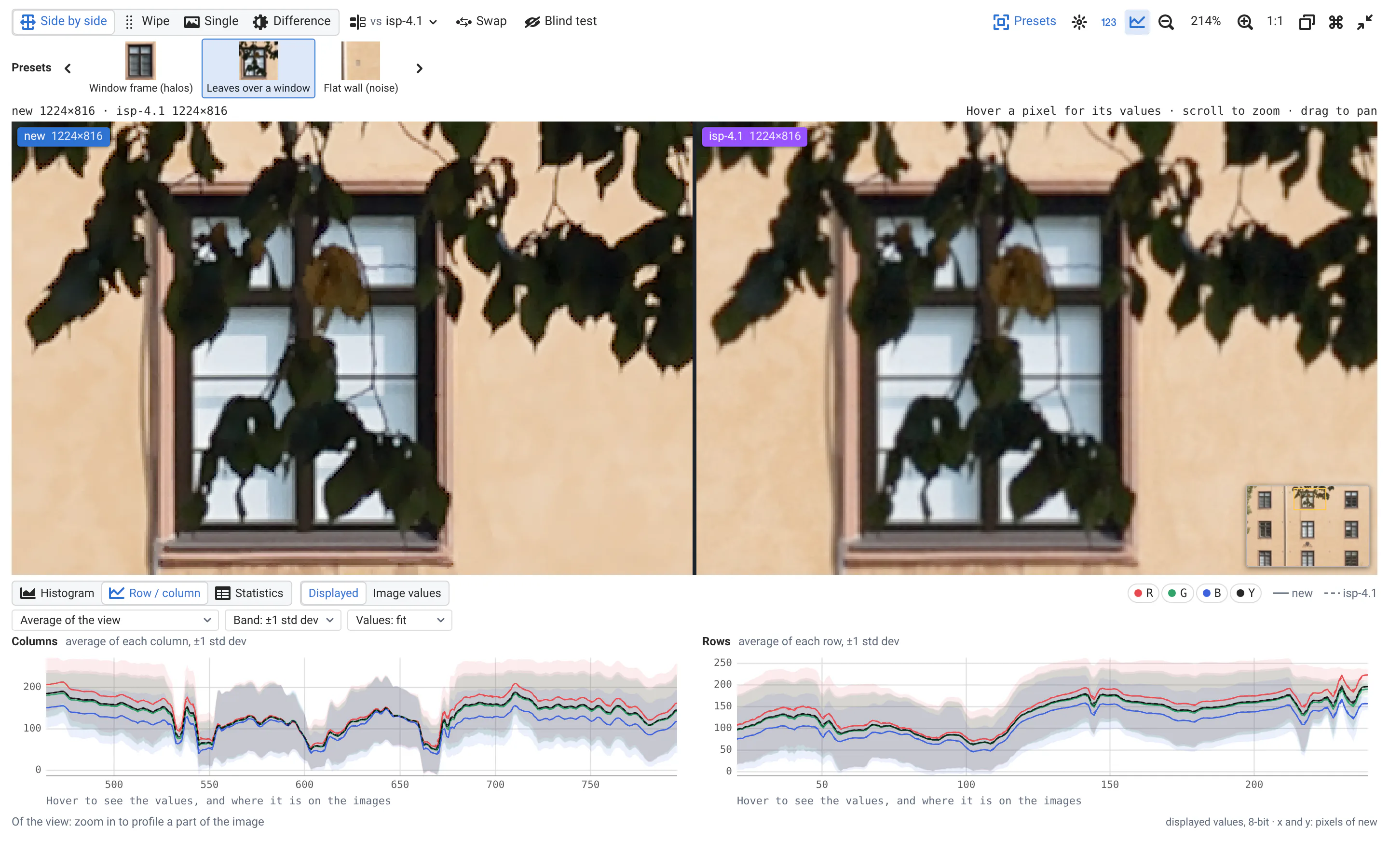
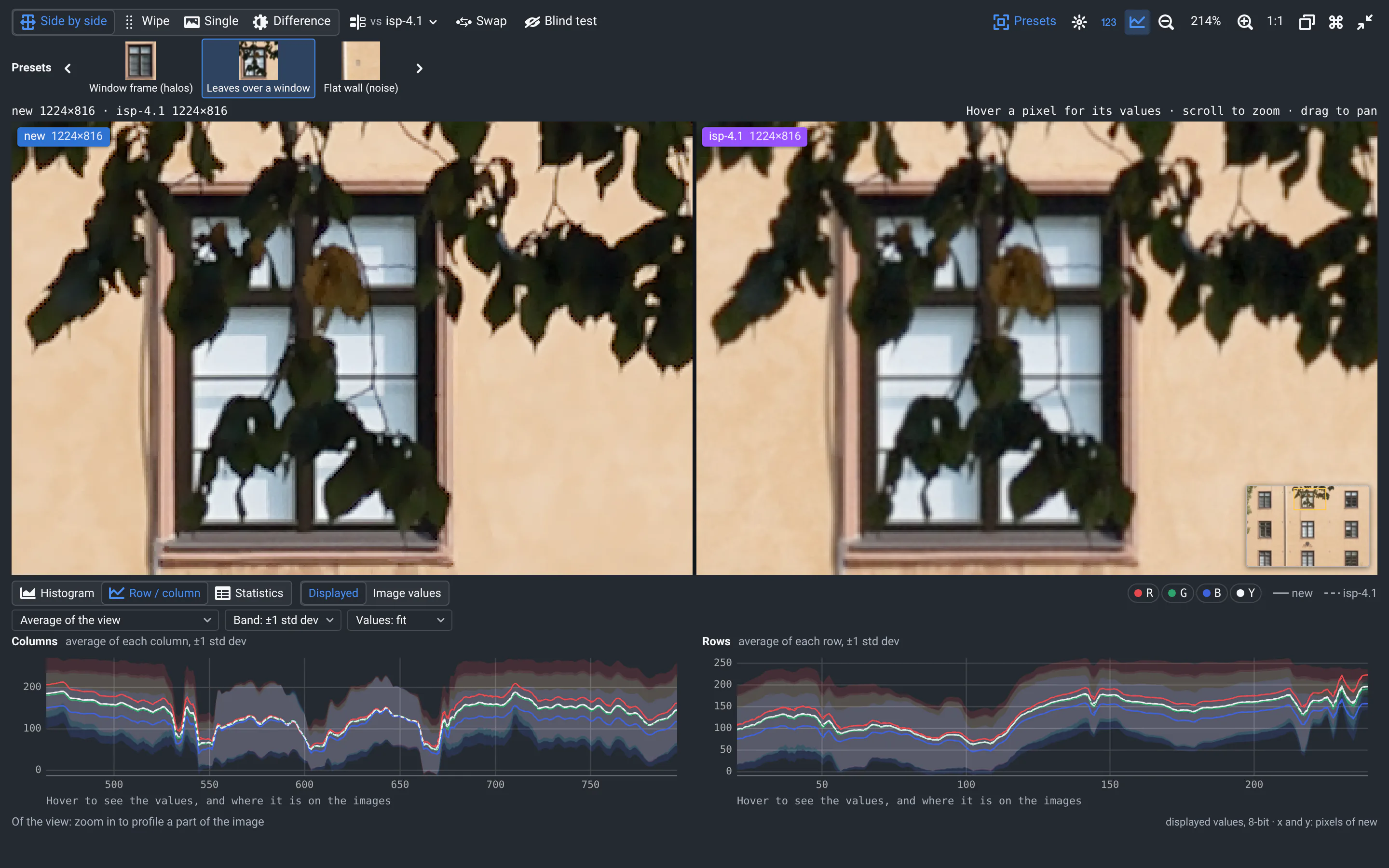
A label on each image names it: new in blue, the reference in its own color, like their bars at the top of the page. When you named what you compare, e.g. with a milestone's name, the labels use those names. They also give each image's size, e.g. 1224×816.
The swap button next to the modes, or t, swaps the sides in every viewer of the page at once, so that they all show the same one first. When both runs saved the same file, you see one image, tagged same as the reference.
Zoom and pan, in sync
Scroll (or pinch, or press + -) to zoom, drag to pan: the other image follows. So do the other images of the same input on the page, in the other runs' cards and the run's other visualizations, as long as their proportions match, whatever their resolution.
The toolbar shows the zoom: 100% is one image pixel per screen pixel, 1:1 goes there, and a click on the percentage (or 0) fits the whole image again. Zoomed in, a minimap in the corner shows where you are: click or drag it to go elsewhere.
When the images don't pair up
- When the reference run has no such image, the viewer shows the new image alone, without the modes.
- Images whose proportions differ are compared at the same width: a warning, different aspect ratios, says their bottoms don't match.
- In Single mode, pressing 3 again also shows the other image.
A typical review
In the demo camera pipeline (image quality), a new bilateral denoiser wins 1.6 dB of PSNR in low light and halves the noise. The numbers say merge it. Here is how to check its images against release 4.1 before you agree:
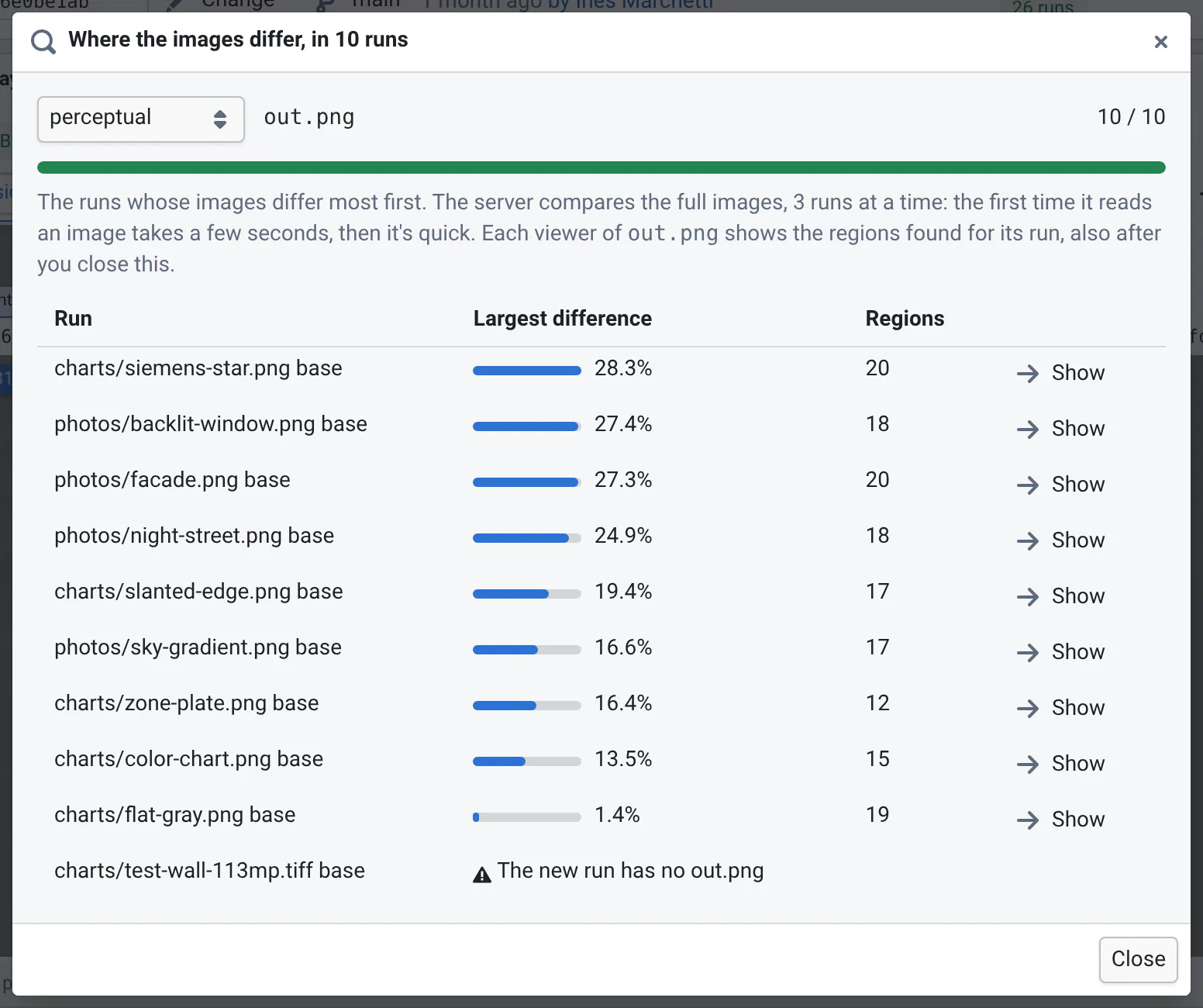
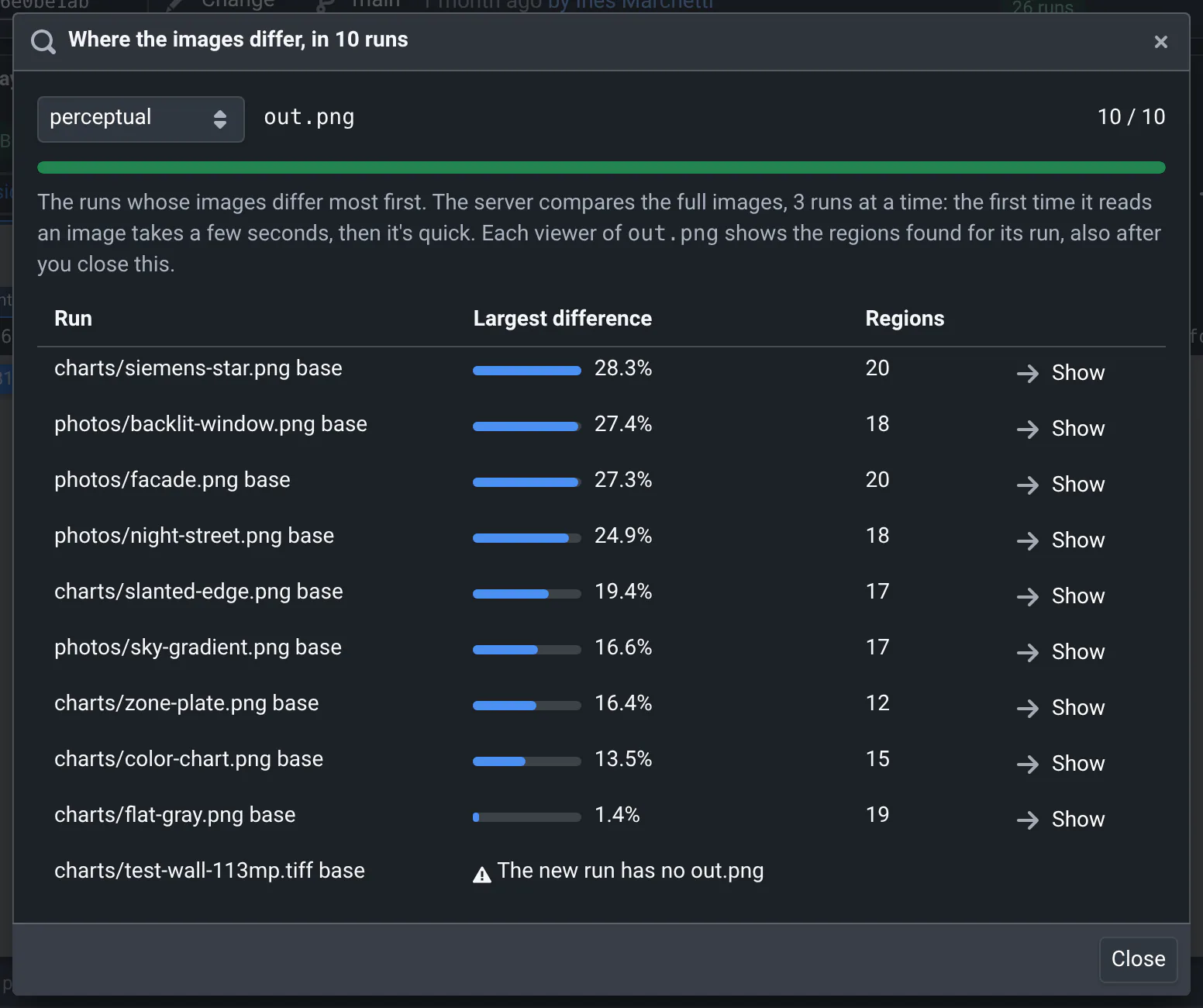
- Rank the runs by how much their images changed. In the regions menu above any image, pick Where they differ, in all 10 runs…. The Siemens star, the backlit window and the facade come first; the flat gray chart barely changed. See which runs changed most.
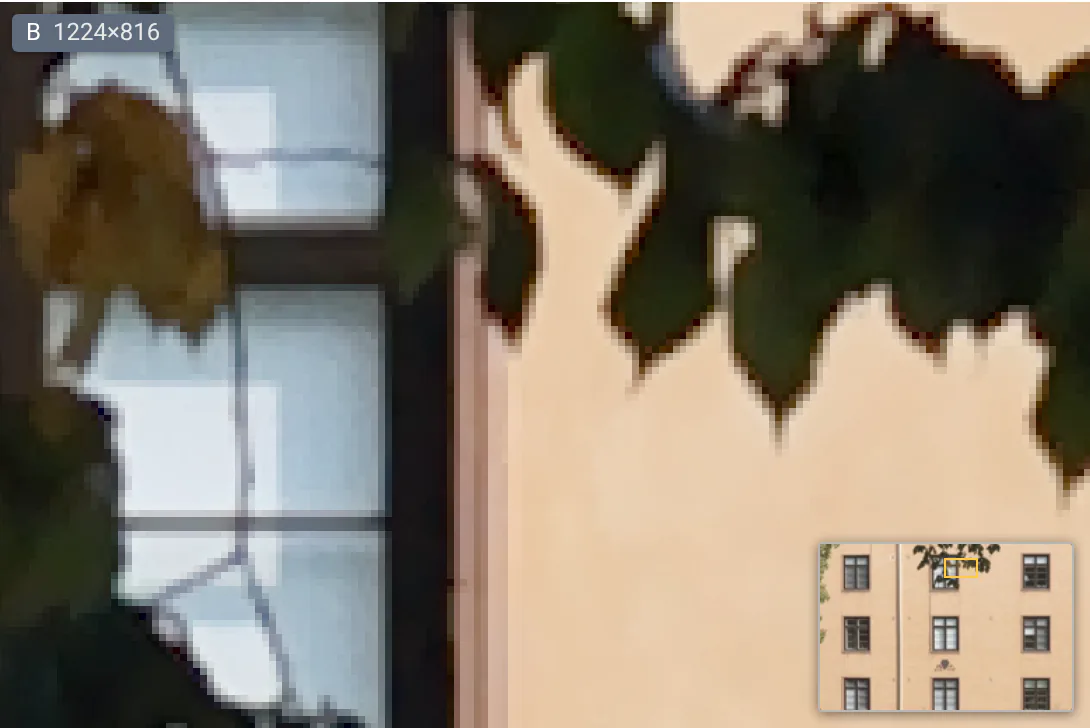
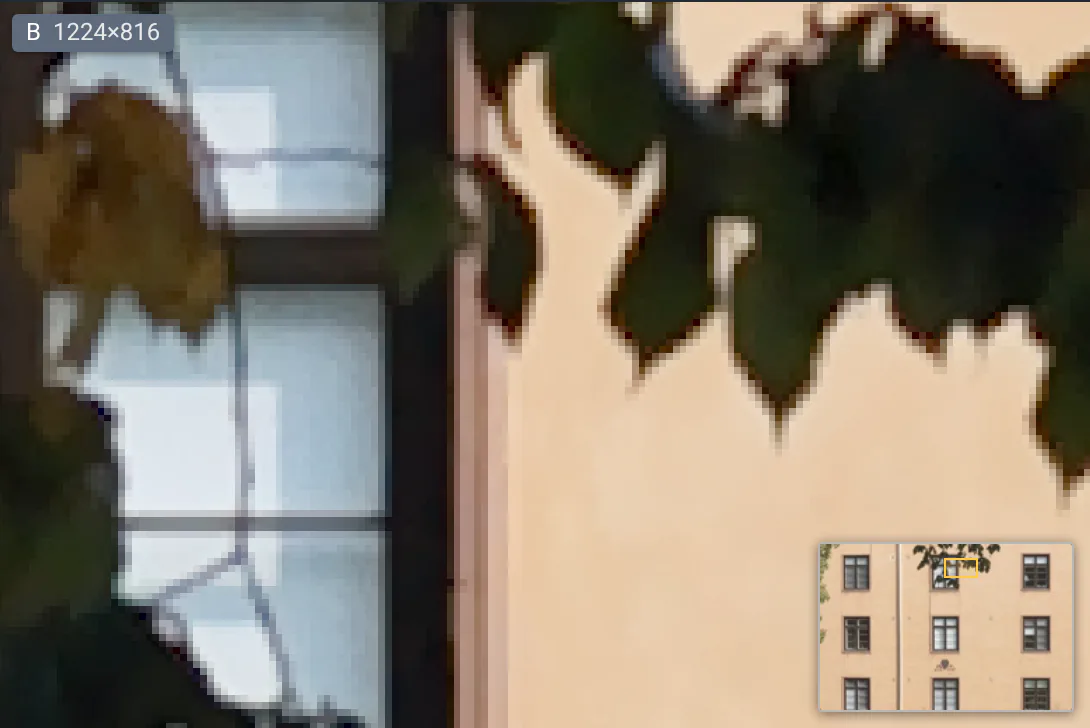
- Go where they differ most. Click Show next to photos/facade.png: its card zooms on the region that differs most, #1 · 27.3%, leaves over the wall. ] goes to the next region. See find where images differ.
- Flip between them. Press 3 for Single, then t: the image flips from new to reference in place, and your eye catches what moved, a dark rim around every leaf in the new one. See comparison modes.
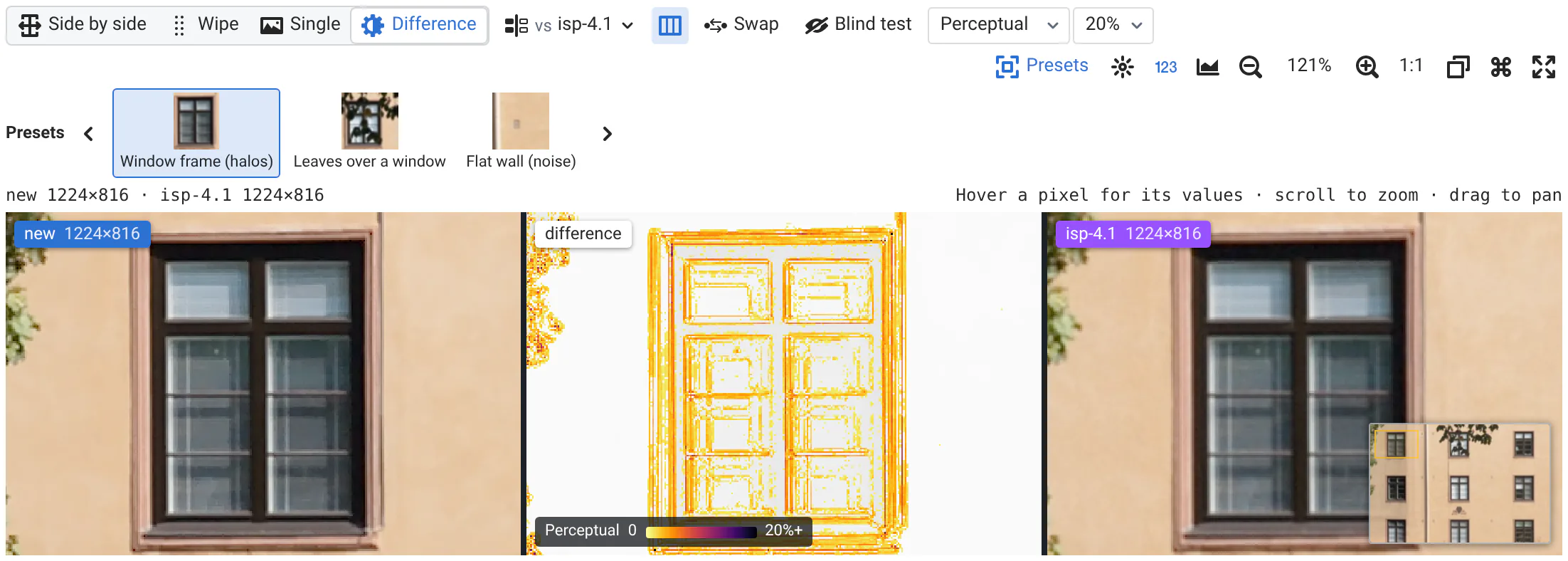
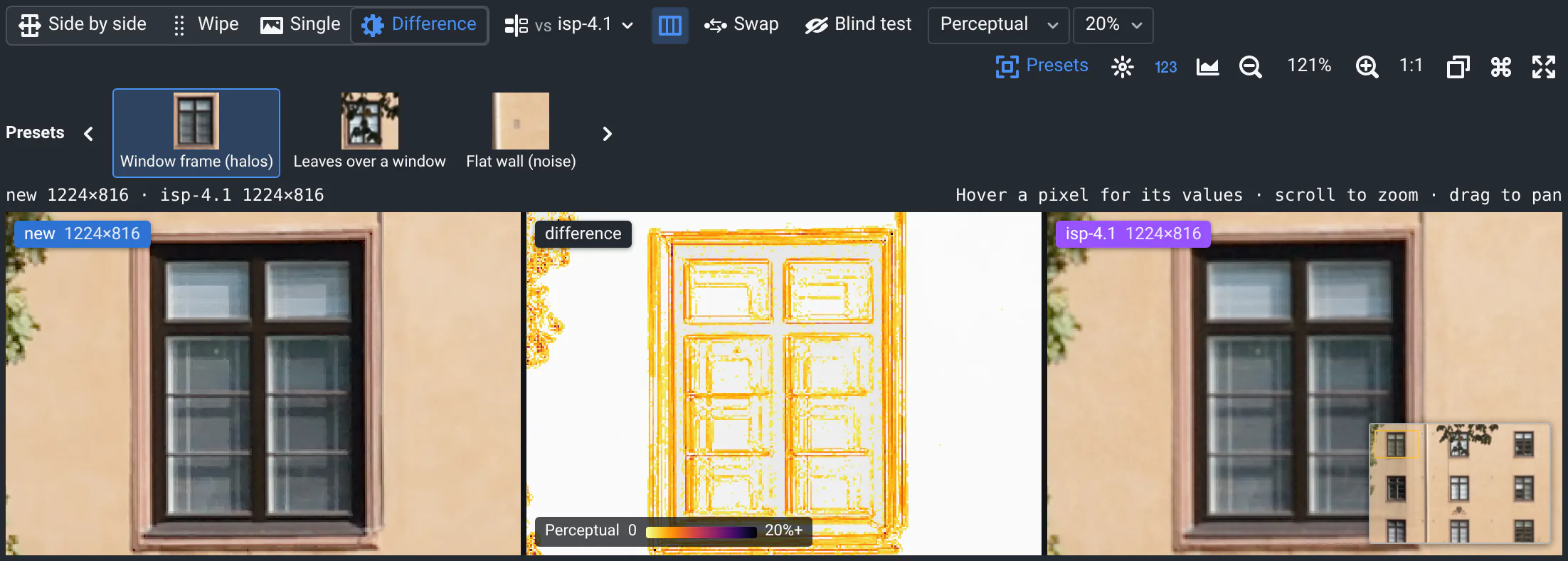
- Measure it. Press 4 for the Difference, and raise its maximum from 5% to 20% (the menu next to Perceptual): the noise fades out, and only the halos along the leaves and the window frame stay. See the difference.
- Read the pixels. Hover a rim: the line above the images gives its coordinates, its values in both images and their difference, Δ. Zoom in further and the values are written on the pixels. See pixel values.
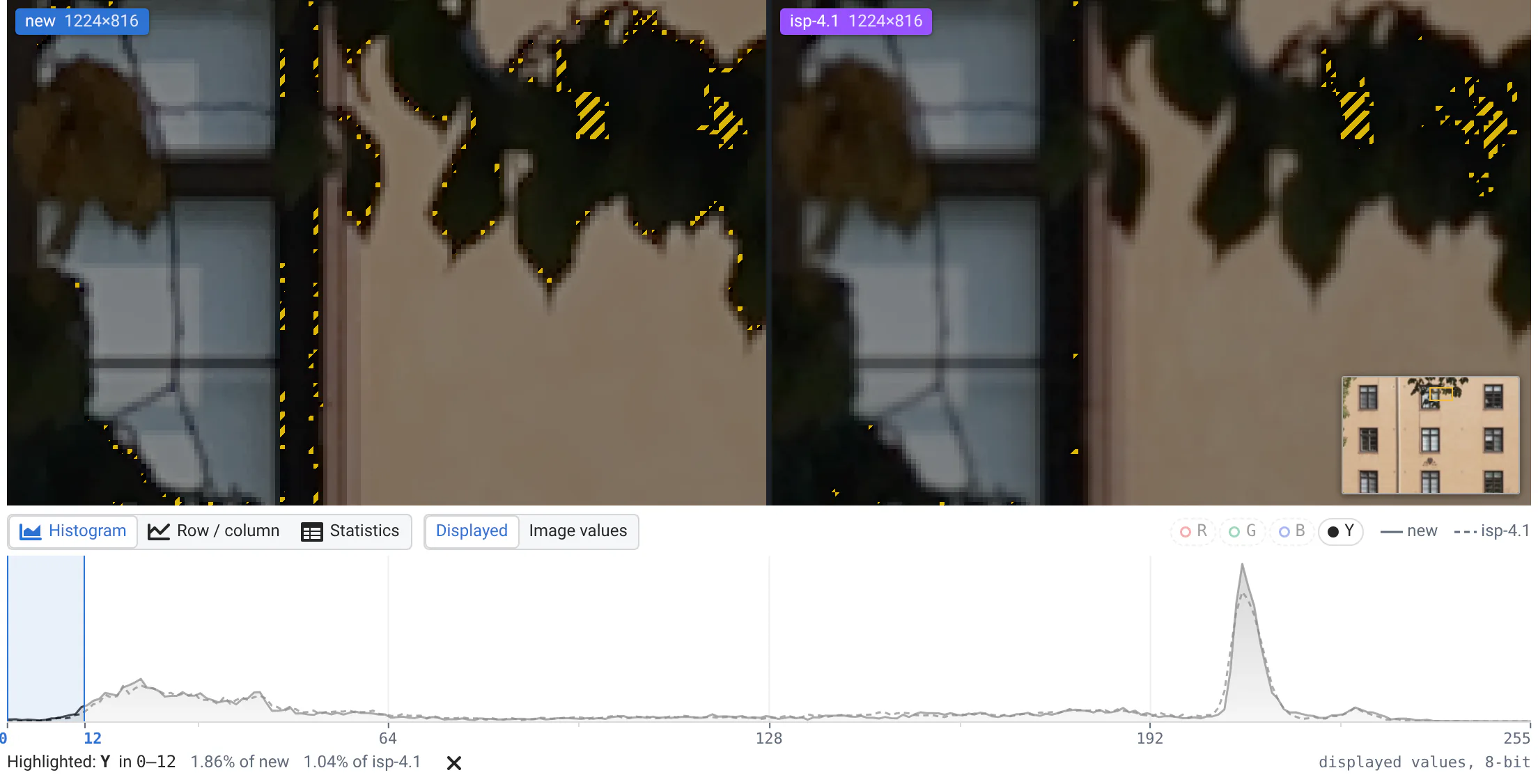
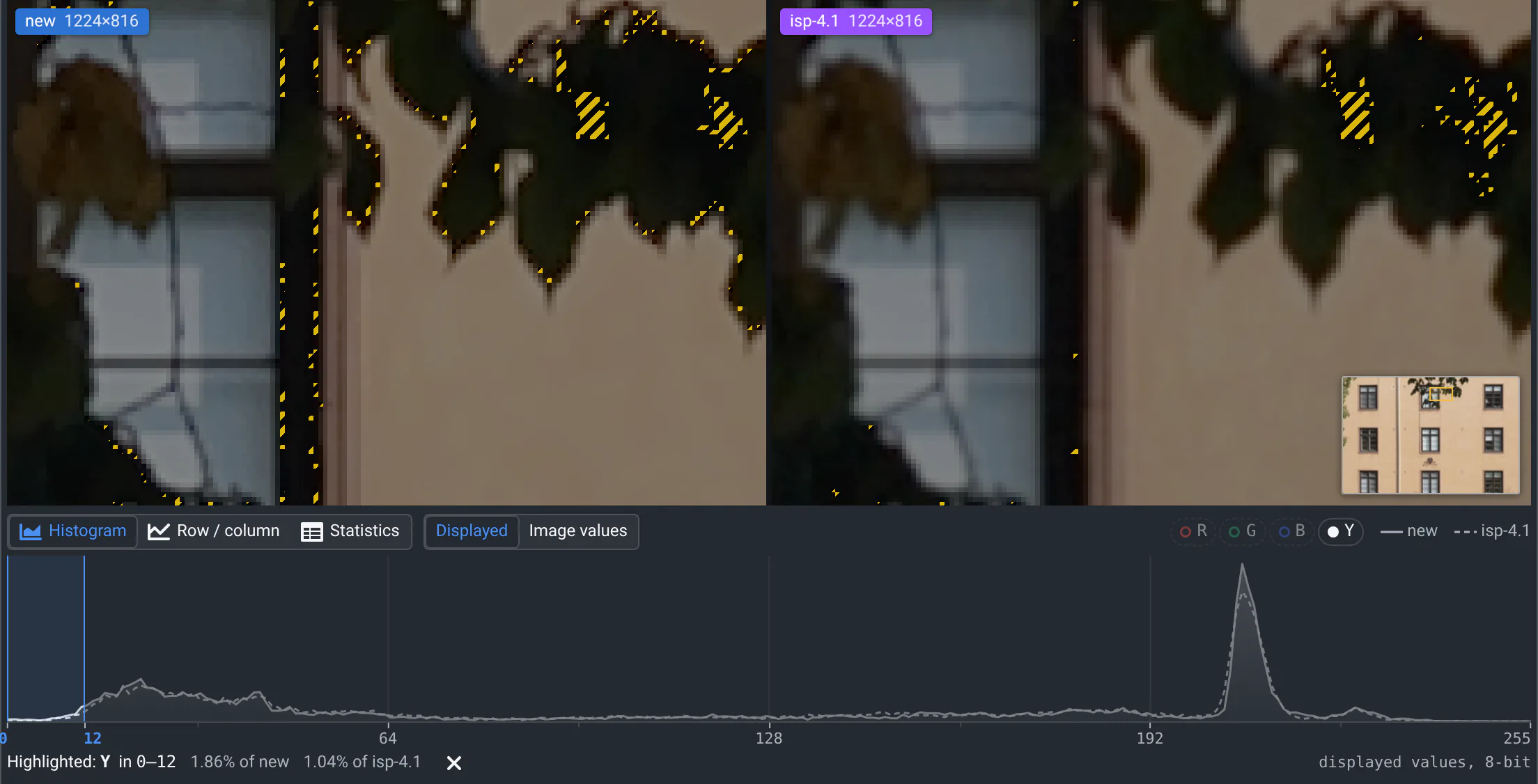
- Check for clipping. Open the histogram, click Y to show the luminance alone, and drag over the darkest values: stripes mark those pixels on both images, and the share of each image in the range shows below. A larger share in the new image: its rims clip to black. See histograms.
- Share what you found. In the copy button's menu, Copy the new image, and paste the crop in the chat or the bug report, with the page's link. See copy and save.
For a call on looks alone, ask a colleague for a blind test.
The team kept the denoiser, and clamped the sharpening near strong edges: the PSNR gain stays, the edge overshoot goes from 11% back to 5%, and the halos fade.
Find where images differ
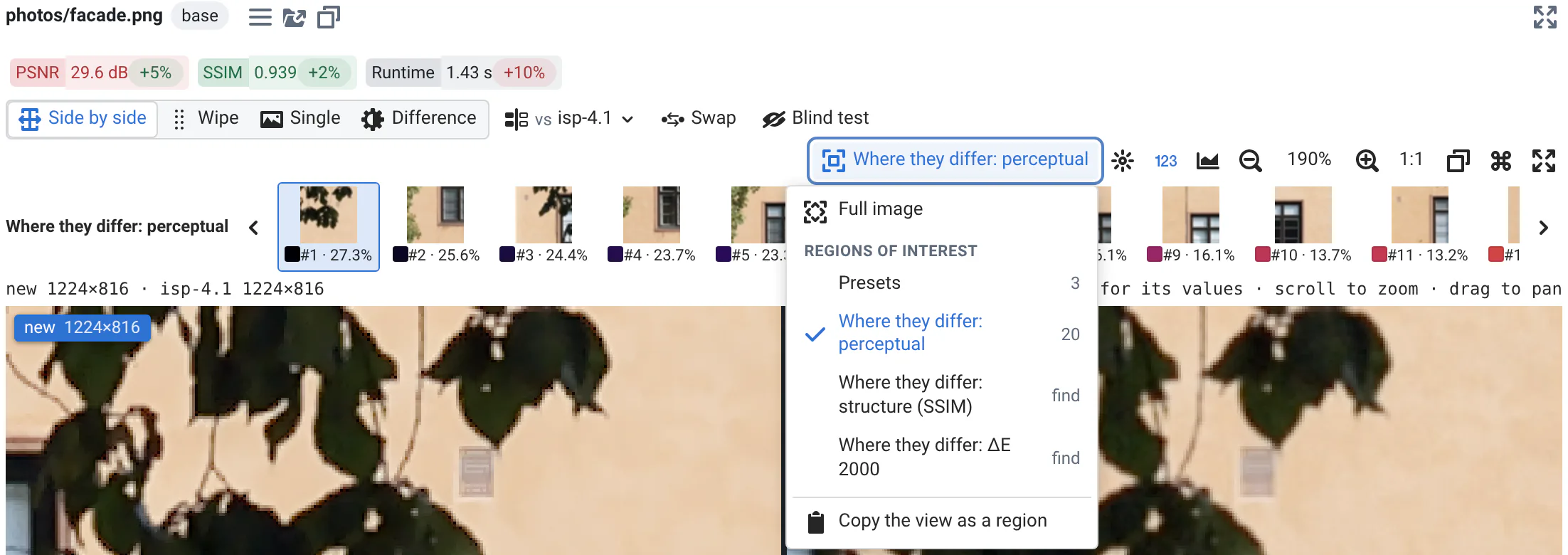
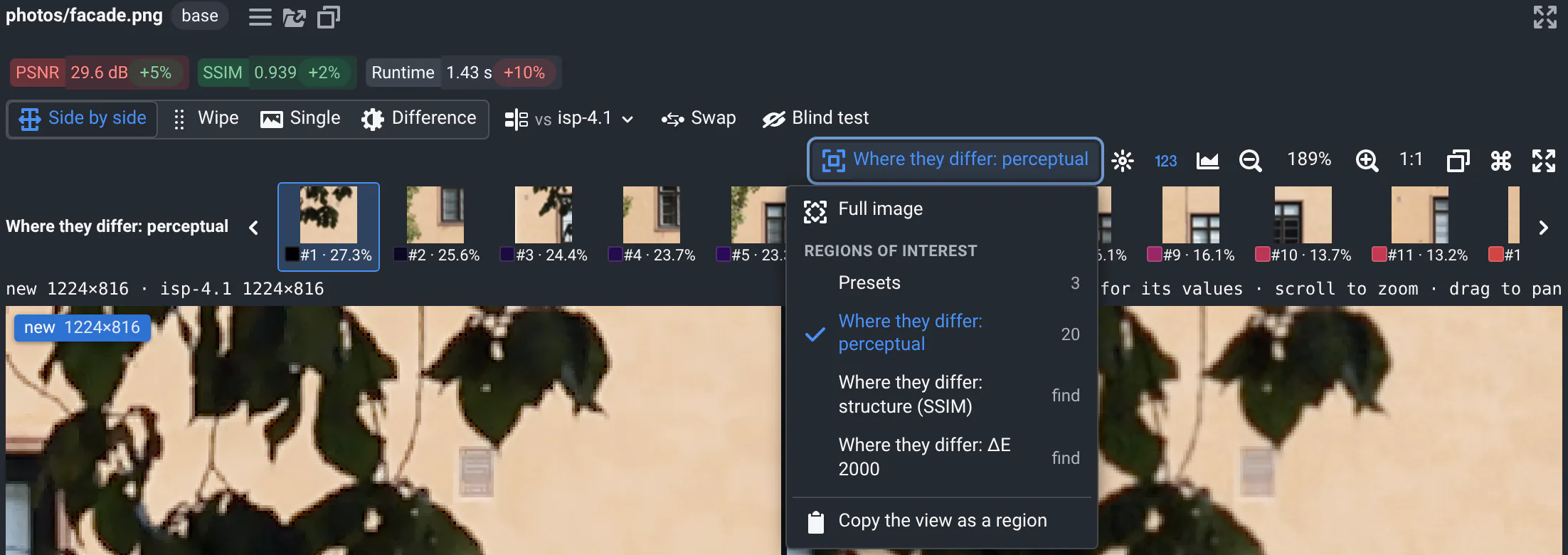
The regions button above the images (it shows the name of the set in view, e.g. Presets) zooms on regions of interest, with their thumbnails above the images. Step through them with [ ], the arrows, or a click on a thumbnail. Full image goes back to the whole image.
- Presets: the regions set for the input, e.g. on the facade Window frame (halos), Leaves over a window and Flat wall (noise). The viewer opens on the first one. Whoever integrates the project defines them, see regions of interest.
- Where they differ: the server compares the full images, not what your screen shows, and finds the places where they differ most. Each region says how much, e.g. #1 · 27.3%, and darker swatches mark larger differences.
Pick how the server compares them:
| Regions | Measure | Use it for |
|---|---|---|
| Where they differ: perceptual | Perceived color difference (YIQ), pixel by pixel, as a percentage | Any visible change: noise, halos, an edge that moved. Start here. |
| Where they differ: structure (SSIM) | Structural similarity (SSIM), on the images about 1000 pixels wide, as 1 − SSIM | Texture and sharpness: a denoiser that smears fine detail, a sharpener that rings, while the colors stay. |
| Where they differ: ΔE 2000 | CIEDE2000 color difference, about 1000 pixels wide, as a ΔE | Color: white balance, the color correction matrix, chroma noise on a color chart. |
How the regions are found, and where they apply
- The regions are spread over the image: an area that differs everywhere, like leaves, gives one region, not twenty. Each shows some context around the difference.
- The first time the server reads an image takes a few seconds, then it's quick: the server keeps the results.
- The set you pick applies to every viewer of the same file on the page, in all the runs' cards. Where they differ is for the page where you pick it: on another page, the viewers don't compare their images until you ask, since that compares all its runs again.
- The server compares images for signed-in users only: signed out, the viewer asks you to sign in.
- Copy the view as a region, at the bottom of the menu, copies the coordinates of what you see, in the format of presets: send them to whoever maintains the project's presets.
Which runs changed most
In a batch of dozens of inputs, start where the images changed most. Where they differ, in all N runs…, in the regions menu, compares the image of every run of the page with its reference, and ranks the runs by their largest difference. Runs whose images didn't change at all are counted as identical.
Pick how to compare at the top of the list (perceptual, structure (SSIM) or ΔE 2000). Show takes you to a run's card, zoomed on its region that differs most; every viewer of that file shows its own regions too.
While the runs are compared
- The server compares three runs at a time. The list says which ones it's comparing and for how long, and which wait for their turn. The first comparisons of large images take a few seconds each, and those running together end at about the same time.
- Closing the list doesn't stop the comparisons: Stop does, and Compare the others picks up where it stopped.
- The menu item shows when you're signed in and the page has more than one run with a reference to compare.
The difference
Press 4, or click Difference: the difference shows between the two images, all three in sync, with a cross on the pixel under your mouse in each. Press 4 again, or the three-columns button next to it, to see the difference alone, larger. Where the images don't differ, a faded copy of the image tells you where you are, and a legend says what the colors mean.
Pick how to measure it next to the modes, and its maximum or amplification:
| Measure | What it shows | Use it for |
|---|---|---|
| Perceptual | How different the colors look (YIQ), from yellow (a little) to black at the maximum you pick: 1% to 30%, 5% by default. | A first look at any change. Raise the maximum to hide the noise and keep what stands out, like halos. |
| ΔE 2000 | The CIEDE2000 color difference, up to a maximum of ΔE 1 to 20 (5 by default). Under 1 you can't see it; about 2.3 is barely noticeable. | Color: white balance, the color correction matrix, chroma denoising. It tells whether a change is visible. |
| Absolute | Each channel of |new − reference|, amplified ×1 to ×64 (×4 by default). Black means identical. | Which channel changed: a cast in one channel, a demosaicing change on red and blue. |
| Signed | The luma (brightness) of new − reference: red where new is brighter, blue where it's darker, amplified. | Brightness shifts: the tone curve, the black level, exposure, the bright and dark rims of halos. |
| Any change | In red, every pixel whose displayed value changed at all. | Changes that should be none, like a refactor. Zoom to 100% or more. |
It's computed on what the viewer displays: 8-bit colors, at your screen's resolution. 16-bit images are converted to 8 bits first, and zoomed out, a screen pixel averages many image pixels: small differences can average out. Zoom to 100% or more to compare every pixel, let the server compare the full images (where they differ), and for bit-exact outputs, use the bit accuracy checks.
Reading the difference
- Hover the difference: the line above the images gives the pixel's values in both images, their difference, and the measure you picked, e.g. perceptual 4.24%.
- Zoomed in, the values written on the difference's pixels are new − reference.
- Swapping the sides keeps the difference between the images. It's of the image shown first minus the other: in Signed, red is where the image shown first is brighter, and the legend names it.
- Copy the difference and Save the difference (PNG) are in the copy button's menu, in Difference mode.
Compare with another file
To compare an image with its ground truth, the input or another stage, instead of the reference, click
vs reference ▾ next to the modes (or vs the name you gave the reference). The menu lists the run's other
images, the likeliest first: the same name in another folder (gt/0001.png for out/0001.png), then names that start
alike in the same folder. Type to find one, then click it or press Enter. It takes the reference's place in
every mode, with its file name on a teal label.
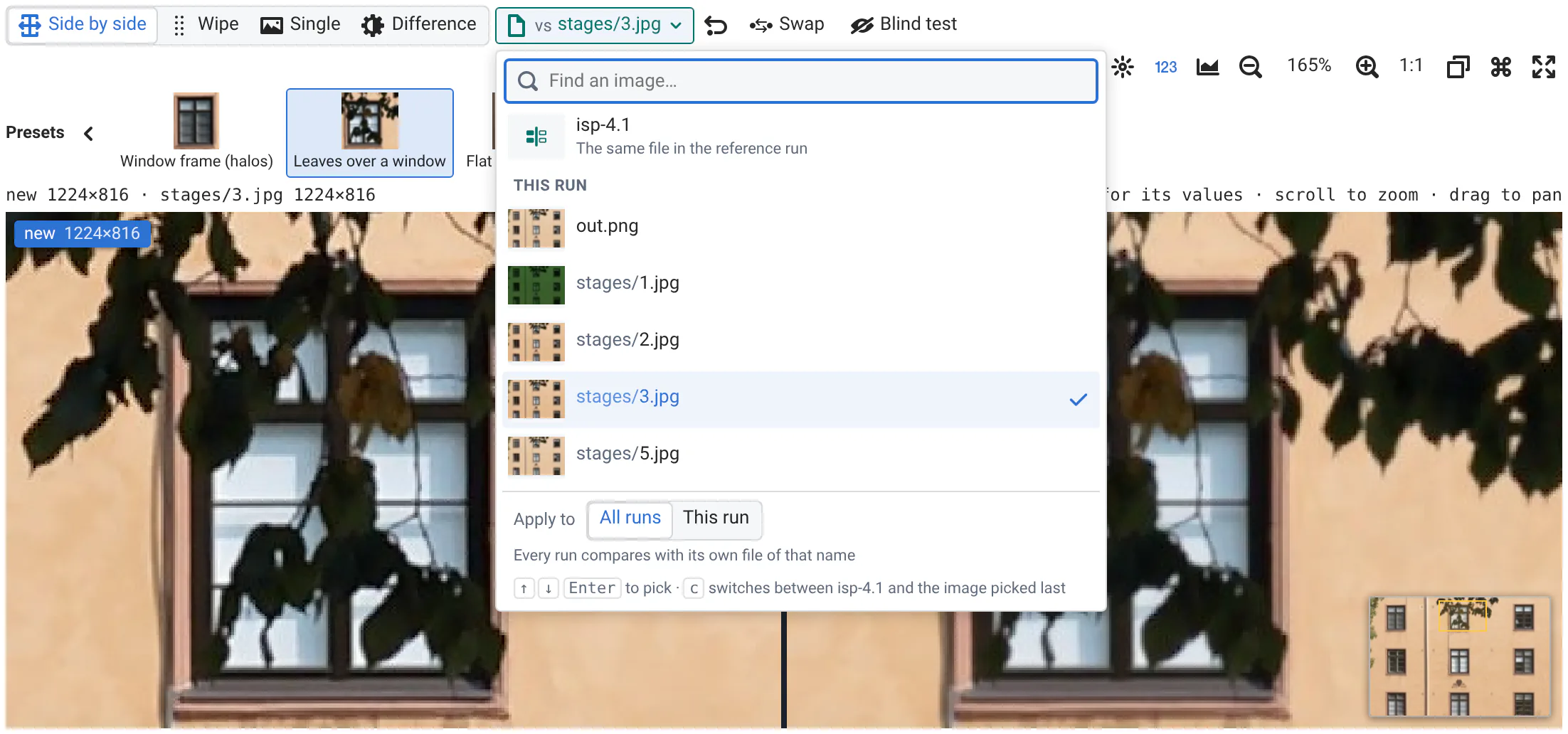
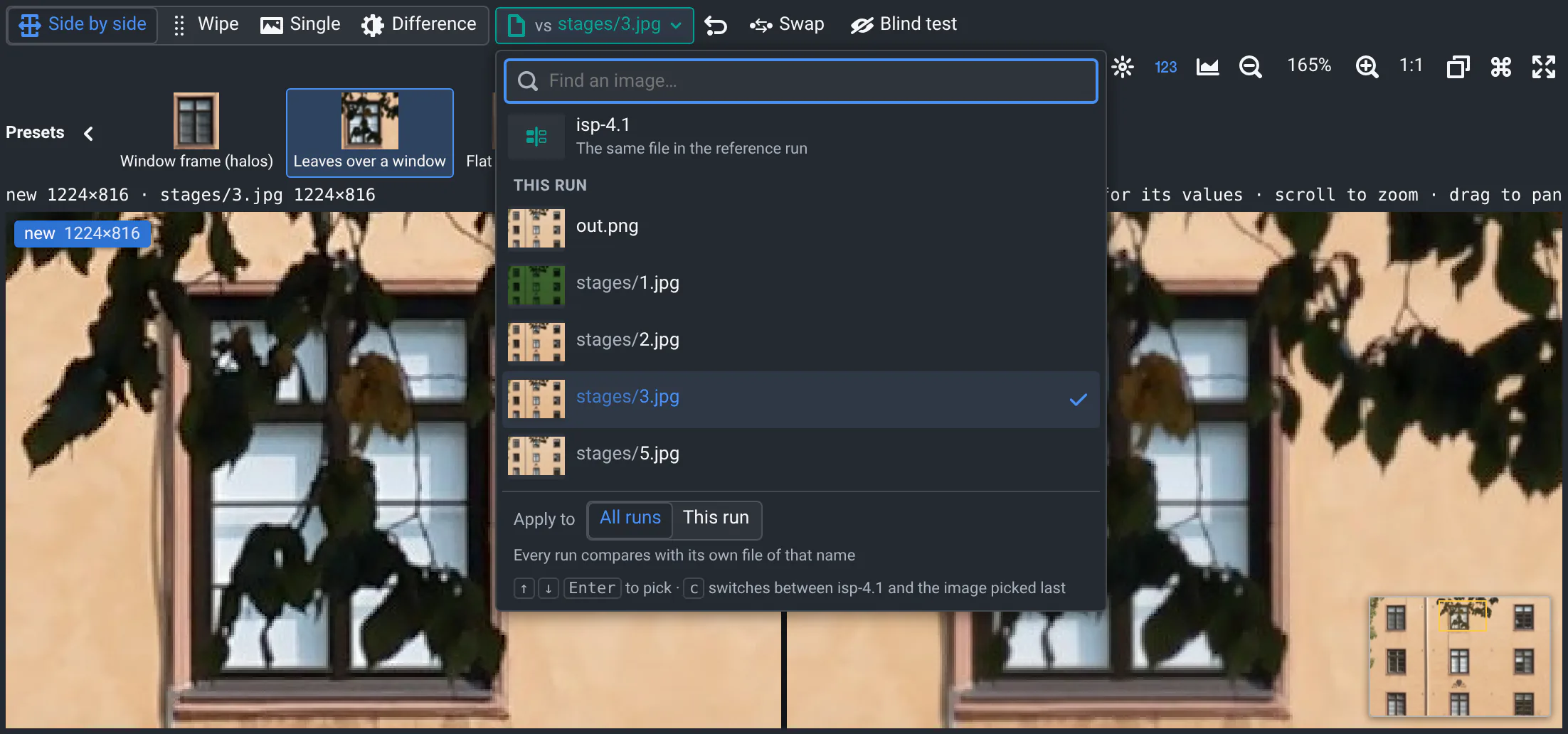
Every run's viewer of that visualization then compares with its own file of that name, so you can go through all the runs of the page. A run without the file compares with its reference, with a warning: no 0001.png here.
- To check a single run, pick This run under Apply to, at the bottom of the menu: the other runs keep what they compare with. All runs puts them in step again.
- The undo button next to the menu, or c, goes back to the reference. c again goes back to the file.
- Runs without a reference can compare with their files too: the menu then reads Compare with…. Runs without other images don't show the menu.
- The file you pick is for the page: on another commit or batch, images compare with their reference again. Switching references keeps it.
Pixel values
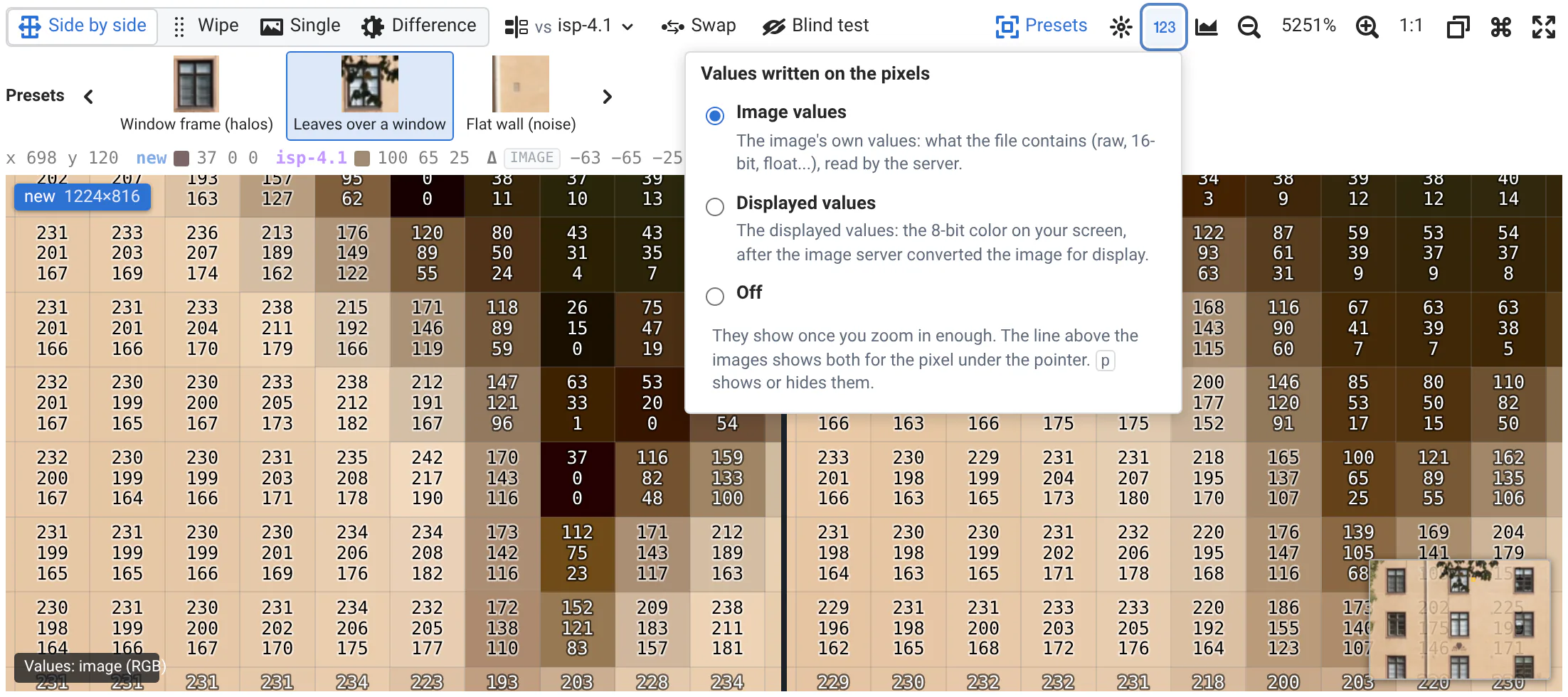
Hover a pixel: the line above the images gives its coordinates, its values in the new and reference images, and their difference, Δ, with the measure of the difference you picked. A crosshair marks the same pixel on both images.
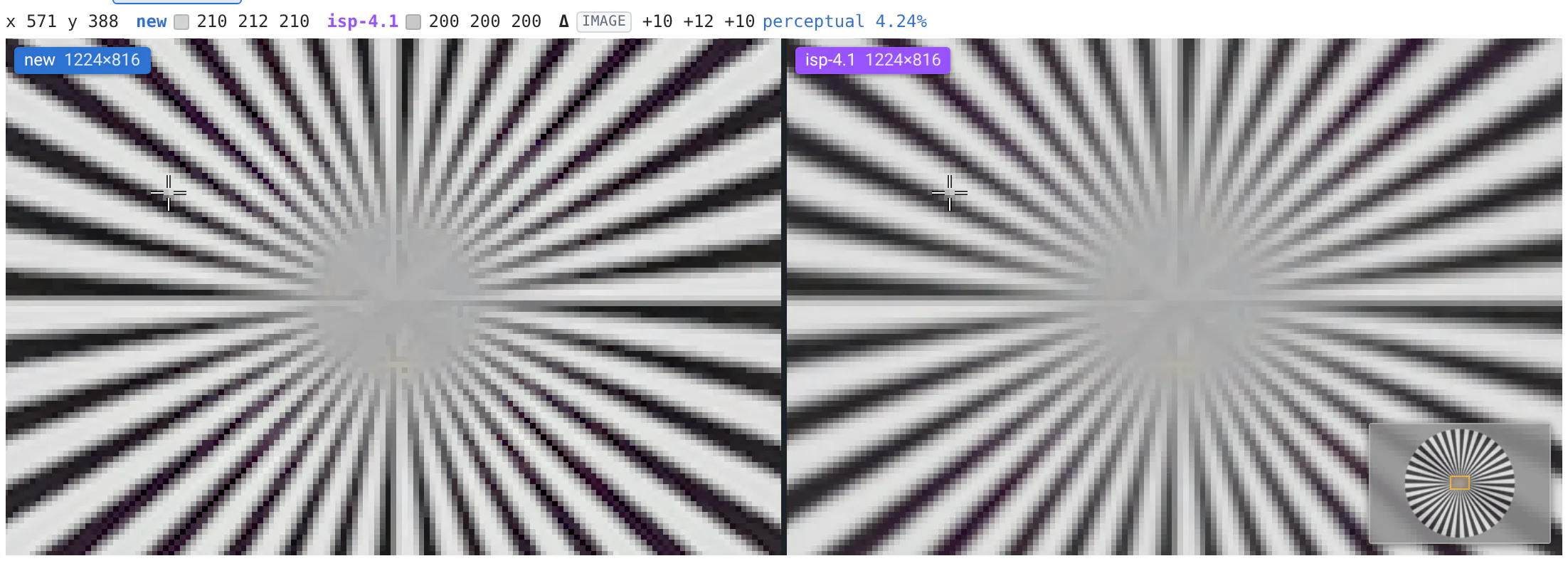
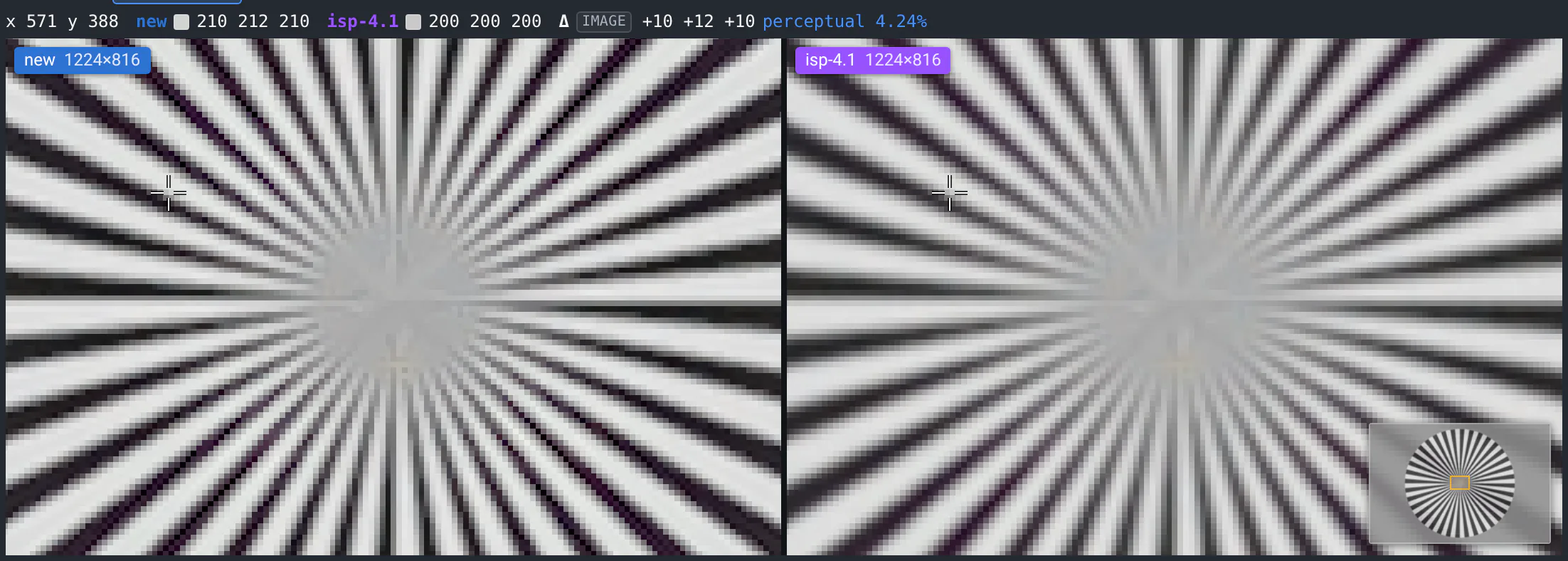
There are two kinds of values, and the line says which is which:
- image: the values in the file, as the run saved them: 16-bit, float, raw... The server reads them, and says what
they are, e.g.
I;16(16-bit gray) orF(32-bit float). - display: the 8-bit color on your screen. To show an image, the server converts it (16-bit to 8-bit, raw to RGB...), and zoomed out, a screen pixel averages many image pixels. It's what you see, not your data. The line lists it only when it differs from the image values.
8-bit images (L, RGB, RGBA) show one set of values, the image's: the screen shows them as they are, and a swatch
shows the color. Δ is the difference of the image values when both images have the same size, else of the
displayed ones. The measure (perceptual, ΔE...) is always on the displayed colors. Click the line to switch the values
to hexadecimal.
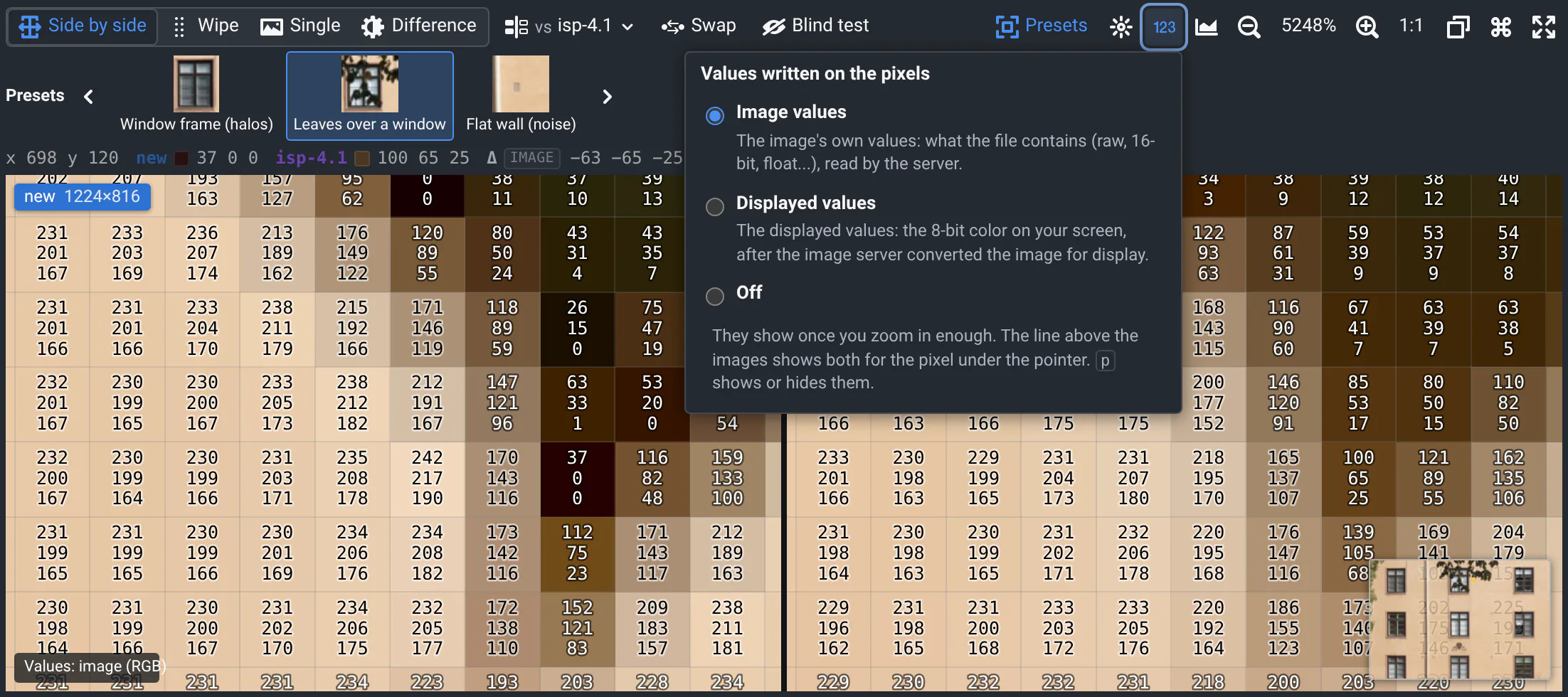
Zoom in until the pixels are large enough to hold their numbers (around 3000%) and the values are written on the pixels, in black or white so that you can read them. A badge under the images says which ones you're reading: Values: image (I;16) or Values: displayed, 8-bit. Pick them with the 123 button above the images (Image values, Displayed values or Off); p hides or shows them. Your browser remembers the choice.
Where the values come from
- The image values arrive by tiles of 64×64 pixels: the first ones can take a moment while the server opens the image, the next ones are quick.
- When the server can't read the file, the line says unavailable: hover it to see why, and use the displayed values.
- The server reads the image values for signed-in users only: signed out, you see the displayed values, and the viewer asks you to sign in.
- When the images have different sizes, the line also gives the pixel's coordinates in the reference.
- The line keeps the last pixel you hovered when you leave the image, so that you can click it.
- Raw formats need a reader on the server: see the image viewer's setup.
Histograms, profiles and statistics
The analysis button, in the toolbar above the images, left of the zoom (or a), opens a panel under the images with three views: Histogram, Row / column profiles and Statistics. Your browser remembers the view you picked last. The three views measure what the images show (the displayed values, from 0 to 255) in the view: zoom on a region to measure that region. Click R, G, B or Y (luminance) at the top right to show one channel alone, click it again to show them all (Shift+click shows or hides one channel).
Histograms
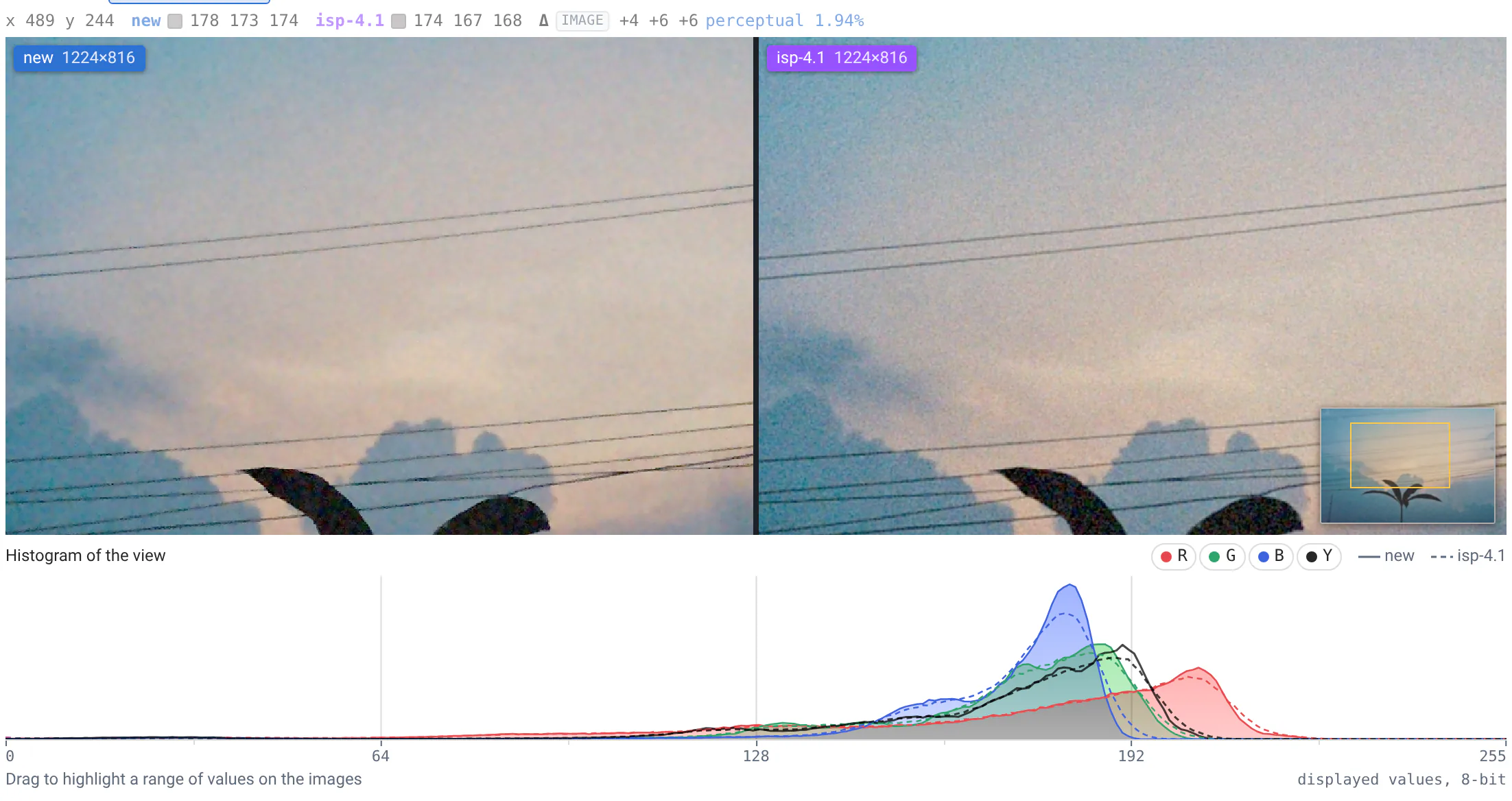
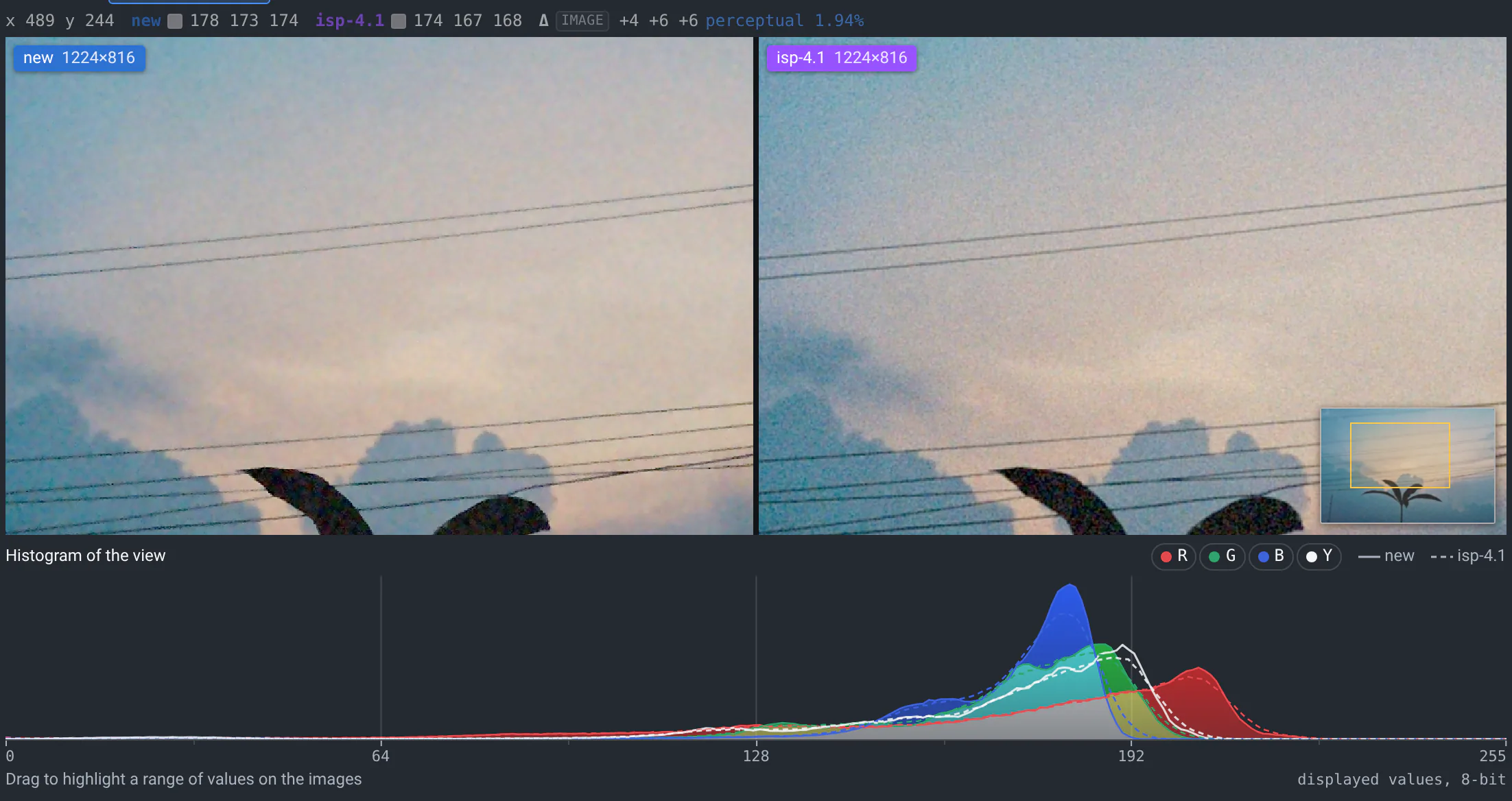
The histogram shows the red, green, blue and luminance (Y) histograms of what the images show, new in solid lines and the reference dashed. Zoom on a region to see its histograms. Hover them to read the share of the pixels at a value, in each channel. They count the displayed values, from 0 to 255.
Highlight a range of values by dragging on the histogram: stripes mark the pixels in the range on the images, the rest is dimmed, and below the histogram you read the share of each image in the range. A pixel is highlighted when all the channels shown are in the range: click R, G, B or Y above the histogram to show that channel alone, e.g. to find the reds clipped at 255, and click it again to show them all (Shift+click shows or hides one channel). Drag the range's edges to resize it, or its middle to move it. Click the histogram, or press Esc, to clear it.
Row and column profiles
Row / column plots two profiles: Columns, the average of each column of the view along x, and Rows, the average of each row along y, new in solid lines and the reference dashed. Use them to see vignetting and lens shading, banding, a gradient that isn't smooth, or where two images drift apart. A band around each average shows how much the values vary across the column or row: ±1 std dev (noise, on flat areas) or min–max.
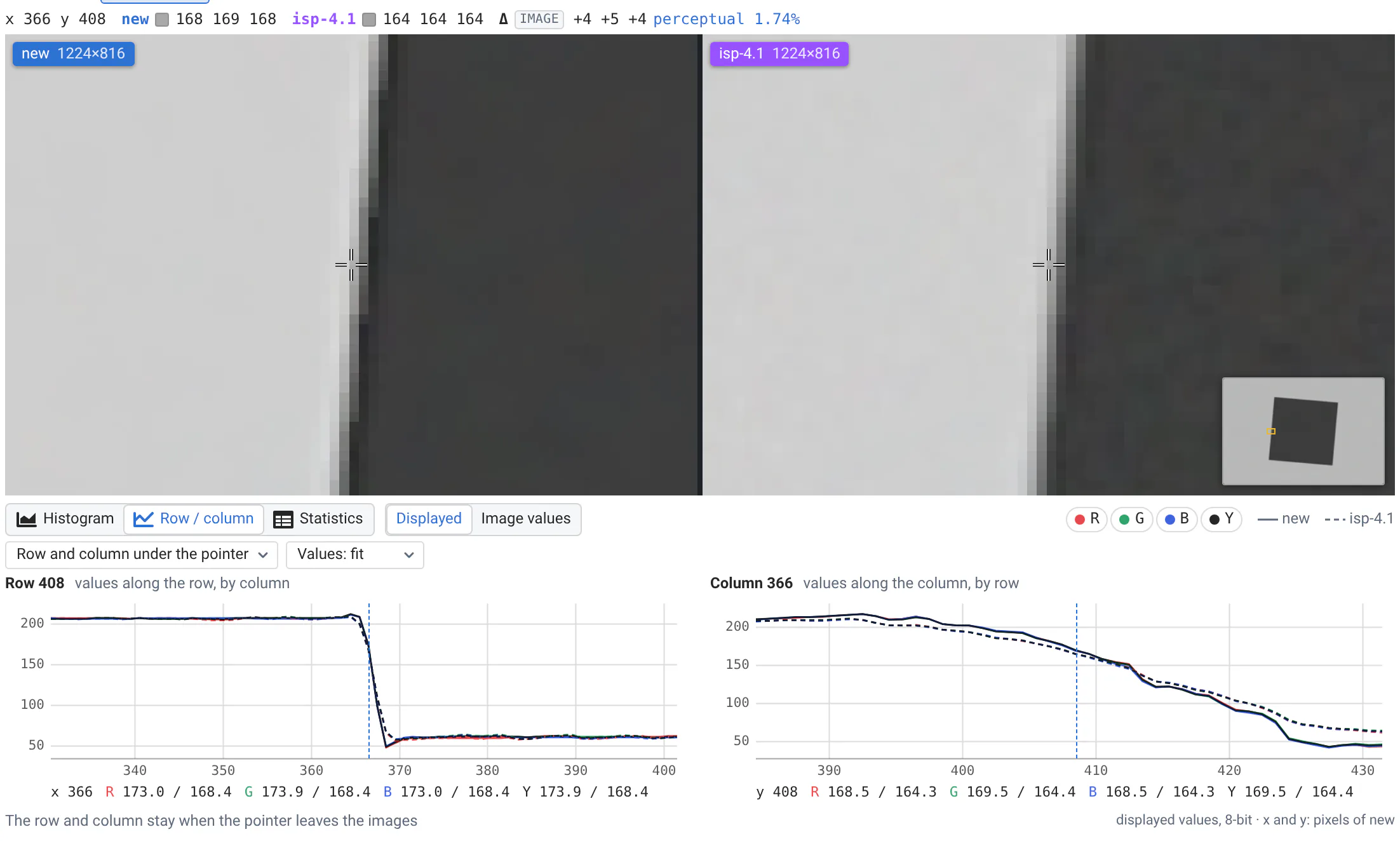
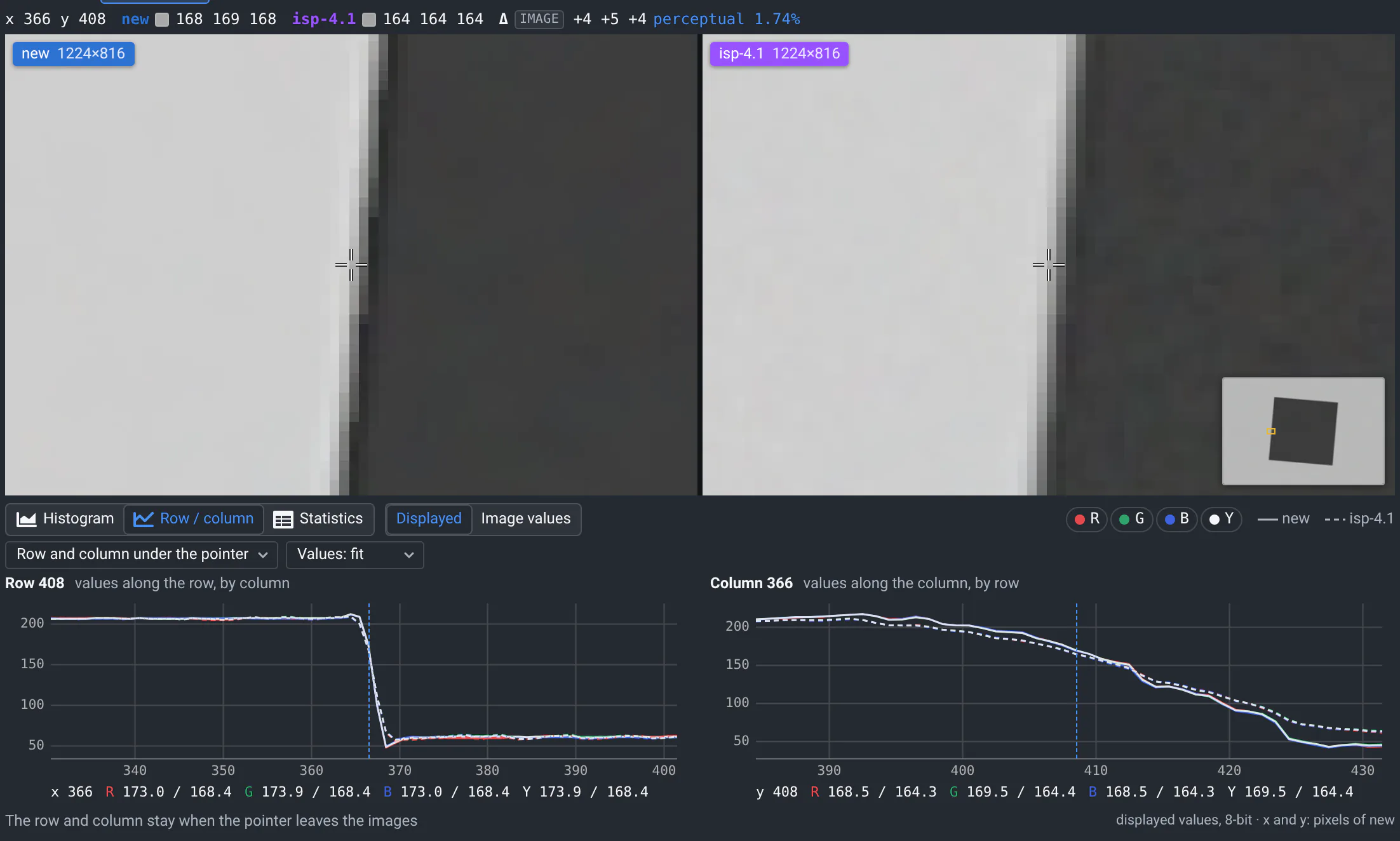
Pick Row and column under the pointer to plot the values along the row and the column of the pixel under the pointer instead: they stay when you leave the images, so that you can read them. Values: 0–255 shows the whole range rather than fitting the axis to the values.
Hover a profile to read the values at a position, and see that column or row on the images (zoomed in, it frames the pixels). Hover the images to see where the pointer is on the profiles. x and y are pixels of the new image.
Statistics
Statistics gives, for each channel shown and each image: the mean, standard deviation, SNR (20·log10(mean / std dev), meaningful on a flat area such as a gray patch), min, 1st percentile, median, 99th percentile, max, and the shares of values clipped at 0 and saturated at 255. The Δ lines give new − reference. Hover a column's name for its definition. Copy copies the table as tab-separated values, to paste in a spreadsheet.
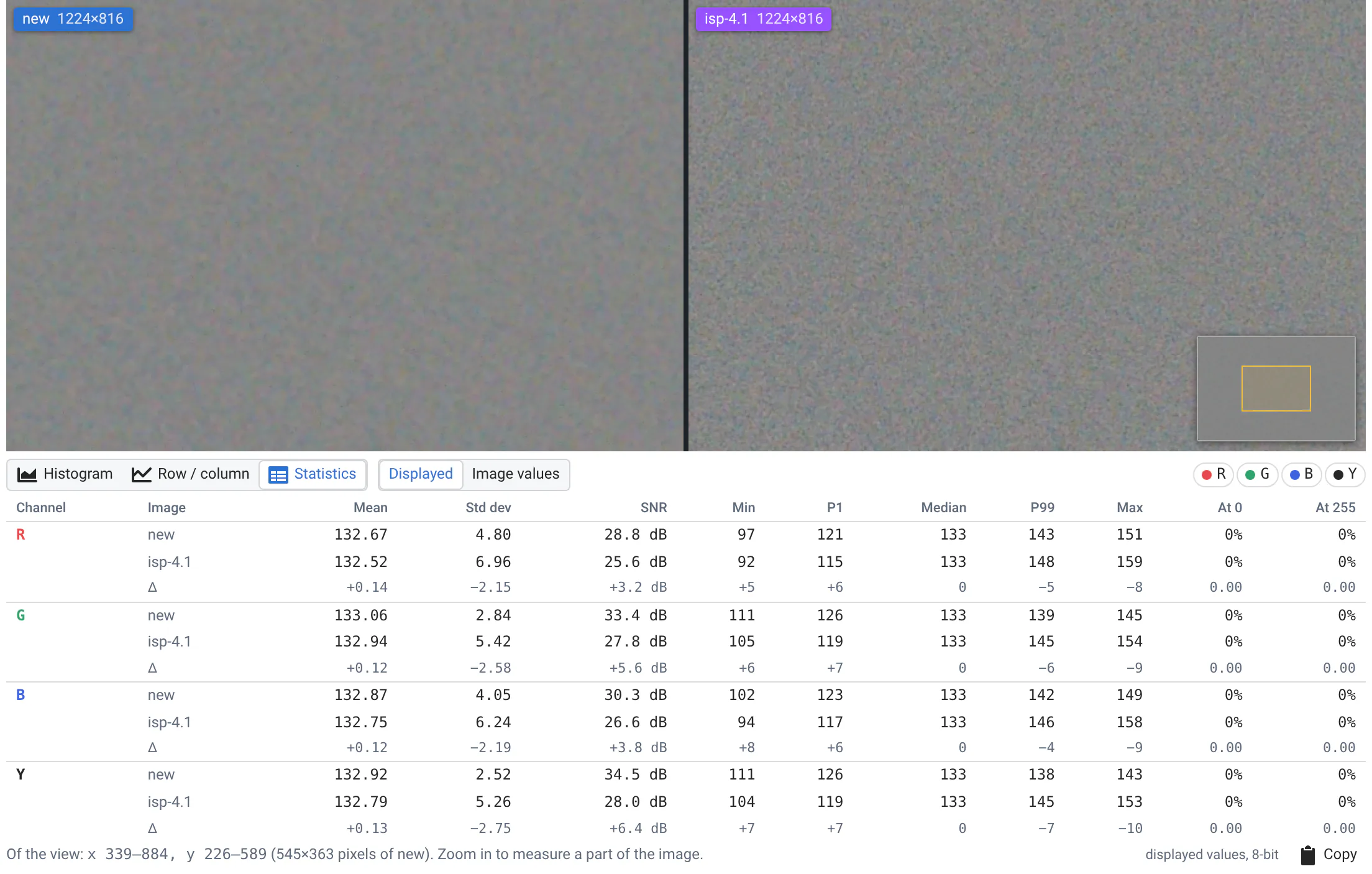
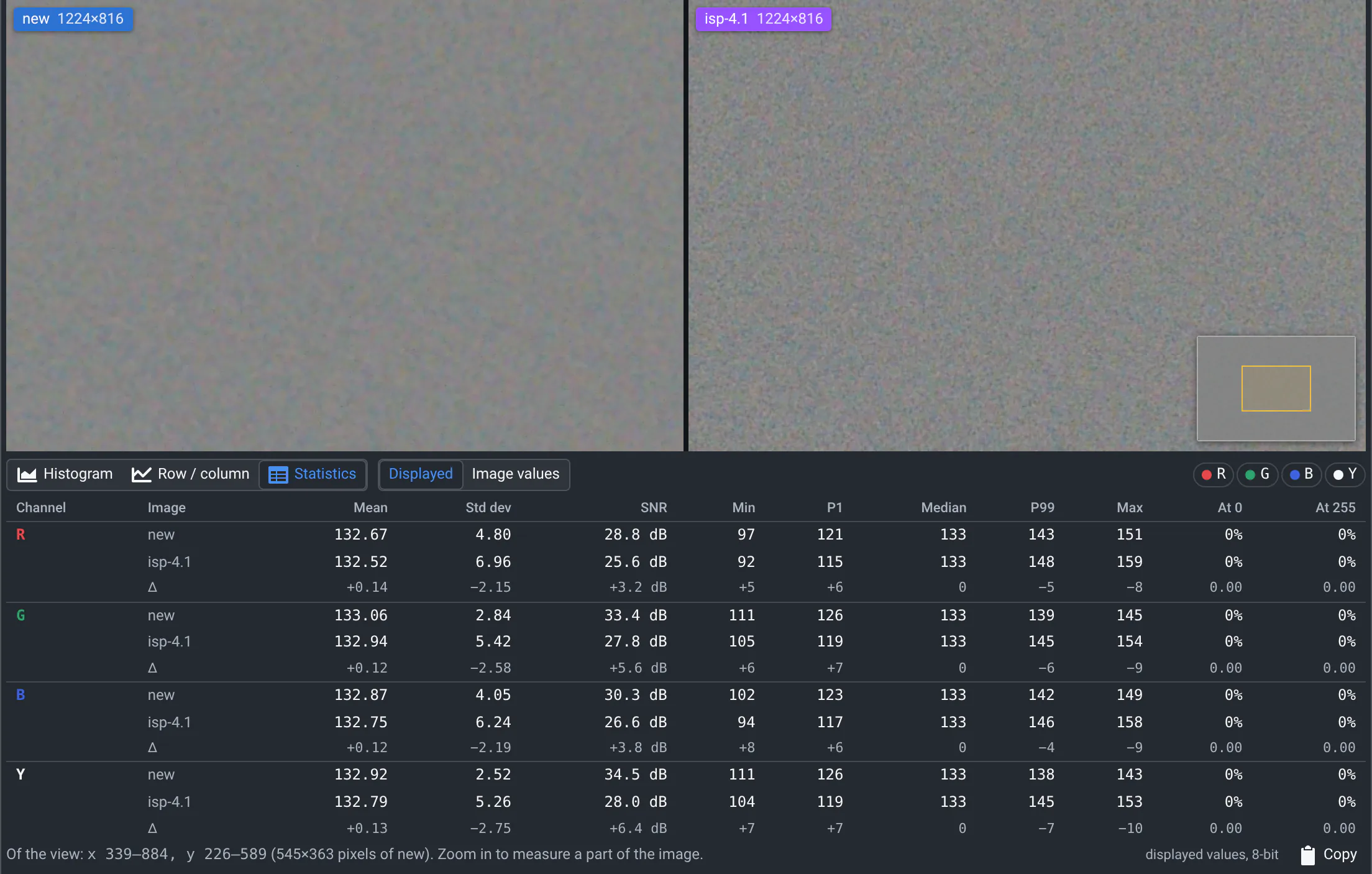
What the profiles and statistics measure
- They are computed on the displayed 8-bit sRGB pixels, at the screen's resolution: zoomed out, a screen pixel averages many image pixels, which lowers the standard deviation. Zoom to 100% or more to measure noise.
- They are not the image's own values (raw, 10-bit, 16-bit...), and don't separate the channels of a color filter array (Gr, R, B, Gb): for those, pick Image values, below.
Raw images, by channel of the sensor
Pick Image values next to the views (signed in) to measure the image's own values instead of the displayed ones: 10-bit, 16-bit, raw, at full resolution. The three views then work per channel of the sensor's color filter array (CFA): R, Gr, Gb and B, like a raw image tool. Your browser remembers the choice.
A card above the views says what the sensor is, with a diagram of its pattern from the file's first pixel: for example GRBG · Tetra 2×2, 10-bit, black 64. A tag next to each value says where it comes from:
- metadata: the image's reader on the server, e.g. a raw file's header or its JSON sidecar,
- guessed: the pixels. QA-Board finds the cell size (Bayer 1×1, Tetra 2×2, Nona 3×3, 4×4… up to 9×9) and where the greens are from a patch at the center of the view. It can't tell red from blue in a single channel: Swap R and B if they're the other way. Images where each pixel has only one of R, G and B set are read exactly,
- yours: what you set with the Sensor button: the pattern, the cell size, the offset, the black level. It applies to both images, and your browser remembers it for the project.
When the metadata and the pixels disagree, the card says so. When the reference's metadata knows what you only guessed for the new image, use its… copies it.
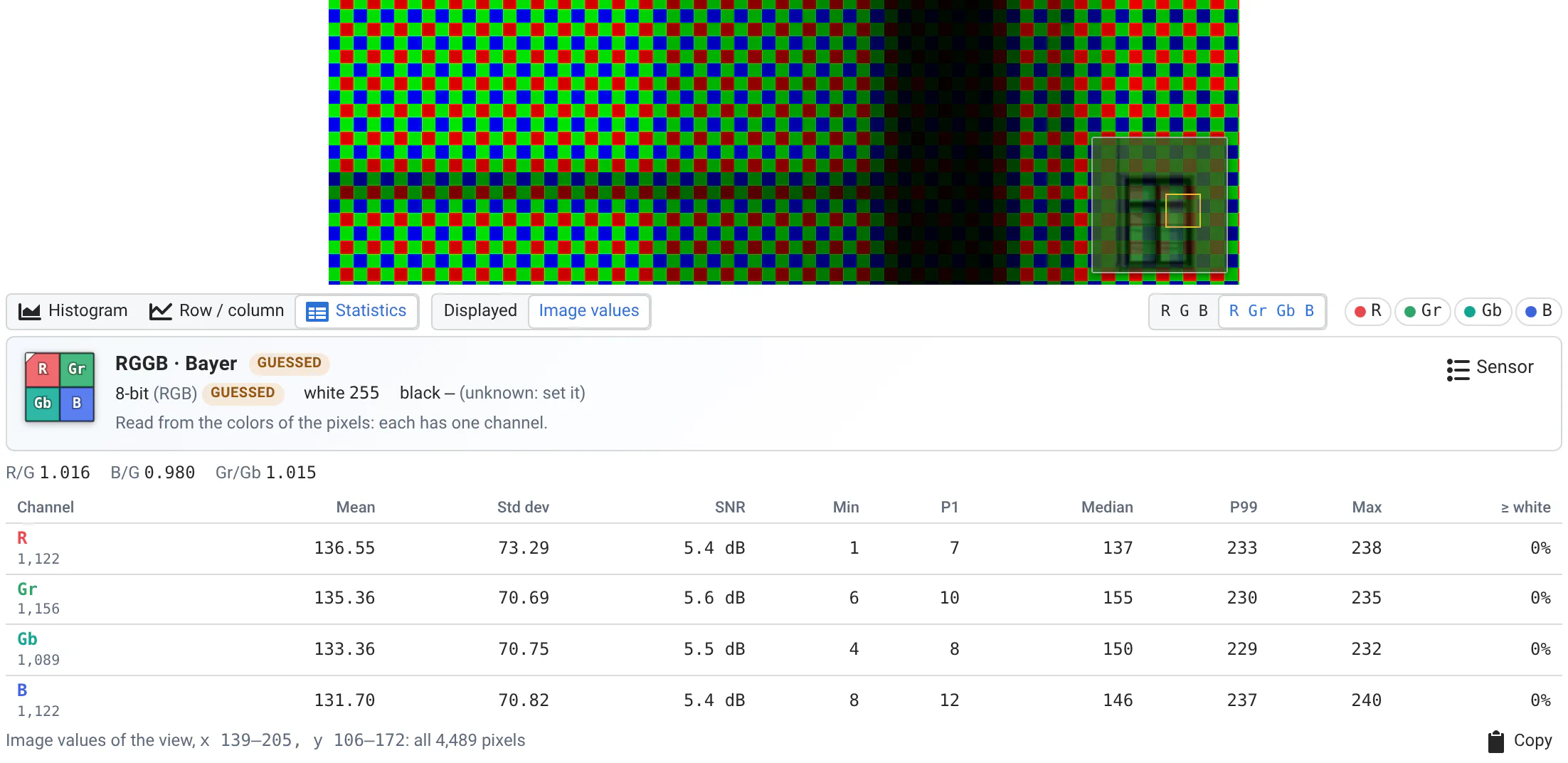
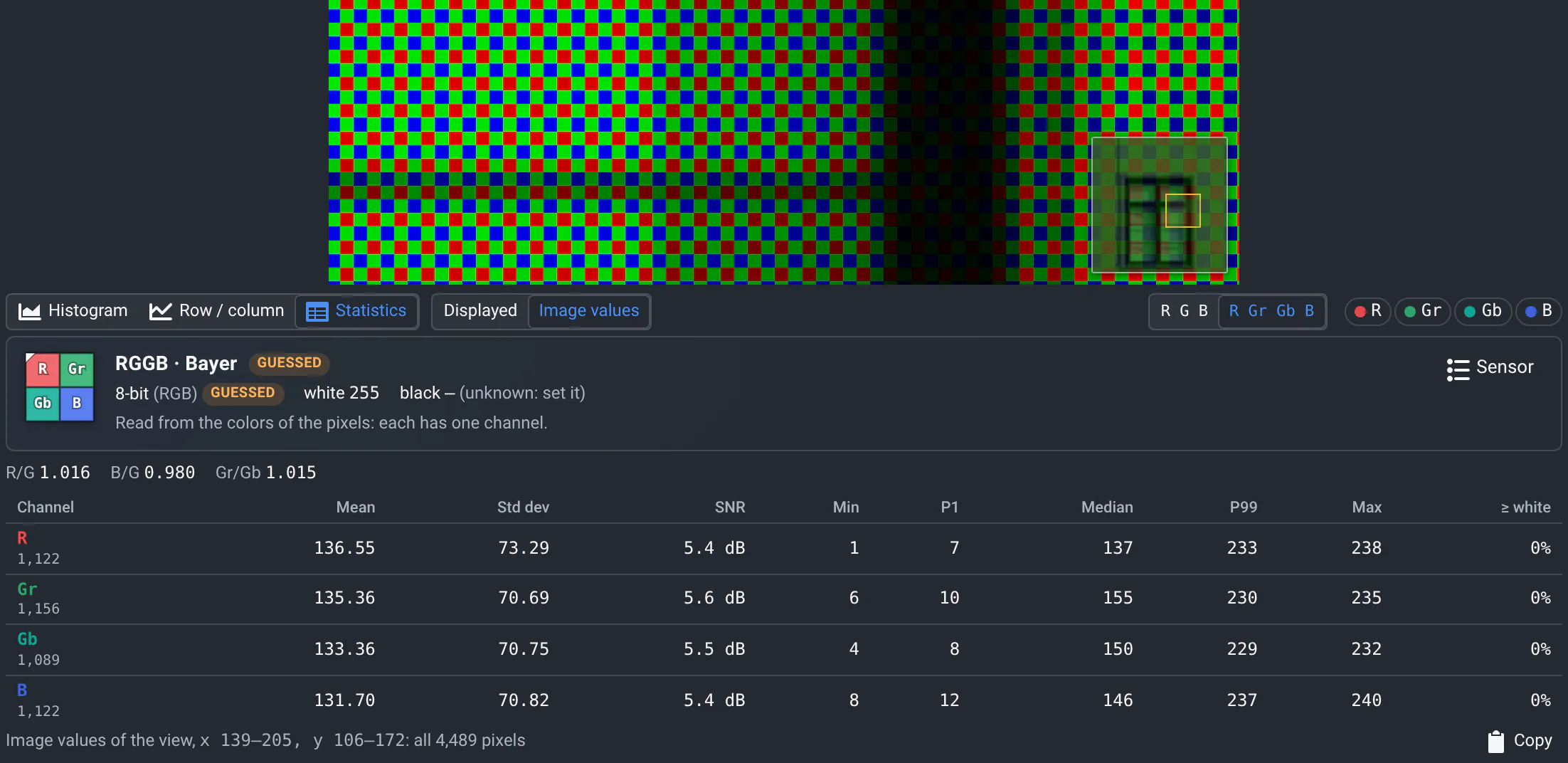
- R G B, R Gr Gb B or Sub-pixels groups the channels. Sub-pixels splits each cell, e.g. R1 to R4 in Tetra: their maps show how each differs from its cell. When some sub-pixels are brighter, e.g. long and short exposures, the card says which.
- Statistics adds the mean without the black level, the SNR from it, the share of values at or under the black level and at the white level, and the ratios R/G, B/G (the white balance) and Gr/Gb (the greens' imbalance).
- Row / column plots each channel, averaged over a period of the CFA, with the black and white levels.
- Histogram shows each channel's values, on a linear or log scale.
What is read
- Views of up to 2 million pixels are read whole. Larger ones are read in strips across them, evenly spaced, and the views say how many rows and columns: zoom in to read every pixel.
- Without a black level, the statistics use 0. Set it with the Sensor button: your browser remembers it for the project.
- Without metadata, the bit depth comes from the largest value: 10-bit values in a 16-bit file read as 10-bit.
Adjust the display
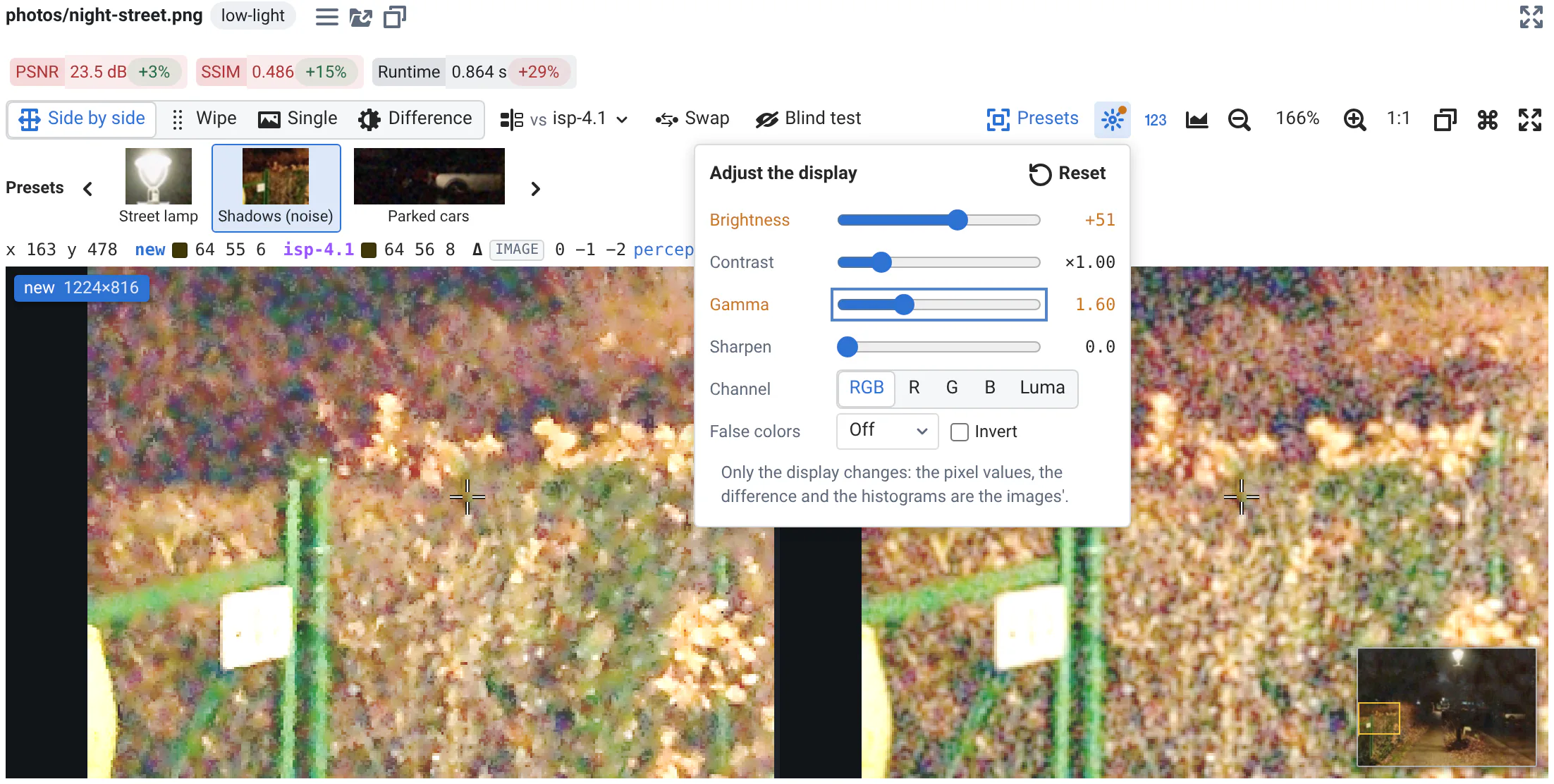
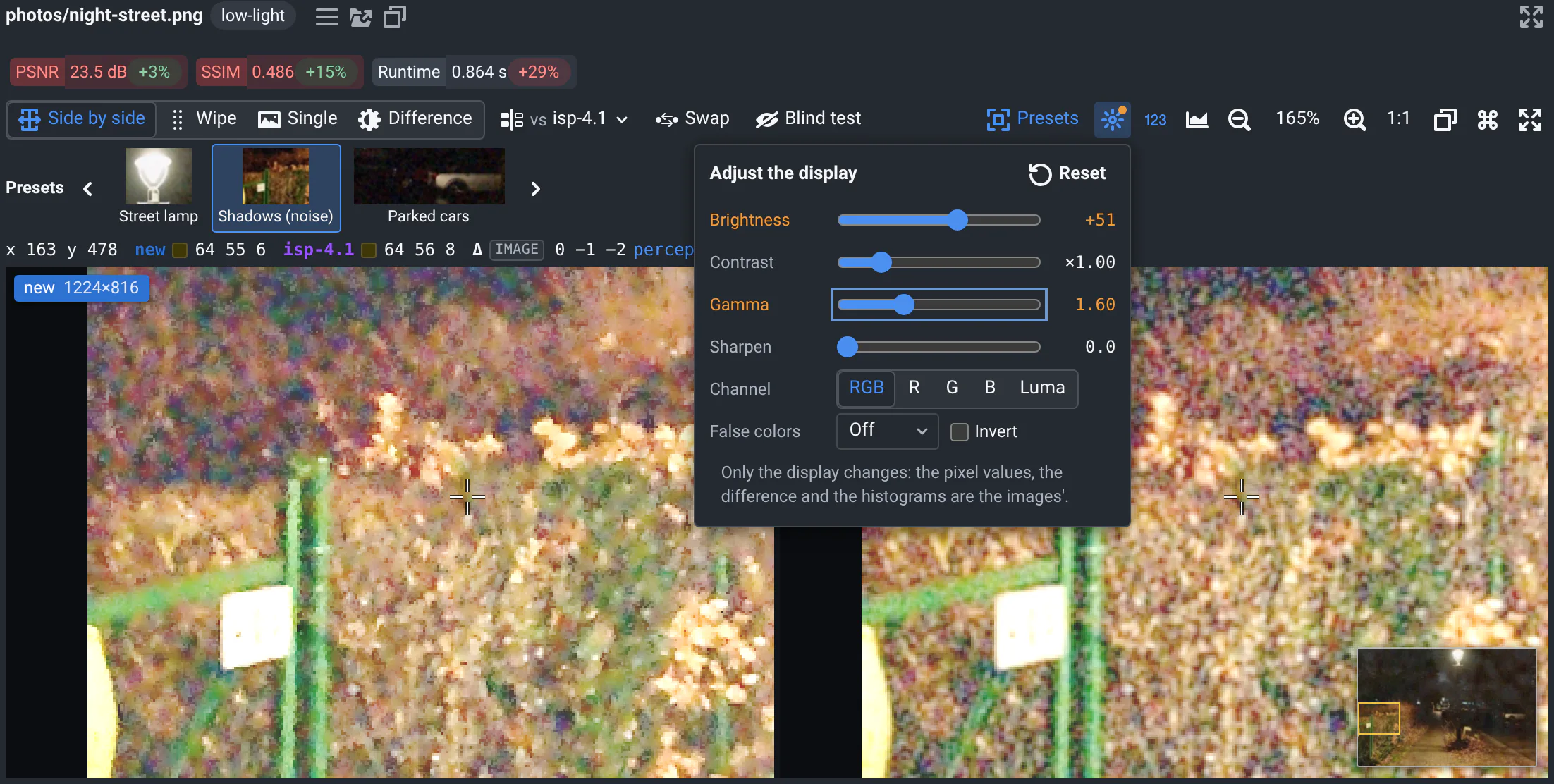
The adjustments button changes how the images look: Brightness, Contrast, Gamma, Sharpen, one Channel (R, G, B or Luma) as gray levels, False colors (Turbo, Viridis or Inferno) and Invert. Raise the gamma to look into the shadows of a night shot at ISO 3200, show one channel to see its noise alone, or spread small gray-level changes over a false-color palette.
The adjustments apply to both images, and to the same visualization in the other runs' cards, so that they stay comparable. Only the display changes: the pixel values, the difference and the histograms are the images'. A dot on the button reminds you they're on; Reset, or a double-click on a slider, puts them back. They're not saved in the link.
Blind test
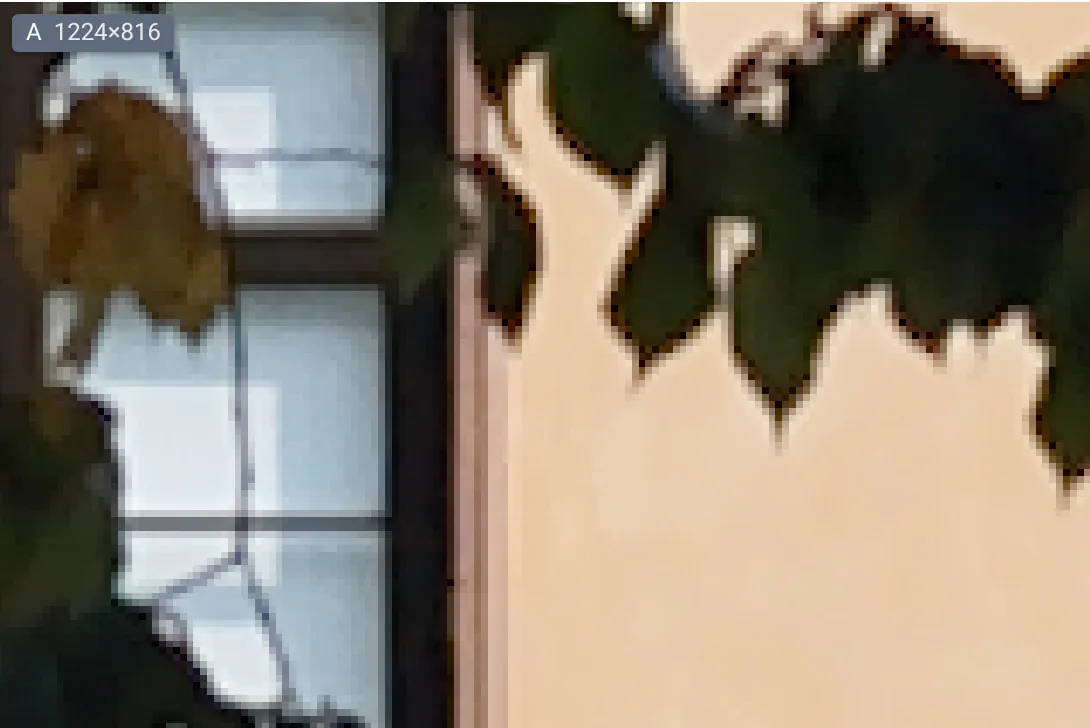
To judge images on their looks alone, e.g. to pick between two denoisers with a colleague, hide which is which: click Blind test next to the swap button, or press h. Every viewer of the page shows its two images in a random order, its own, called A and B: in their labels, the values under the pointer and the histograms. Nothing else tells them apart: the labels turn gray, and the links to the files are hidden. Compare them, flip them (in Single, t goes from A to B and back), and pick the one you prefer.
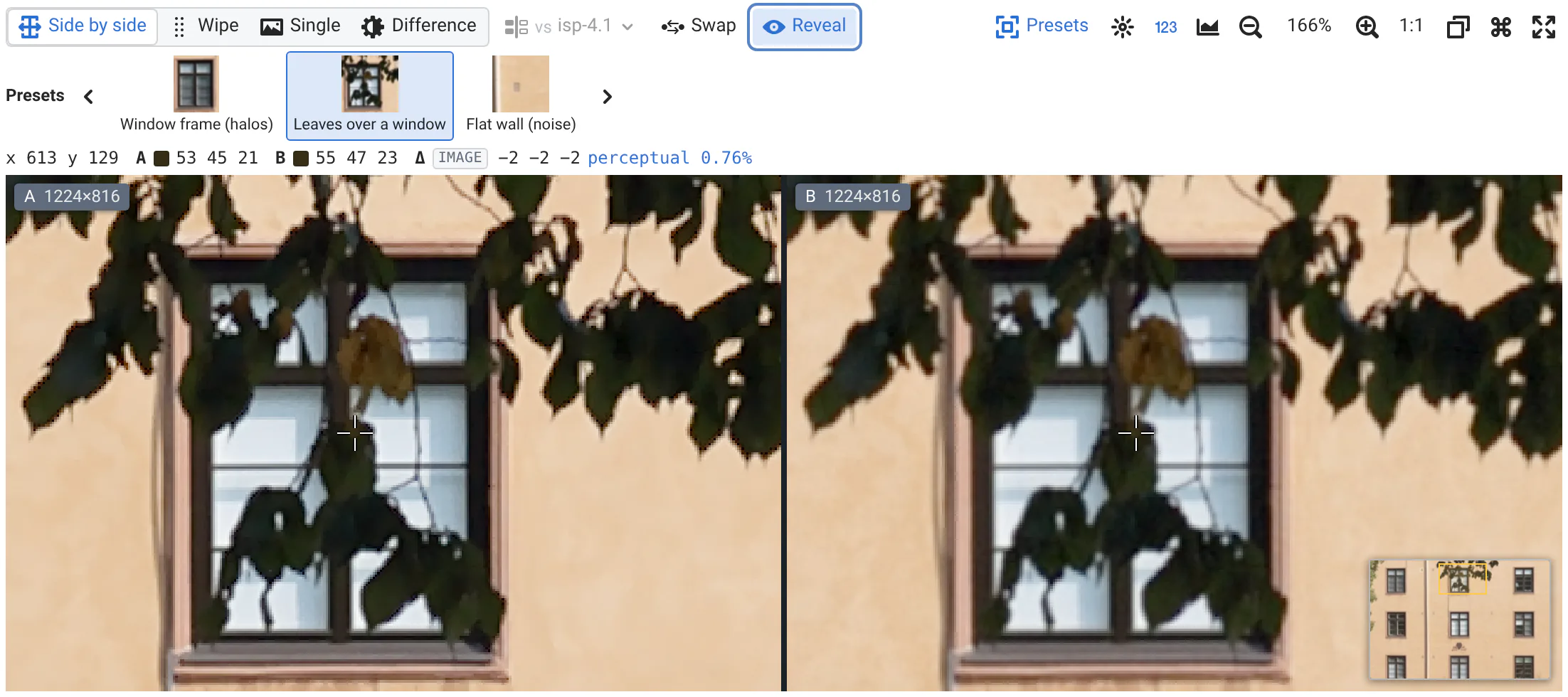
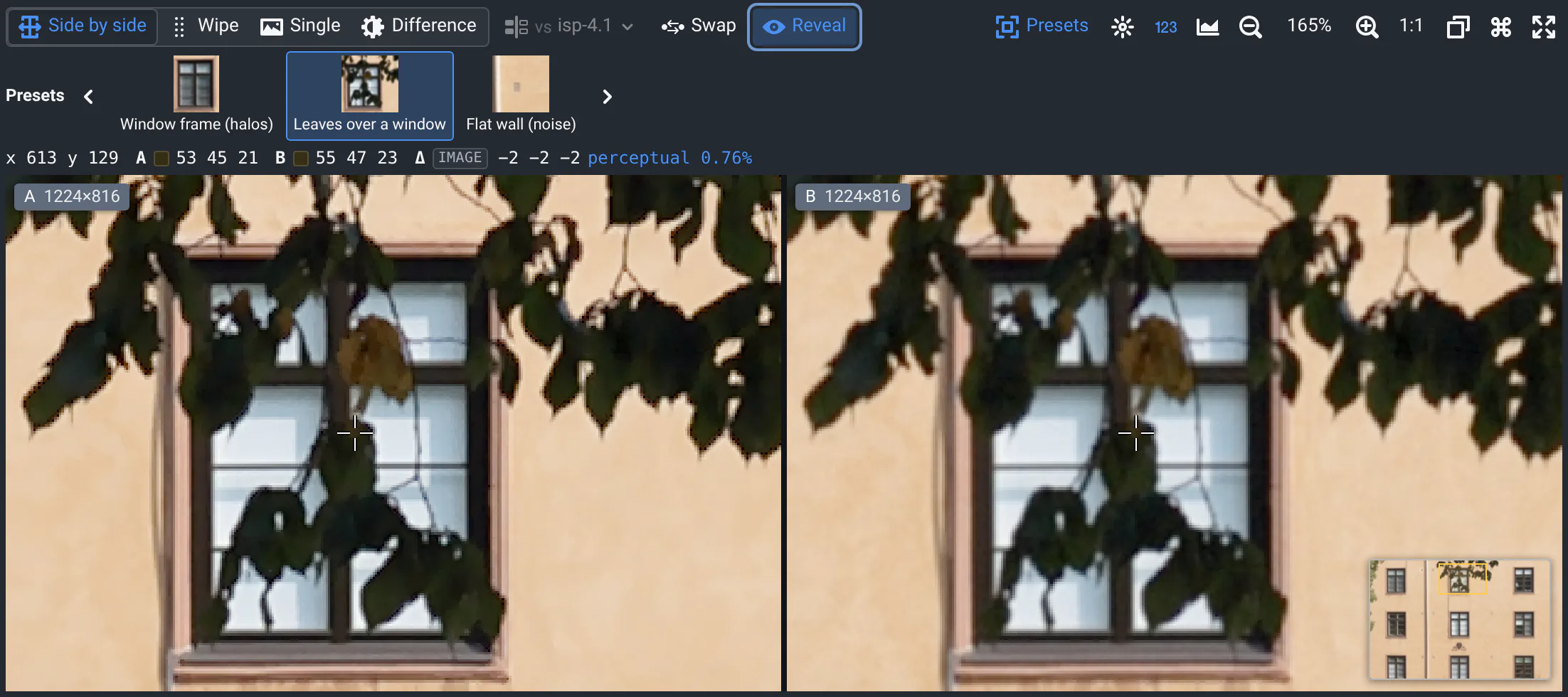
The same button, now Reveal (or h), shows which was which, e.g. reference · A, without moving the images. Then Done (or h) ends the test: new first again, everywhere.
Full screen
The full screen button at the right of the viewer's toolbar, or f, gives the whole screen to the images, with the toolbar: the modes, the difference, regions and pixel values all work there. The difference goes under the two images when that makes them larger, and the analysis panel (a) under them, both in view. Esc or f leaves.
The button at the top right of each card shows the whole card in full screen instead, with its file picker.
Large images
Images are streamed tile by tile by an image server: the viewers load only what they show, at the resolution they show it. A 113 MP test wall zooms from the whole wall down to single pixels, in both viewers at once.
Good to know
- When a run saved both out.png and out.tiff, the viewer shows the TIFF.
- When tiles can't load, a warning says how many, e.g. 2 tiles failed: hover it to see why.
- The image values under the pointer come by tiles too, see where the values come from.
- Which image server shows which formats is set up by your admins: see the image viewer's setup.
Copy and save
The copy button above the images copies the new or reference image, or in Difference mode their difference, as you see them, with the adjustments: paste them in a chat, a slide or a bug report. It also saves them as PNG files, and opens the original files.
- Copying images needs the web app on
https: else, save them. - To share the comparison itself, copy the page's link: it keeps the commits, the mode and the difference's settings, but not the zoom. See sharing.
- To make the region you're looking at a preset, use Copy the view as a region in the regions menu.
Keyboard shortcuts
The keys work anywhere on the page, also while you scroll. They go to the viewer in full screen, else the one under your mouse, else the one you used last if it's in view, else the first one in view. They're ignored while you type in a text box. The keyboard button in the viewer's toolbar lists them.
| Key | What it does |
|---|---|
| 1 2 3 4 | Side by side, wipe, single, difference. 4 again: the difference with the images on its sides, or alone. |
| t | In Single: the other image, like a click on the image. Else swap the sides, or the order of the difference shown alone. |
| + - 0 | Zoom in, zoom out, fit the whole image. |
| Wheel, pinch | Zoom. |
| Drag | Pan. Drag the divider to wipe. |
| Double-click | Zoom in. |
| p | Show or hide the values written on the pixels. |
| a | Show or hide the analysis panel: histogram, row and column profiles, statistics. |
| c | Compare with the reference, or with the file you picked last in the vs menu. |
| h | Start a blind test, then reveal which image is which, then end it. |
| [ ] | Previous or next region of interest. |
| f, Esc | Full screen, and leave it. |
| ← → | On the wipe's divider or a histogram's range, once you've dragged it: move it (with Shift, the range moves by 16 values). |
| Esc | On the histogram: clear the range. |
Where to go next
- The video viewerStep through two videos in sync, frame by frame, with the same tools.
- Share what you foundLinks that open on the same comparison, paths, exports.
- Project integrationSet up image visualizationsWhich images show, raw formats, the image server.