The video viewer
The video viewer compares a run's video with its reference's: they play in sync, step frame by frame together, and compare like images, side by side, with a wipe or as their difference. QA-Board's server also reads the files: it tells which frame you're looking at, shows the pixels' decoded values (e.g. 10-bit Y′CbCr), and finds where and when the videos differ.
The basics
- Play or pause: click the videos, or press Space. Both play together. Paused, both show the same frame.
- Step frame by frame: ← and →, or the step buttons next to play. With Shift, move by a second.
- Compare: pick Side by side, Wipe, Single or Difference above the videos, or press 1 to 4. In Single, t flips between new and reference in place.
- Zoom and pan: the mouse wheel or a pinch zooms, dragging pans. Both videos follow.
- Read the pixels: hover a pixel to see its values in both videos, on the line above them.
The keys work on the viewer you clicked, else the one under your mouse. The keyboard button at the right of the toolbar lists them all, and so does the table below.
What the server reads from the files needs you to be signed in: exact frame numbers, decoded values, What's in the files and Differences. Signed out, the videos play and compare, frames are estimated from the frame rate, and the values are those on your screen.
A typical review: a new denoiser in low light
The camera team merged a bilateral denoiser. On the video of the robot driving down a warehouse aisle at ISO 3200, the
PSNR went from 20.5 to 20.7 dB. Was it better, frame by frame? Open the commit's Visualizations, pick the video
batch in both bars, the new one and the reference's, and look at the clips/aisle-drive.yaml card:
- Click Differences, at the right of the timeline. In about a second, the server compares all 72 decoded frames: Differ in 72 of 72 frames · most at frame 12 (Δ 99, PSNR 31.0 dB). Bars over the timeline show how much each frame differs: here, all of them, since a new denoiser changes every frame. See where the videos differ.
- Open the regions button and pick Differences, whole video. The first region, #1 · Δ 39% · frames 0–71, zooms on where the videos differ most, at frame 12. Press ] for the next one.
- Check the badge at the bottom left of the videos: ✓ Frame 12 · both means both videos show their frame 12, decoded from the files. See which frames you are looking at.
- Press 3 for Single, then t: new, reference, and again. Edges that flash when you flip are what changed; on the white packages, the new denoiser draws dark rims. See comparing two videos.
- Hover a pixel on a rim: the line above the videos shows its decoded Y′, Cb and Cr in both frames, and their difference. See pixel values.
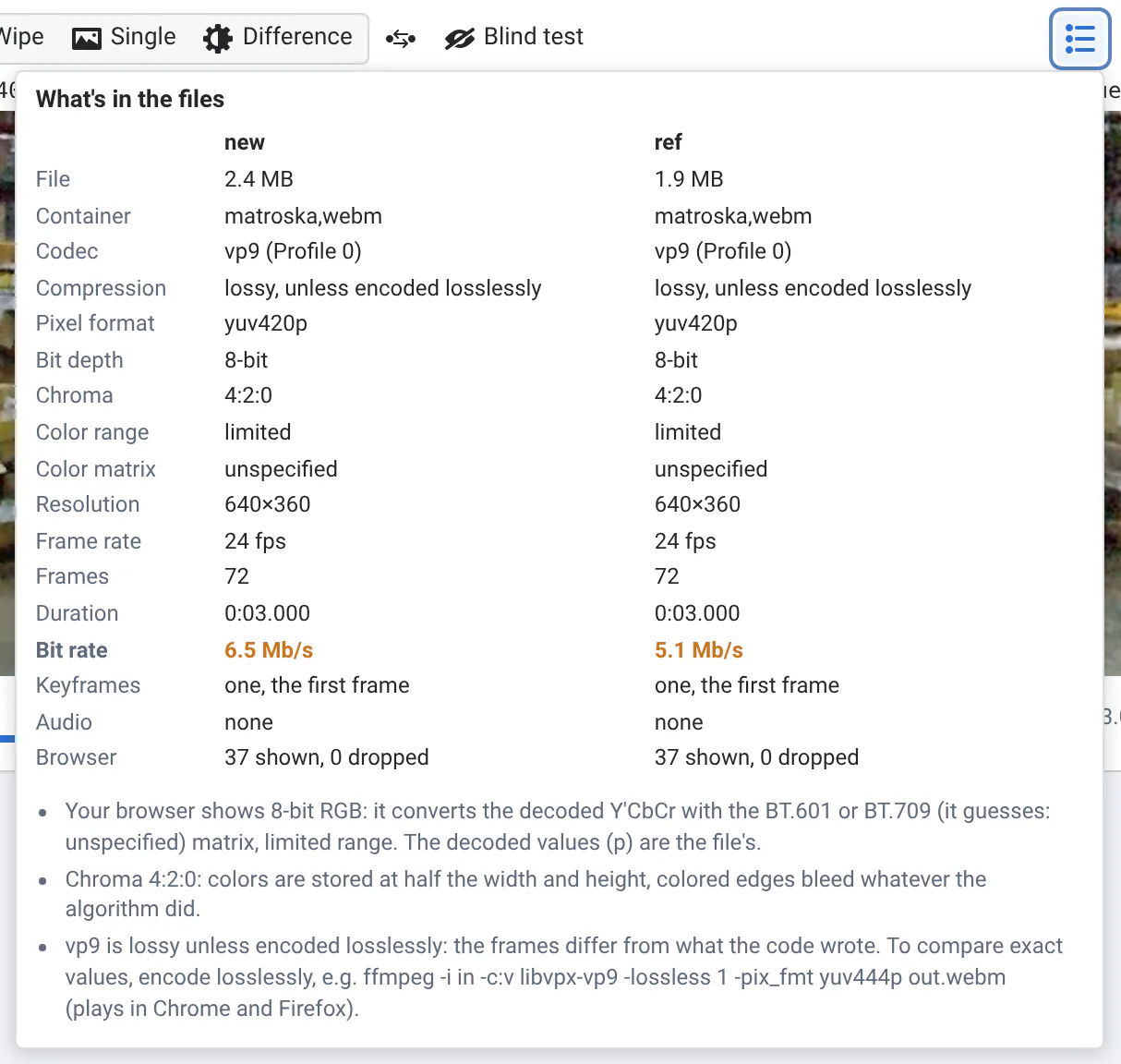
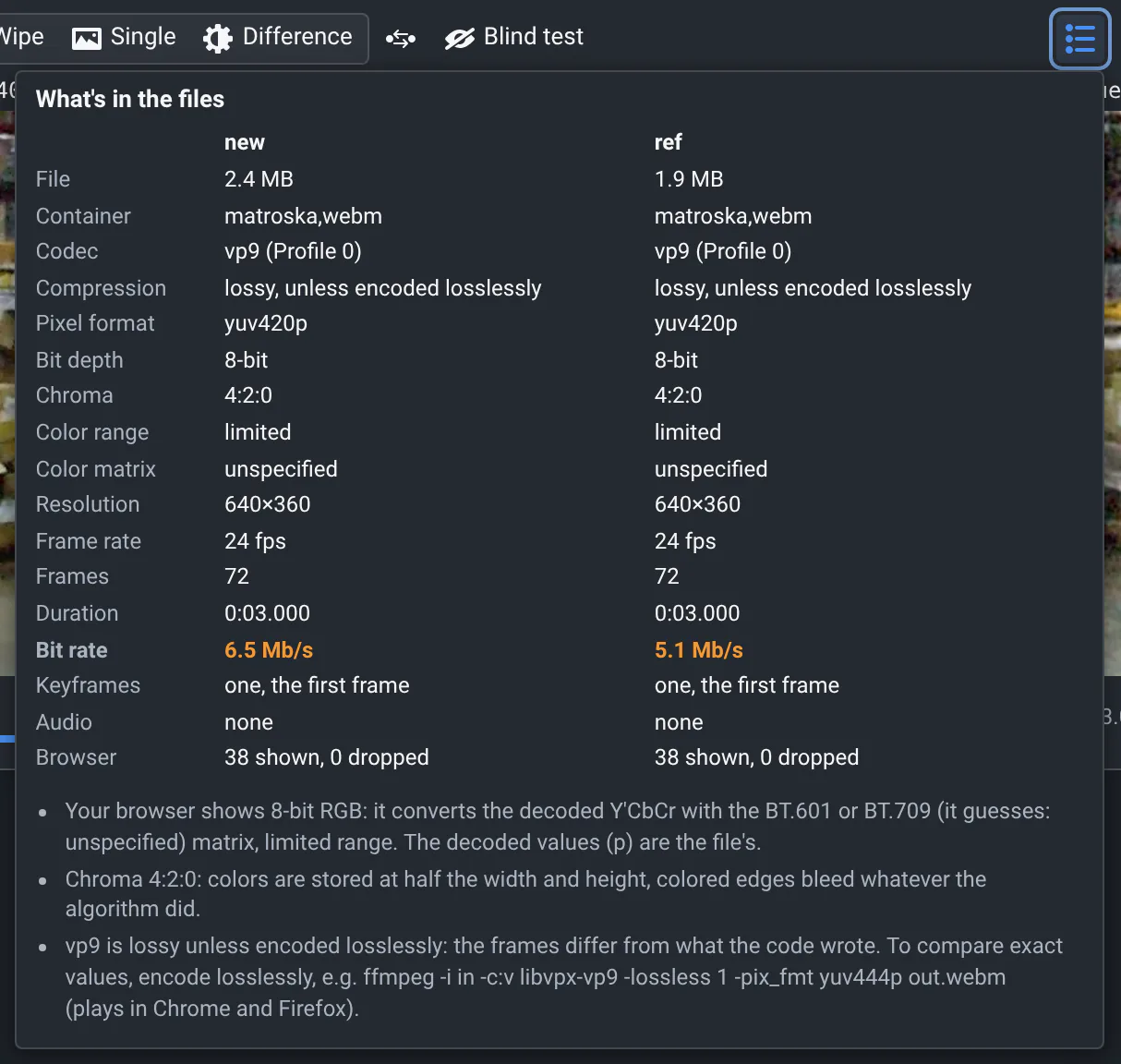
- Open What's in the files: both are VP9,
yuv420p(8-bit, chroma 4:2:0), lossy: part of every difference is the encoder's. The new file's bit rate is higher, highlighted: 6.5 Mb/s against 5.1 Mb/s. See what's in the files. - Open the camera button and pick Copy the new frame, then paste it in the review, next to the reference's. See copy or save a frame.
Compare two videos
Pick how to compare above the videos. The modes are the image viewer's:
| Mode | What you see |
|---|---|
| Side by side | New on the left, reference on the right. A cross marks the spot under your mouse on the other video. |
| Wipe | One video over the other: drag the divider to see new on one side, reference on the other. |
| Single | One video at a time, in place: t (or a click on its label) shows the other, then the first again. |
| Difference | Their difference, between the videos (new | difference | reference). With the videos, Difference again, or 4 again, shows it alone, larger. |
The difference is computed on your graphics card for every frame shown, also while the videos play. Pick how to measure it next to the modes, like for images: Perceptual, ΔE 2000, Absolute, Signed or Any change (see the difference). It's computed on the colors your browser displays; the server compares the decoded values in Differences.
- Swap (or t, with both videos shown) exchanges their sides.
- Blind test (or h) shows the videos in a random order, called A and B, until you click Reveal, then Done. During the test, the Frames menu doesn't open the files, and saved frames are named A and B. See blind test.
- Zoomed in, you see the actual pixels, not a blur, and a minimap shows where you are: click or drag it to move. 1:1 shows one video pixel per screen pixel, the percentage (or 0) fits the videos again. Videos of different resolutions stay in sync.
QA-Board remembers the mode, the measure and the pixel values you pick, in your browser, for all the videos. When both runs saved the same file, one video shows, tagged same video as the reference.
Play, pause and step through frames
New and reference play as one. While they play, the reference's speed is nudged to stay on the new one's frames, and when one video is still downloading, the other waits for it. Paused, both show the same frame.
- Step: ← → go back or forward one frame, Shift+← → one second, Home and End to the first and last frames.
- Seek: click or drag the timeline. Hover it to see the time and frame there, and, once you ran Differences, how much that frame differs. Dragging pauses playing videos; they play again when you let go.
- Slow down: the speed menu goes from 0.1× to 4× (0.1, 0.25, 0.5, 1, 1.5, 2, 4), or press < and >. At 0.1×, a 30 fps video shows 3 frames a second.
- Loop: on by default, the loop button turns it off. m mutes or unmutes the new video's sound.
Next to the time, frame 27 / 72 counts the frames. Hover it for the frame rate and where it comes from: the
timestamps of the file's frames, fps in qaboard.yaml, or measured while the video plays.
Which frames you are looking at
Videos are compressed, and browsers can skip frames while they play: the viewer says what you look at. Paused, the badge at the bottom left of the videos tells which frame each one shows:
| Badge | What it means |
|---|---|
| ✓ Frame 42 · both | Both videos show their frame 42, as decoded from the files. The server read the timestamp of every frame, so frames are numbered from 0 like in the file, also with variable frame rates. |
| Frame 42? | The frame is estimated from the frame rate, e.g. when you're signed out or the server can't read the videos. |
| new 42 · reference 21 | The videos show different frames, e.g. they have different frame rates: they're compared at the same time. |
| Playing | Pause, or step with ← →, to compare exact frames. |
The frame's type shows next to its number: I for a keyframe, a frame stored whole, and once you ran Differences, P or B for frames predicted from others. Small marks under the timeline show the keyframes.
The labels on the videos say their resolution, e.g. new 640×360, and when the reference is shorter or longer, its duration. Videos of different proportions get a different aspect ratios warning: they're compared at the same width.
What's in the files
The properties button, What's in the files, lists what the server read from the two files, side by side, with the rows that differ highlighted. Under the table, notes say what it means for what you see.
| Row | What to look for |
|---|---|
| Codec, Compression | e.g. vp9 (Profile 0), h264 (High). A lossy codec changes the values your code wrote: part of a difference can be the encoder's, not your algorithm's. |
| Pixel format, Bit depth | e.g. yuv420p10le: Y′CbCr in 10 bits. Your browser shows 8-bit RGB, rounded; the decoded values aren't. |
| Chroma | 4:2:0 stores colors at half the width and height, 4:2:2 at half the width: colored edges bleed, whatever your algorithm did. |
| Color range, Color matrix | How your browser converts Y′CbCr to RGB, e.g. limited range, BT.709. unspecified: your browser guesses. |
| Frame rate, Frames, Duration | With a variable frame rate, frames are numbered from their timestamps. A different count of frames: one video dropped or added some. |
| Bit rate, Keyframes | e.g. 6.5 Mb/s, keyframes every 30 frames. With the same encoder settings, more bits for the same scene means more detail, or more noise. |
| Browser | Frames your browser showed and dropped while playing: dropped frames were never on screen. |
It also lists the file size, the container, the color primaries and transfer (e.g. PQ (HDR)), the resolution and pixel aspect ratio, and the audio tracks.
To compare exact values, write lossless videos: lossy codecs and 4:2:0 change what your code wrote, so two runs can differ only because of the encoder. Browsers play lossless VP9: see video formats.
Pixel values: decoded or displayed
Hover a pixel: the line above the videos shows its coordinates, its values in each video, and their difference (Δ). There are two kinds of values, always labeled:
- decoded: the frame's own values, as the codec stores them, e.g. Y′, Cb and Cr in 10 bits, with the format next to them (Y Cb Cr, 10-bit). The server decodes the very frame your browser shows. They show once the videos are paused. In 4:2:0, four neighboring pixels share one Cb and one Cr sample: they show the same Cb and Cr.
- display: the 8-bit RGB on your screen, after your browser converted the frame (with the color matrix it guessed, rounded to 8 bits). The swatch shows that color.
Δ is the difference of the decoded values when the videos have the same size, else of the displayed ones. The measure picked for the difference (perceptual, ΔE...) is computed on the displayed colors. Click the line to switch to hexadecimal.
Zoom in on paused videos until a pixel is about 30 screen pixels wide, and the values are written on the pixels themselves; in Difference mode, it's new − reference. A badge says which ones you read: Values: decoded (Y Cb Cr, 8-bit) or Values: displayed, 8-bit RGB. Pick them with the 123 button above the videos (Decoded values, Displayed values or Off); p hides or shows them.
Where the videos differ
Differences, at the right of the timeline, asks the server to compare every decoded frame of the new video with the reference's frame shown at the same time. Then:
- A summary replaces the button, e.g. Differ in 72 of 72 frames · most at frame 12 (Δ 99, PSNR 31.0 dB), or Identical decoded frames.
- The timeline shows how much each frame differs: the taller and darker the bar, the more. Hover it for the frame's largest difference, its PSNR, the share of pixels that changed, and the frames' types, e.g. max Δ 99 · PSNR 31.0 dB · 93.0% of pixels · P-frames. Click to go there.
- n and N go to the next and previous peaks: frames that differ more than the frames just before and after them, and at least halfway from the typical frame to the worst one. Where the videos differ in a few places, that's the worst frame of each. When every frame differs, as with a new denoiser, they're the frames that stand out.
- The regions button lists Differences, whole video: where and when the videos differ most, up to 20 regions, e.g. #1 · Δ 39% · frames 0–71. Picking it runs the comparison if you haven't yet. Picking a region zooms on it, at the frame where it differs most. [ ] go from one to the next.
- Differences, this frame, in the same menu, shows the 3 regions that differ most in the frame you're on, and follows you from frame to frame.
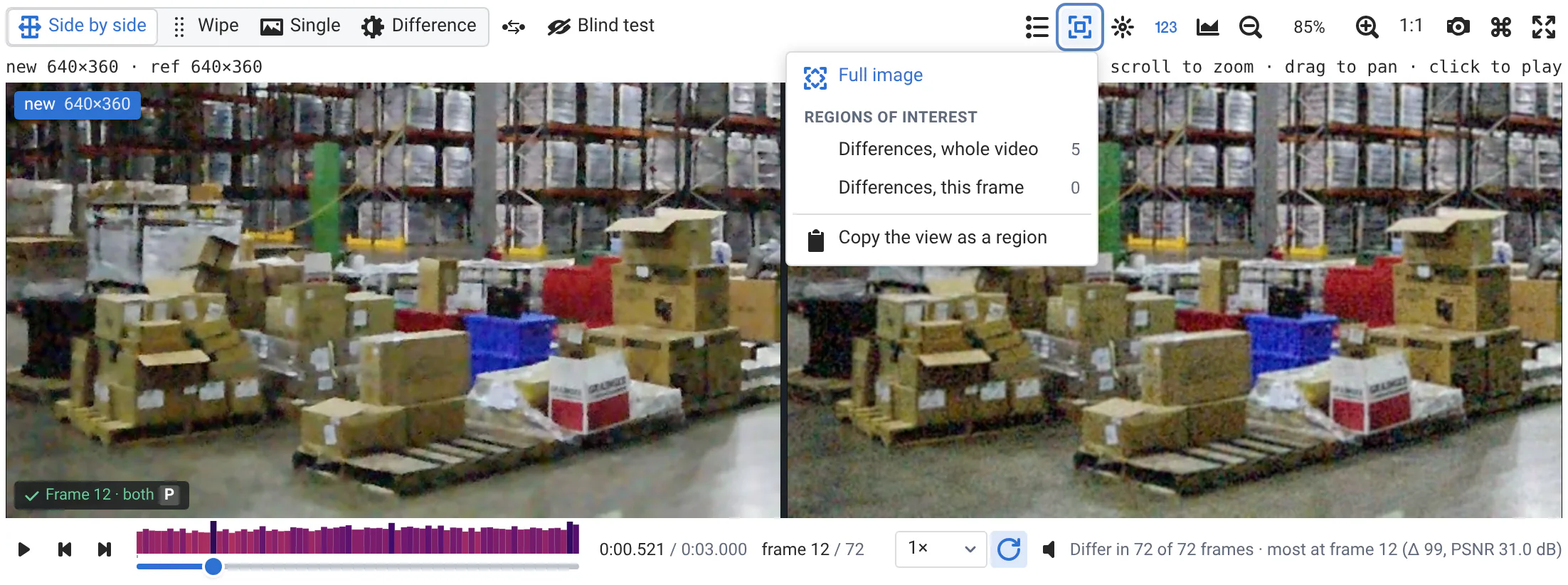
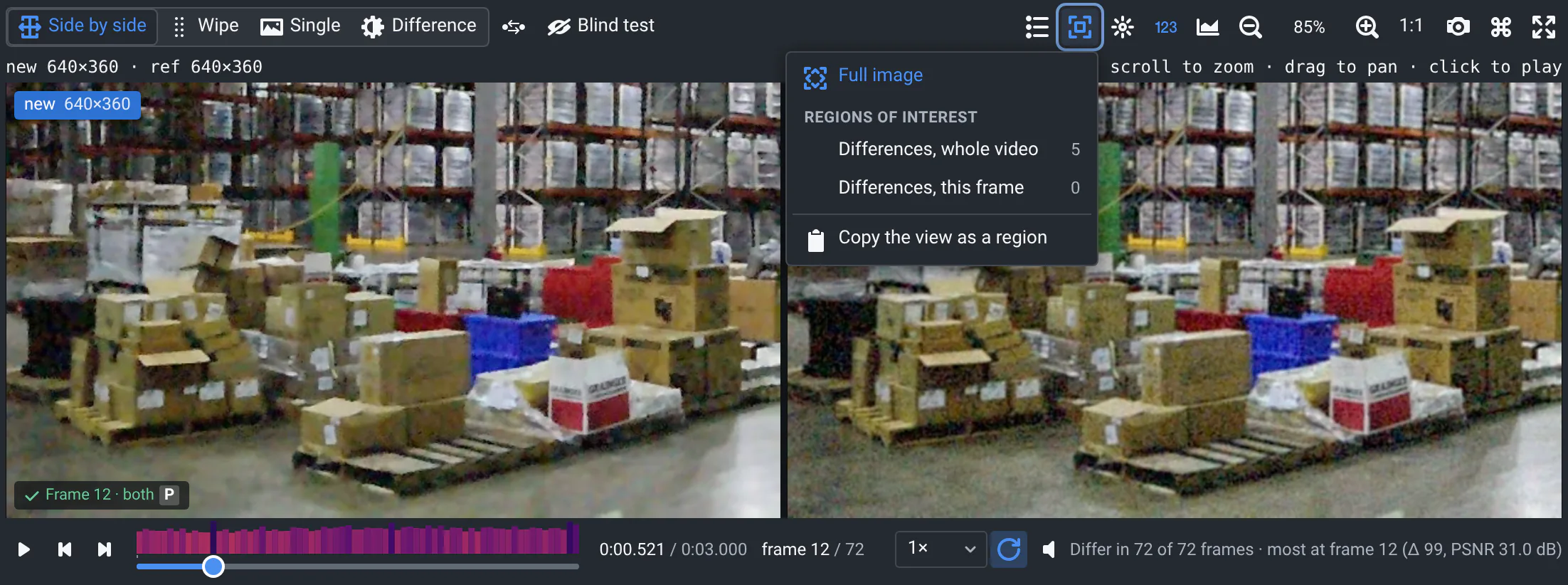
The regions menu also has the input's Presets, from its metadata or the configuration (see regions of interest), and Full image to see the whole frame again. Copy the view as a region copies the coordinates of what you see, in the format of presets.
How the videos are compared, and the limits
- What's compared: the decoded values (Y′, Cb and Cr, or R, G and B) at their own bit depth. Each frame of the new video is compared with the reference's frame shown at the same time, counting from each video's first frame: a video with another frame rate, or that starts later, is compared at the same moment.
- The numbers: Δ is the largest difference of any value, e.g. 99 on 8-bit values; the percentages of regions are of the largest possible value (255, 1023...). The PSNR is the luma's. The share of pixels counts those that changed at all (in 4:2:0 and 4:2:2 videos, their luma).
- Time: the first time, the server decodes both videos: on a 4-core server, 0.7 s for the 72 frames of the aisle video (640×360), 4 to 5 s for 10 seconds of Full HD at 30 fps (300 frames). Then the result is kept on the server for a month, for everyone who compares the same files; a file that changes is compared again.
- Limits: the videos must have the same size. For long videos, the server stops after 2 minutes or 20,000 frames, and the summary says how far it went: Compared the first … frames, in 120 s.
Adjust the display and read histograms
The adjustments button changes how the videos look: brightness, contrast, gamma, sharpening, one channel (R, G, B or luma) as gray levels, false colors, inverted colors. They apply to both videos of the viewer, also while they play, to see the noise hidden in dark shelves, or banding in a gradient. Only the display changes: the pixel values, the difference and the histograms are the frames'. A dot on the button reminds you they're on.
The histogram button shows the red, green, blue and luminance histograms of the whole frames shown, new solid and reference dashed, updated as the videos play. Drag on the histogram to highlight a range of values on the videos, even while they play, e.g. the clipped highlights of a window; click R, G, B or Y to pick the channels. It works like the image viewer's histograms.
Copy or save a frame
The camera button copies the current frame of the new or reference video, or their difference in Difference mode, to paste it in a chat, a bug report or a slide. It also saves them as PNG files named after the video and the frame, e.g. out.new.frame12.png, and opens the original files. Frames are copied as your browser decoded them: 8-bit RGB, without the display adjustments.
Full screen
The full screen button at the right of the toolbar, or f, gives the whole screen to the videos, with the toolbar and the timeline: modes, the difference, regions and pixel values all work there. Esc or f leaves.
Keyboard shortcuts
They work on the viewer in full screen, else the one you clicked, else the one under your mouse. They're ignored while you type in a text box.
| Keys | What they do |
|---|---|
| Space, k | Play or pause (or click the videos) |
| ← →, , . | Previous or next frame |
| Shift+← → | Back or forward one second |
| Home End | First or last frame |
| < > | Slower or faster |
| 1 2 3 4 | Side by side, Wipe, Single, Difference (4 again: between the videos, or alone) |
| t | Swap the sides. Showing one video or the difference alone: the other video, their difference, and again |
| + - 0 | Zoom in, zoom out, fit |
| Wheel, pinch, drag | Zoom, pan (drag moves the wipe when not zoomed in) |
| p | Show or hide the pixel values written on the pixels |
| [ ] | Previous or next region |
| n N | Next or previous frame where the videos differ most, once you ran Differences |
| h | Blind test, then reveal, then end it |
| f, Esc | Full screen, leave it |
| m | Mute or unmute |
"Can't play this video"
Your browser doesn't play the video's codec or container. Browsers play H.264, VP9 and AV1 videos, in .mp4 or .webm files; HEVC (H.265), MPEG-4 part 2 or .avi files show this message, with the command to convert them and a link to open the file. What's in the files still works: the server reads any format FFmpeg reads.
Animated .webp and .gif files show in the same viewer, side by side, with a wipe or one at a time, but your browser plays them on its own: they aren't synced, and have no Difference mode.
Whoever set up the project can write videos your browser plays, set their frame rate, or write them losslessly: see the video viewer in Visualizations.
Where to go next
- The image viewerThe same comparison modes for images, regions where they differ, and the runs that changed most.
- Plots, flame graphs, 3D and moreHow the other viewers compare a run with its reference.
- Project integrationVideo formatsWhich videos browsers play, how to write lossless ones, and how to set their frame rate.