The QA-Board user guide
QA-Board shows what each commit changed. Your team's CI, the tests that run by themselves on every commit, runs the code on the same test inputs each time. QA-Board puts the results next to a reference's, like the last release: the metrics, and the outputs behind them, from images and videos to plots and logs. You see whether the commit is better and where it differs, and you share a link to what you found.
This guide is for everyone who looks at results in the web app: image-quality, test and performance engineers, integrators, algorithm and software developers, team leads. You don't need to know how the project was set up.
- Start hereYour first review
Follow one commit of a demo camera pipeline, step by step: its metrics, its images in sync, and the halos its new denoiser adds.
- Team leadsWhich commit broke it?
Follow p99, or any metric, test by test, to the commit where it jumped.
- No server yet?Run QA-Board on your computer
Start a server with the demo projects, to follow the walkthrough or try things out.
The words you need
| Word | What it means |
|---|---|
| Commit | A version of the code, named by its commit hash, like d820bd5d. QA-Board shows results commit by commit. |
| Branch | A line of commits, like main or isp/bilateral-denoise. The project's reference branch, often main, is the code everyone uses. |
| Run | The code of one commit, on one input (an image, a video, a recording...), with one configuration, like low-light. A run has output files, metrics and a log. |
| Test | An input with its configuration, like photos/facade.png at low-light: what a run runs. The web app compares and charts results test by test. |
| Batch | The runs of a commit that belong together. The one CI runs is shown as CI; tuning experiments and your own runs get their own batches. |
| Metric | A number each run reports: PSNR, mAP, p99 latency... Changes are green when they're better, red when they're worse. |
| New and reference | What you look at, and what it's compared with. By default, the reference is the latest results of the project's reference branch. You can stack several references and switch between them. |
| Milestone | Results saved to compare with later: a release, a benchmark, your best tuning. Yours, or shared with the project. |
The other words, and how the qa command line and the server work together: Key concepts.
The commit page
You spend most of your time on a commit's page: its results, next to the reference's.
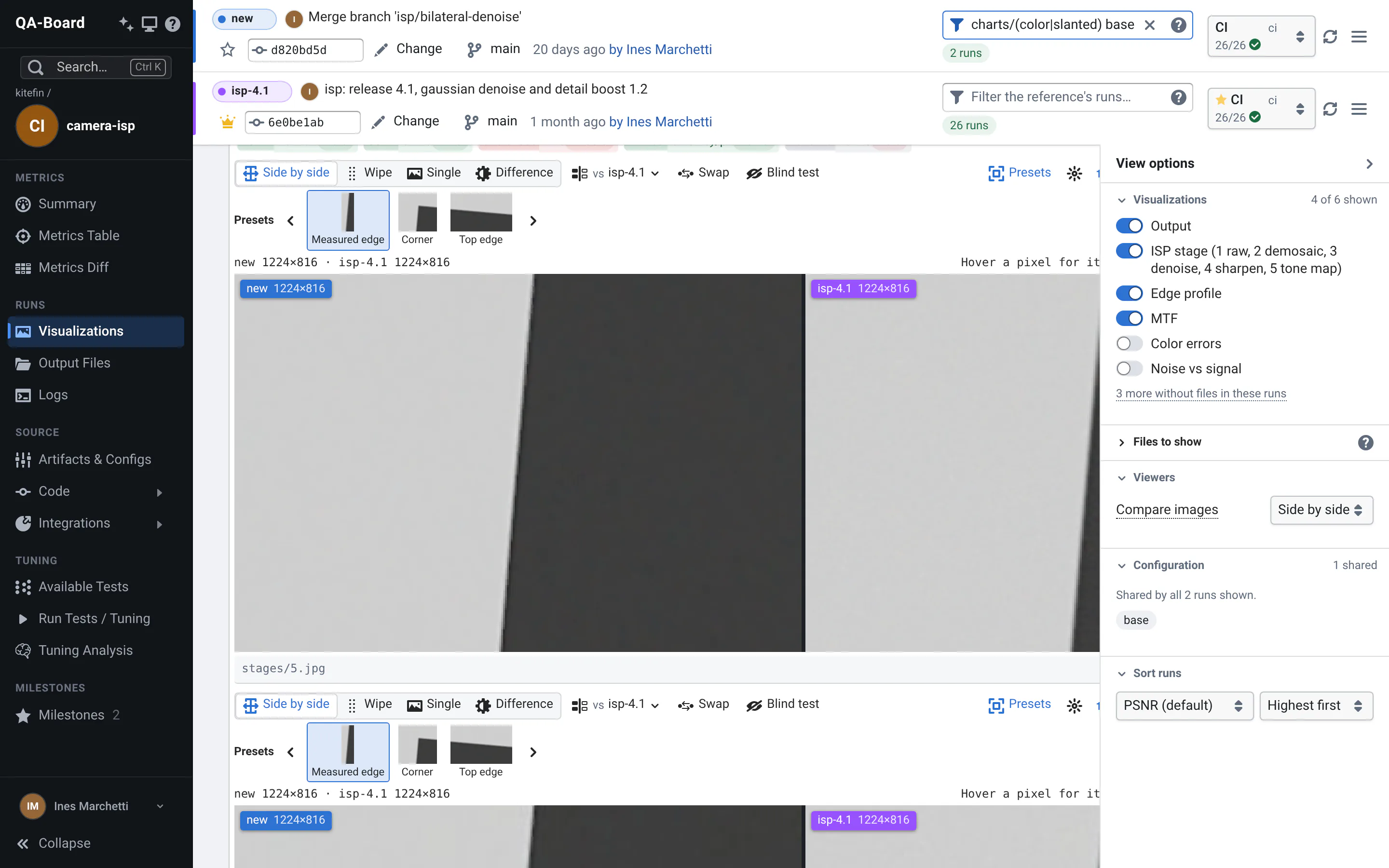
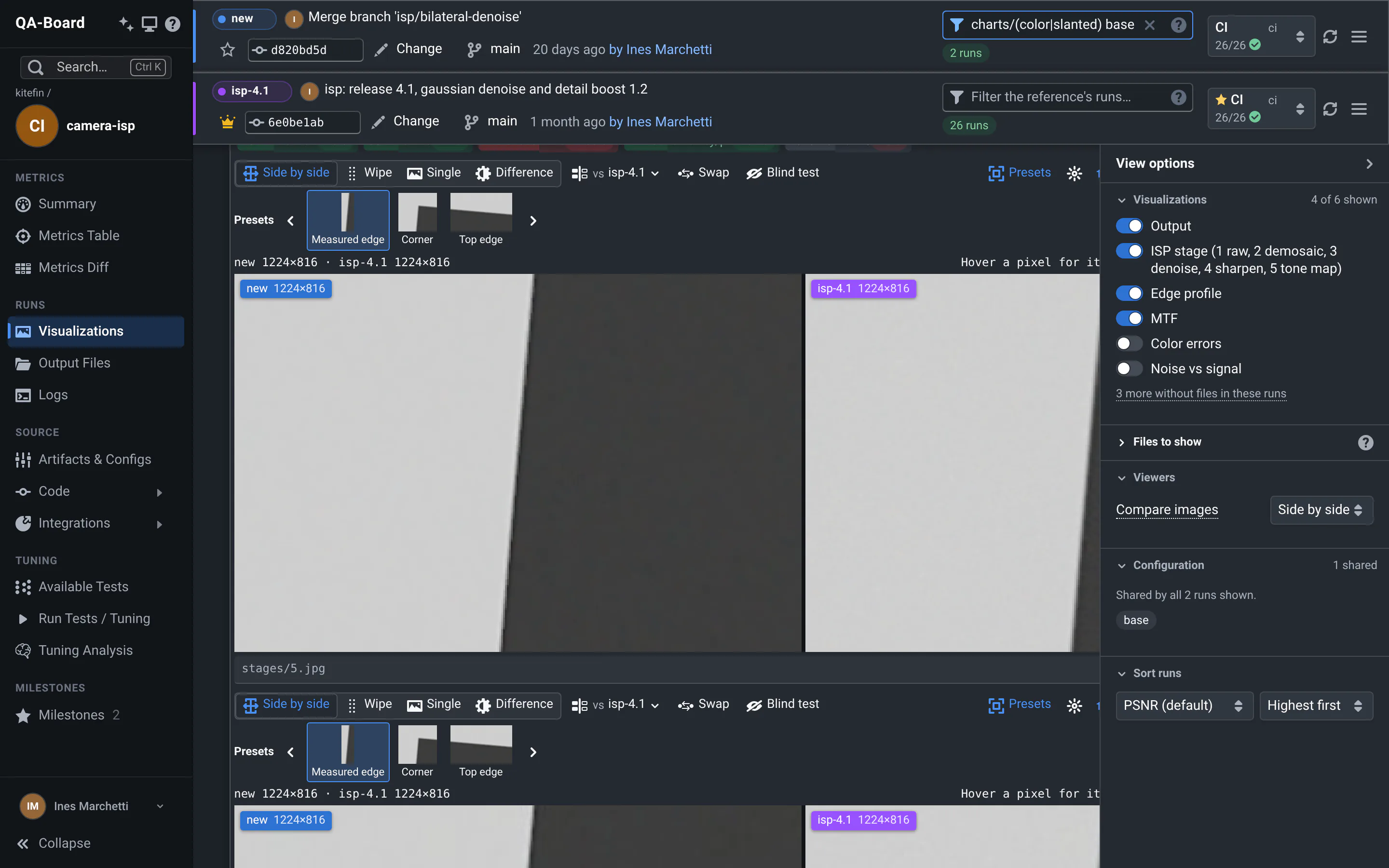
- The new commit, its batch, and a filter for its runs
- The reference: Change picks another one
- The views: metrics, outputs, logs, configurations, tuning
- View options: what the cards show, and in which order
Around it, the web app has a few more pages: your home page, with your projects and the batches you ran; Explore, every project; a project's commit list; and History, a metric over the commits of a branch. See Finding results. On every page:
- Search…, at the top of the sidebar, or Ctrl K (⌘ K on macOS), goes to a project, a branch, a commit, your recent batches or any page: see Search from anywhere;
- the sidebar has the project's pages, or the commit's views. Hover a view to see what it shows. The ? button at the top, or the ? key, opens a cheat sheet;
- the top bar has the commit list's dates and search box, or, on a commit page, the new and reference bars;
- on a commit page, the View options sit on the right. Press o to show or hide them.
Every part of the page
- Left sidebar: the QA-Board title goes back to your home page. Next to it, What's new opens the release notes, then the theme button (light, dark, or the same as your system) and the ? cheat sheet. Below: Search…, the project's avatar (its commit list), the page's menus (History, Milestones, Integrations, Runs activity, Storage usage, Access...), your account menu or Sign in, and Collapse (Ctrl + \, or ⌘ + \ on macOS).
- Top bar: on the commit list and History, the dates and a search or filter box. On a commit page, the two bars.
- View options: on a commit page, what the cards show and how runs are sorted. See View options.
Each page's link, after your server's address:
| Page | Link |
|---|---|
| Your home page (Explore when you're signed out) | / |
| Explore, every project | /projects |
| Commit list | /<project>, /<project>/commits/<branch>, /<project>/committer/<name> |
| Commit page | /<project>/commit/<hash> |
| History | /<project>/history/<branch> |
| Runs activity, Storage usage, Settings | /activity, /storage, /settings |
More in The commit page.
What do you want to do?
Find and compare
- Was this commit better?
The Summary, the Metrics Table and the Metrics Diff, targets, and what the colors mean.
- Compare with something else
A release, another branch, another project, or several references at once.
- Keep results to compare later
Save a release or your best tuning as a milestone, for you or for the project.
Look at outputs
- Compare images
Synced zoom, wipe, difference, pixel values, histograms, and where the images differ.
- Compare videos
Play in sync, step frame by frame, and find which frame broke.
- Plots, flame graphs, 3D and more
Curves over the reference's, differential flame graphs, JUnit test reports, text diffs, point clouds, trajectories.
Run and share
- Run more tests, or tune
Redo runs, start a batch or a tuning experiment on any commit, from the web app.
- Why did it fail?
Read a run's log, live, jump from error to error, and see why a cluster job stopped.
- Share what I found
Links to what you see, paths, exports, bug reports.
Also: find a commit, choose the tests to run, see what runs now, browse files, free storage, your account and tokens, ask for access to a project, and Tips & FAQ for shortcuts, the dark theme and answers to common questions.
Setting up a project for QA-Board? See Project integration. Running the server? See Admin.