Runs activity
Wondering whether your batch started, why it's slow, or how busy the cluster is? Runs activity shows the runs that wait in a queue and run now, those that ended recently, and the batches that will start soon. Open it from your account menu (Runs activity, next to Storage usage), from a project's sidebar, or with Search… (Ctrl K).
See what runs now
The cards at the top count your runs:
- Batches start soon: batches you started from QA-Board whose
qa batchwaits for the cluster, e.g. a queued LSF job. Their runs show up once it starts. They're listed below, with their LSF job and a link to their logs. - Waiting: runs
qa batchsent to a queue (LSF, Celery…) that didn't start yet. - Running: runs that started and didn't end yet. Pending for over a day warns about runs whose job may have died.
- Ended and Failed: the runs that ended in the time window (the last 24 hours by default).
Click Waiting, Running, Ended or Failed to list only those runs. The timeline shows how many runs waited and ran over the window, and below it how many ended. Busiest projects, queues and, with Everyone's, users say who and what loads the cluster: click a project or a user to see its runs, a queue to group the runs by queue. The page refreshes every 15 seconds: switch off Live to pause it.
Your runs or Everyone's: by default you see your own runs. Everyone's shows all the runs of the projects you can see, and who started them.
Group runs as you like
Group by the batch (the default), commit, project, user, qa batch command, runner, queue, platform, status, or
any job option: type its name, e.g. project or memory for LSF. Choose Nothing: the runs to list the runs
themselves.
Each row counts its runs by status, says since when they're pending, and how long they wait and run on average. Click the arrow to see its runs: their input, configuration, job options, when they were queued, started and ended, with links to their results, their log and their files. Search filters projects, branches, batches, commits and users. Sort to see the runs pending the longest, the latest news, or the most failures first.
Everything you choose is in the page's address: bookmark it, or share it.
Clean up runs that are stuck
When LSF kills a job, or its machine reboots, the run can't tell QA-Board it ended: it shows as running forever. From a row's menu (⋯):
- Mark waiting and running runs as failed… marks your runs as failed, after saying how many. Their jobs aren't stopped: if one still runs, it saves its results when it ends. You can redo them later.
- Stop the batch… kills the batch's jobs and fails its runs, like Stop runs on the commit page.
A single run has its own Mark as failed button. You change only your own runs, in projects where you're a developer.
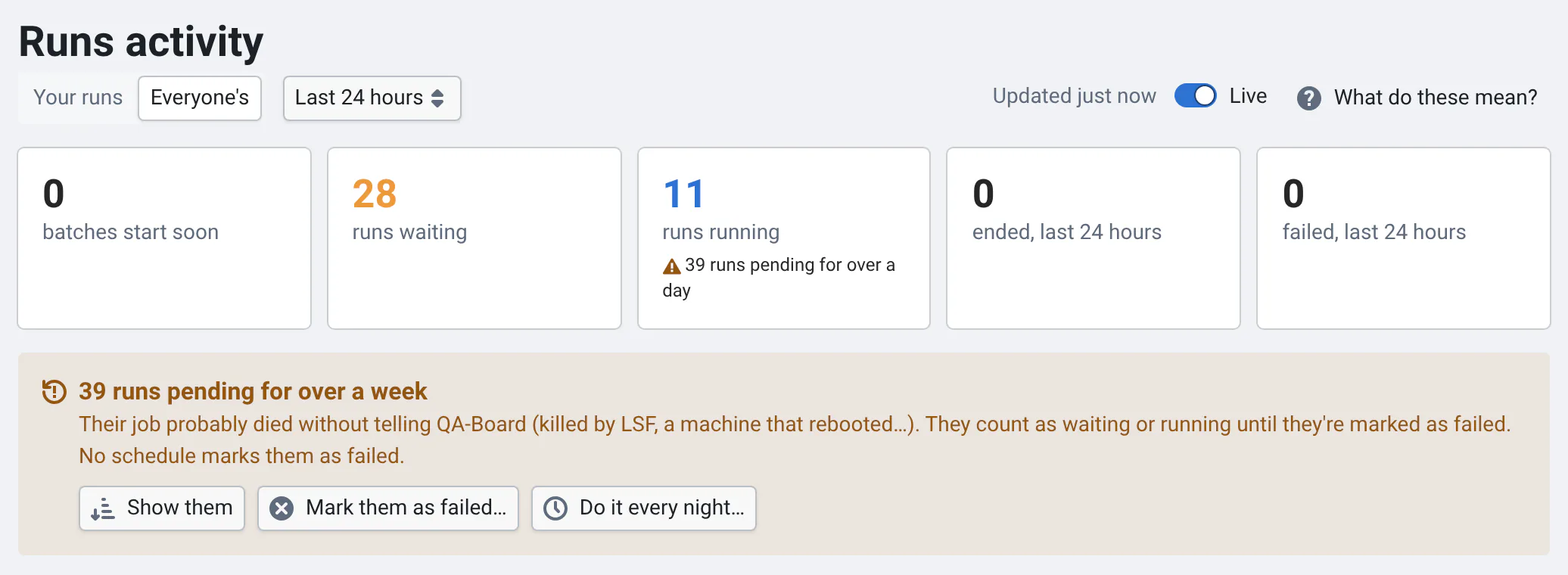
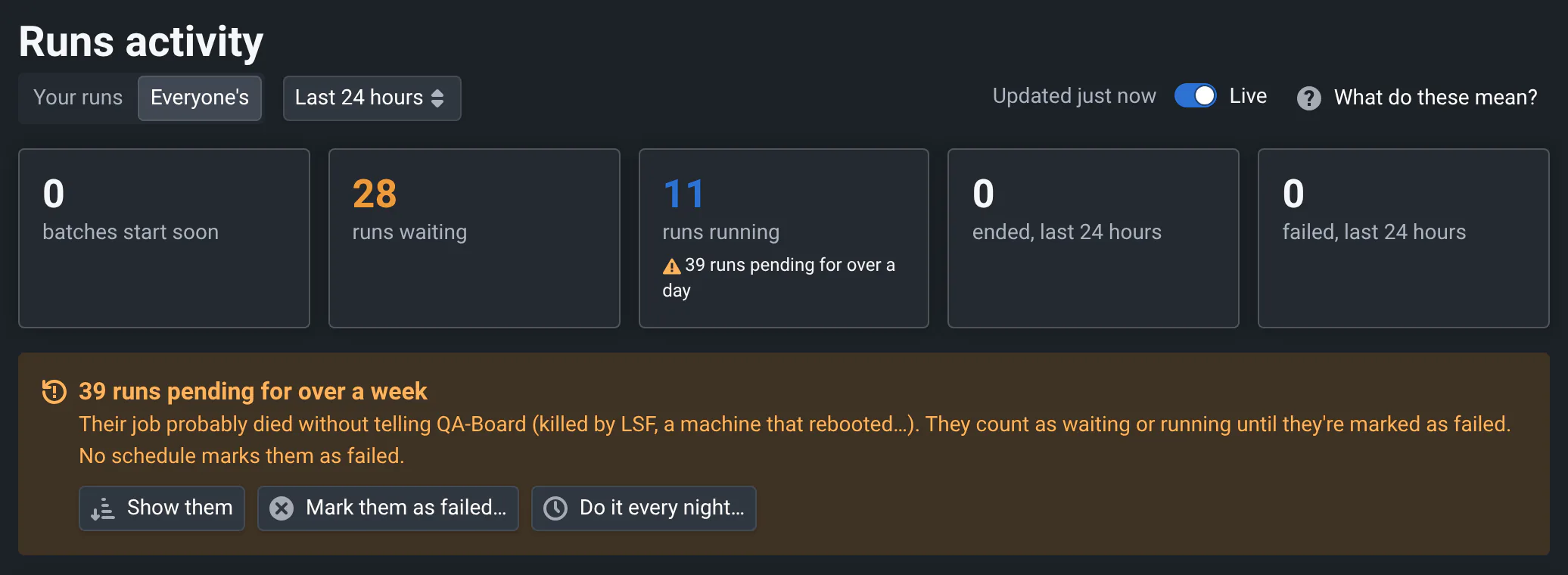
Admins see the runs pending for over a week, and can mark them all as failed, now or every night:
Older runs, and what the page doesn't show
- Runs from before your QA-Board recorded when runs are queued, start and end count as started when they were
created, and ended after the time
qa runmeasured them computing (Ended ~3 hours ago). Without it, they show when they were created (Created 3 hours ago). We don't know how long they waited in a queue. - Batches started from QA-Board over 3 days ago whose
qa batchnever started: their LSF job is most likely gone. - Runs of private projects you can't see.
Admins mark runs pending for over a week as failed with a schedule: see Admin → Storage.