Sharing results
Show a colleague what you see, give them the path to the files, or gather the images for a report.
Copy the page's link
Most of what you select is saved in the page's link. Click the link button in the commit's bar, next to the reload button (the commit list and the History page have it too), and paste. In Teams, Outlook or Confluence the link reads like the page's tab instead of a long URL, e.g. ISP v2 vs baseline · isp: Faster denoising · 40 runs: 37 passed, 3 failed. Elsewhere it pastes as the URL. Copying your browser's address bar works too. Whoever opens the link sees the same commits, reference, batches, filters and view as you, with the images compared the same way. The browser's back and forward buttons work too.
The link doesn't keep the viewers' zoom. To point at a spot, paste a copy of the image too (the copy button above the images, see Copy and save), or name the region, e.g. Window frame (halos).
The reference commit is written in the link as soon as it's known. A link shared today still shows the same comparison next month, even after the reference branch moved on.
To share a milestone, copy its link from the milestones menus or its dialog: it keeps working when the milestone is renamed. See Links to milestones.
What's in the link
On a commit page, the link holds the new commit, the reference, their batches, filters and names, the view, how runs are sorted, and the view options: the visualizations shown, the files to show, and how images are compared. On the commit list, it holds the search and the dates; on the History page, the filter, the batch and the chart options.
Options left at their default are left out, to keep links short: e.g. the default batch, an empty filter, the
project's default metrics and view, or visualizations shown by default. Links follow the project's defaults.
Some things are yours, not the link's: your pinned projects, the groups of milestones you collapsed and the pixel values you show follow your account when you're signed in; whether the view options are open and how wide, and the statuses of the CI jobs you started, stay in your browser. The viewers' zoom, the regions you picked and the display adjustments are not saved at all.
Every parameter of the URL
On a commit page, /<project>/commit/<hash>?...:
| Parameter | What it holds |
|---|---|
path /<project>/commit/<hash> | The project and the new commit |
reference | The reference commit |
batch, batch_ref | The new and reference batches (default is CI) |
filter, filter_ref | The new and reference filters |
label, label_ref | The names you gave the new and the reference results |
compare, ref_index | The other references you stacked, and which one is shown |
new_project, ref_project | Only when results come from another project |
selected_views | The view: summary, table-kpi (Metrics Table), table-compare (Metrics Diff), output-list (Visualizations), bit_accuracy (Output Files), logs, parameters (Artifacts & Configs), groups (Available Tests), tuning (Run Tests / Tuning), optimization (Tuning Analysis) |
sort_by, sort_order | How runs are sorted |
controls | Visualizations shown or hidden, how images are compared, the files to show (as JSON, only what you changed) |
show_all_files, expand_all, files_filter... | Options of the Output Files view (params_... for Artifacts & Configs) |
On the commit list, the search box is saved as search, and the date range as from and to (e.g.
?from=2026-09-01&to=2026-09-30). On the History page, the filter, batch and chart options (selected_metric,
breakdown_per_test, relative...) are saved too.
Copy a path, a hash or an image
Results live on a shared storage, so you often want a path rather than a link:
- A run's output folder: the copy and folder icons on each run's card, for the new and the reference run. The folder icon opens it in the file browser, where you can copy the path of any file.
- A commit's or a batch's folder: the ☰ menu of a commit row or of a commit bar, as a Windows or Linux path, or open it in the browser.
- The commit hash: the copy icon next to the hash, in the commit list.
- An input's path, database or batch: hover the run's name on its card and click the value to copy it.
- A configuration: hover a configuration tag, copy it as JSON, or in tuning format to paste in a tuning experiment.
- An image: the copy button of an image viewer copies the new image, the reference or their difference to your clipboard, ready to paste in a chat or a slide, or saves it as PNG. See Copy and save images.
Export files for a report
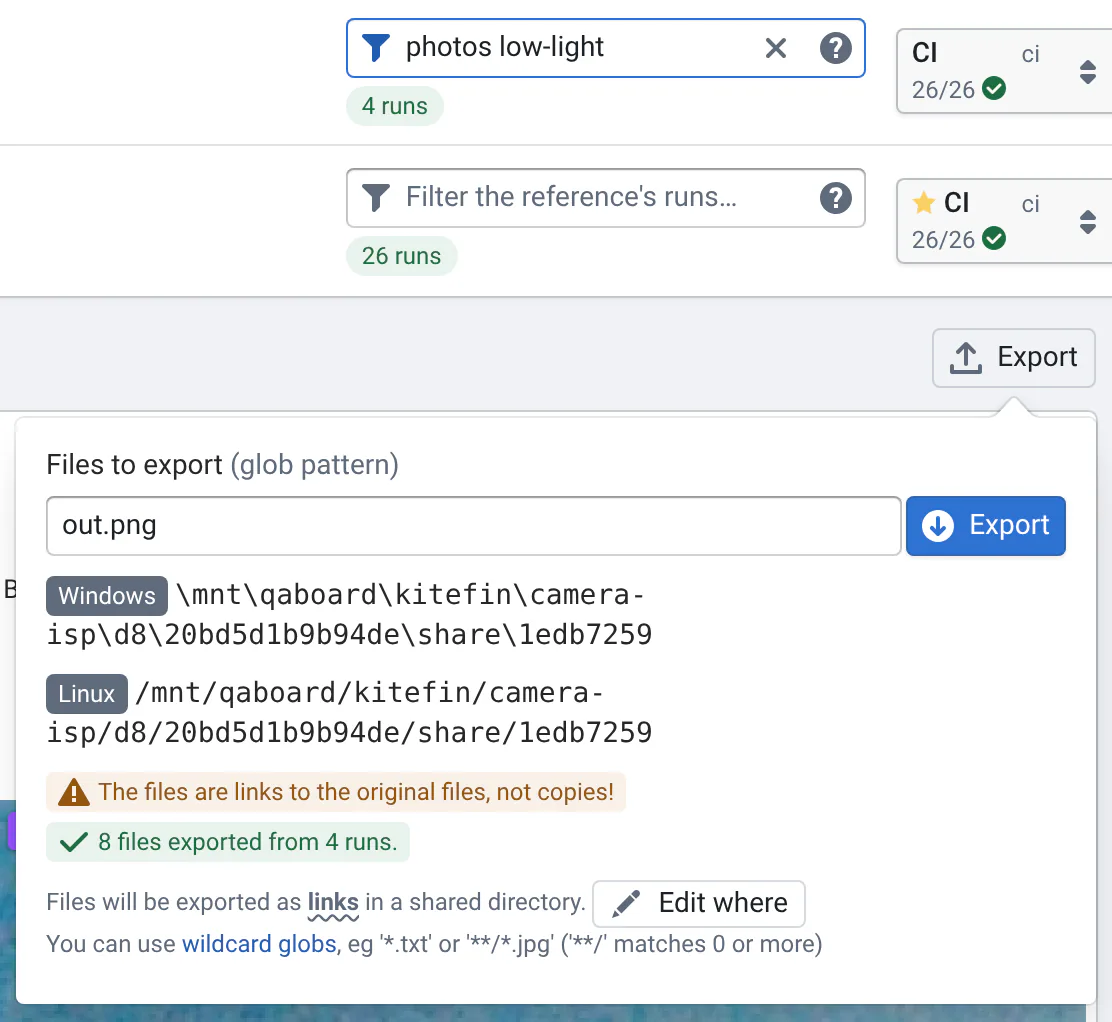
To put the outputs of many runs in a slide deck, a diff tool or a script, gather them in one folder. In the Visualizations and Output Files views, Export collects the files matching a pattern from all the (filtered) runs, new and reference, into a new folder, and shows you every file's name before it exports:
- Filter the runs you want, e.g.
low-light(see Filter the runs). - Click Export at the right of the view's title.
- Type a pattern, like
*.png,*.txtor**/*.jpg(**/matches any number of folders). - Pick how files are named, or load a preset you saved. The Preview lists the names the export will use, and says if two files would get the same name, if paths are too long for Windows, or if files are already there.
- Click Export. The folder's Windows path is copied to your clipboard, and both its Windows and Linux paths show in the box, with what was exported.
Names are made of what you see on the page: the input, the file, and what the page calls the new and reference results,
e.g. night_street__out__new.png and night_street__out__v1.2.png, or their milestones' names. Each export goes to a
new folder: give it a name to find it later in Storage usage. In the folder,
0.export.csv lists each file and where it comes from (run, input, settings), and 0.export.json adds the runs'
configurations, for scripts.
By default, the exported files are links to the original files: nothing is copied, so it's fast. Don't edit them: you'd edit the runs' files.
Export (legacy), next to Export, is the previous export, with the same names and folders as before: keep using it while your scripts move to the new names. It will be removed: tell your admins what you miss in the new one.
To run your own code on the runs' files, use Script next to Export: it gives you the same runs in Python, with their folders, files and metrics, without copying or linking anything. See Use the runs in a script.
Choose how files are named
- One folder: all files side by side, a run's new and reference files next to each other.
- A folder per side:
new/andv1.2/(the reference) have the same file names: open them in a diff tool, or flip between them in an image viewer. - Folders like the inputs: the inputs' folders, then the runs' files.
- Custom: edit the template, e.g.
{side}/{input_name}__{file}. Click a field under it to add it.
Settings in names, {settings}: the dialog lists what differs between the runs shown: their tuning parameters and
the parameters of their configurations (gain, isp.awb.mode), their configurations' files (night.yaml), and their
platform. Check the ones names should say. By default, it checks what differs between runs on the same input, e.g.
when you tune parameters: without it, their files would get the same name. Each run says the value of each setting
checked, and default if it doesn't set it: street__gain=4,iso=default__out__new.png. You choose:
- how a parameter and its value are written:
gain=4,gain-4,gain_4, or only4, - what goes between settings:
,,_,+or-, - or a short id of the values (the same in every export) or a number, when names get too long:
0.export.csvsays what they stand for.
Reference files are named like the new runs they're compared to, so that each file has its reference next to it.
If two files would get the same name, the preview says which, and offers fixes, like adding a setting or the run's id: QA-Board doesn't export until names are unique.
Names Windows can open
By default, names are Windows-compatible: characters Windows doesn't allow (\ / : * ? " < > |) become -,
names don't end with a dot or a space, reserved names like CON or NUL get a _ first, and names that differ only by
case are the same name. Full paths, as you'd open them from Windows, must be under 260 characters: Windows Explorer and
many apps can't open longer ones. When paths are too long, the preview offers fixes: a short id for the settings
(usually enough), the inputs' names rather than their paths, or turning Windows-compatible names off. If nobody opens
the files on Windows, turn it off: paths can then be long, and names can use any character but /.
Save your export settings
Your last export's settings come back the next time you export from the project: the files, how they're named, links or copies, and the folder if you chose one. To export the way a script expects, again and again, Save as preset…, for all your projects or only this one, then pick it in Saved settings. Presets follow your account to any browser.
Every field of the template
| Field | What it is |
|---|---|
{side} | What the page calls the new and reference results: new, the milestone's name, or what you type in the box. Empty without a reference. |
{input} | The input's path, without its extension: scenes/night/street |
{input_name} | The input's name: street |
{settings} | The settings you checked (see above). Empty when there are none. |
{file} | The file's path in its run's folder, without its extension: debug/mask |
{platform}, {commit}, {batch}, {run} | The run's platform, commit (8 characters), batch, and id |
- The extension always ends the name.
- Slashes in the template make folders. Slashes in the inputs' and files' paths become
_(or what you choose in Folders in paths), or stay folders with Keep folders. - An empty field takes the separator next to it along:
{input}__{settings}__{file}givesstreet__outwhen runs don't need settings. - Spaces become
_. With Windows-compatible names, see Names Windows can open.
Export into a folder you choose
Pick A folder I choose and type its Linux or Windows path, on the shared storage. Files are copied, or linked if
it's on the same filesystem as the runs. QA-Board only adds files there: it never replaces what's there (the preview
lists the files it will skip), and the folder isn't listed with your exports in Storage usage. If an export is
already there, the mapping is written as 0.export-<id>.csv.
Use the runs in a script
To post-process the runs you see, e.g. compute a metric the CI didn't, align outputs, or redo a measurement, click Script next to Export: it shows a Python snippet (or shell command) that lists those runs, with their metrics and folders, from the page's address. Copy it and write what to do with each run: your script can read the runs' metrics and files, add metrics to them (they show with a pencil mark saying who added them) and add files to them. The filter applies, so the script sees exactly the runs shown. See Results in scripts for everything a script can do.
Report a bug or ask for help
- If part of the web app crashes, only that part is replaced by an error: a viewer in a run's card, or the page, with the sidebar still there. Try again shows it again, Go back returns to the previous page, and going to any other page works as usual. What you selected is in the URL: reloading the page brings you back to the same view.
- When your server reports errors, the page says that the maintainers were notified, with your username: add what you were doing in the box below, it goes with the report. Otherwise, Report the problem opens an email with the page's link and the error filled in, or your team's issue tracker: your admins choose where bug reports go. Technical details has everything to paste in a chat, with Copy.
- For anything else, send the link of the page you're looking at to your QA-Board admins: with it, they see what you see.
- Questions on how a project's results are produced (metrics, visualizations, inputs) go to that project's lead.
Where to go next
- Browsing filesOpen a run's folder in your browser, and copy Linux and Windows paths.
- Links to milestonesLinks that keep working when a milestone is renamed, and links to compare two.
- Tips & FAQKeyboard shortcuts, and answers to the questions of your first weeks.