Browsing files
Look at a run's files in your browser, copy their paths for a script or a colleague, and find a file fast with the keyboard.
You land in QA-Board's file browser from the folder icons of the web app (e.g. on each run's card), from the links
printed by the qa CLI, or by typing a path.
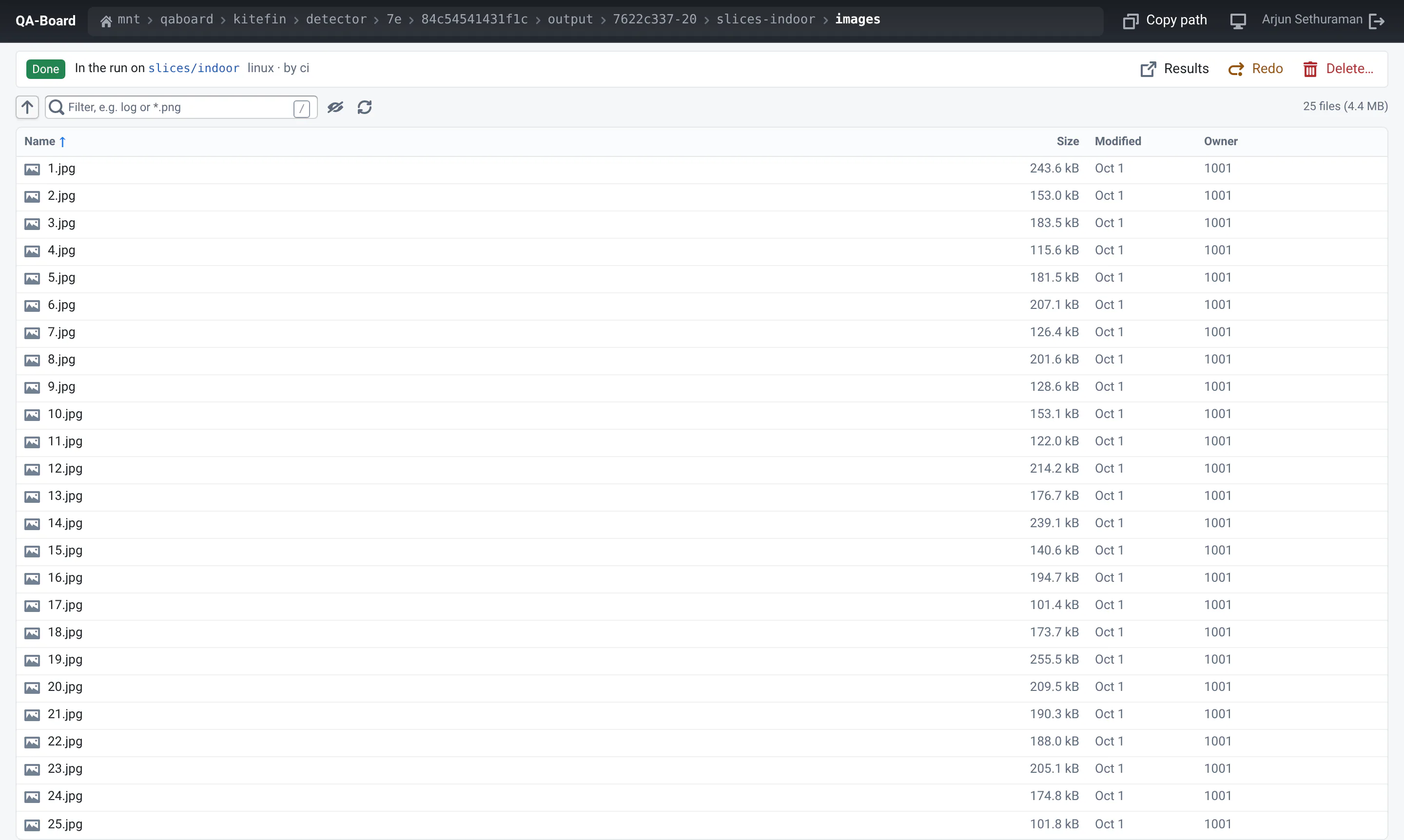
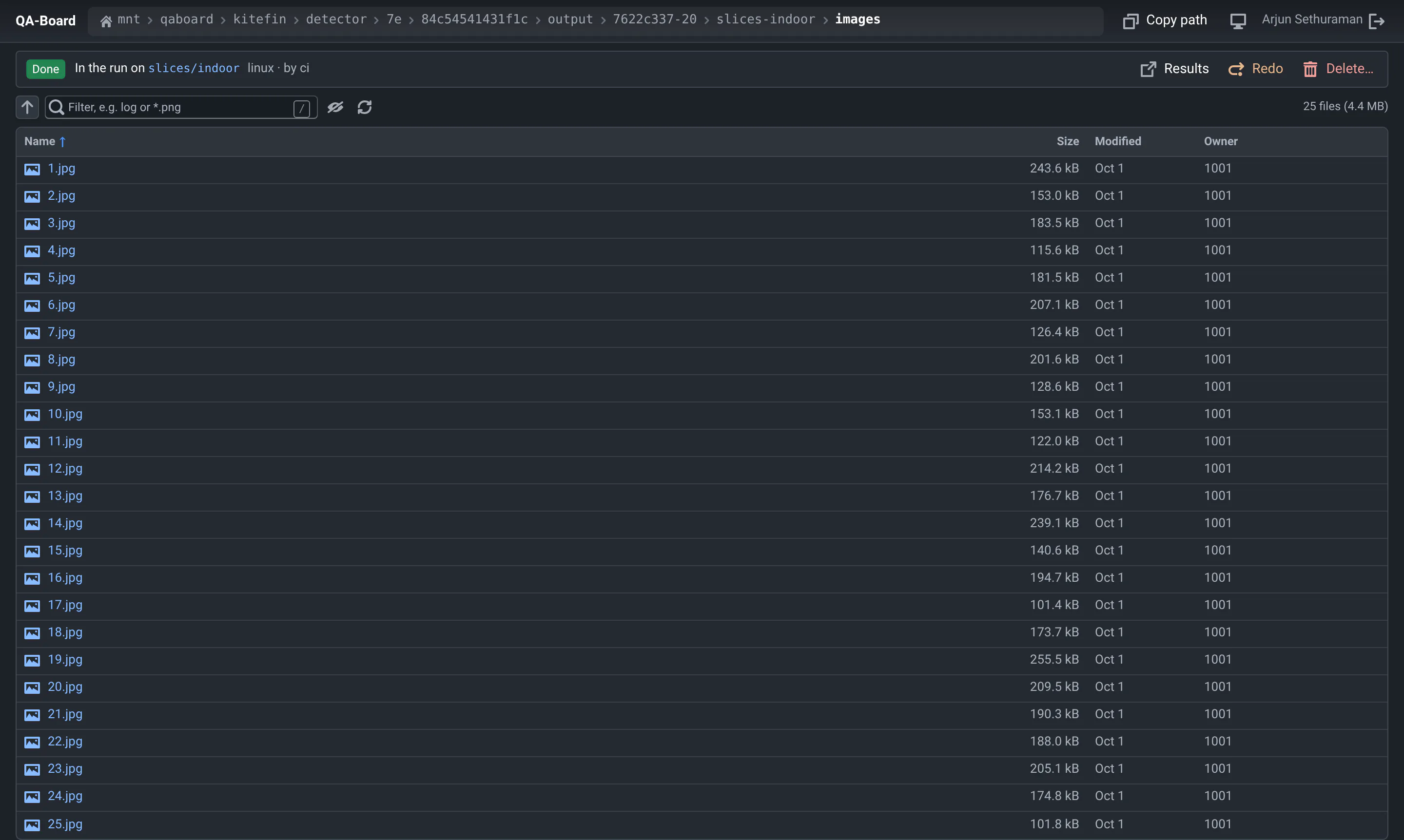
Results live on a shared storage, and QA-Board serves its files under /s/: the folder
/mnt/qaboard/my-project/outputs is at https://<your-qaboard>/s/mnt/qaboard/my-project/outputs/.
Find and copy files
- Navigate: click a folder, or a part of the path at the top. The browser's back and forward buttons work, and links open in new tabs as usual.
- Go to a path: click next to the path at the top, or press g, and type or paste a Linux path, a Windows path (
\\server\share\...) or a QA-Board link. - Copy paths: Copy path and Windows at the top copy the folder's path. Hover a file to copy its path, or download it.
- Filter: type part of a name, or a glob like
*.pngorframe_??.raw. Hidden files (starting with.) are not shown, unless they match the filter or you click the eye icon. - Sort: click a column's name. Folders always come first, and names are sorted "naturally":
frame2comes beforeframe10. - See more: hover a size for the exact number of bytes, a date for the exact time, and a name for its permissions (and where a link points to).
Files open in the browser as usual. Large files and logs open fast.
Redo or delete a run from its folder
In a run's output folder, or in a folder inside it, a bar shows the run: its status, the input it ran on, its batch and who started it. From there you can:
- open its Results (metrics, logs...) in QA-Board,
- Redo it, e.g. after a failure. Its files are replaced when it starts again,
- Delete it: its folder and its results in QA-Board. Check Only delete its files to keep the run in QA-Board, like "Delete output files" in the web app,
- Mark as failed a run stuck as pending or running, whose job is gone.


You need to be signed in: Sign in, at the top right of the file browser, opens your server's sign-in page, then brings you back to the folder. You act on whole runs, like in the web app: the file browser doesn't delete single files.
Keyboard shortcuts
Press ? to see them all.
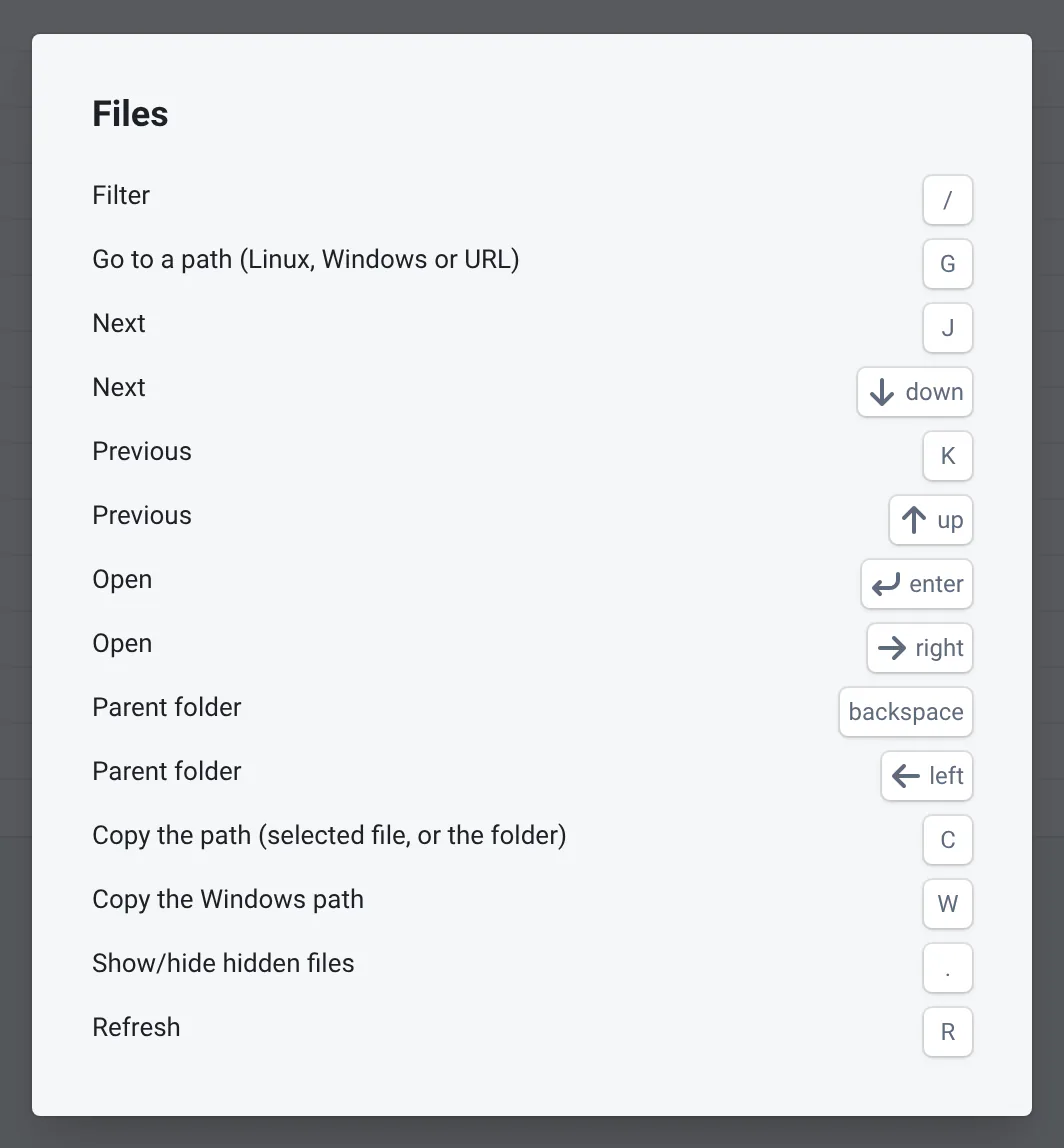
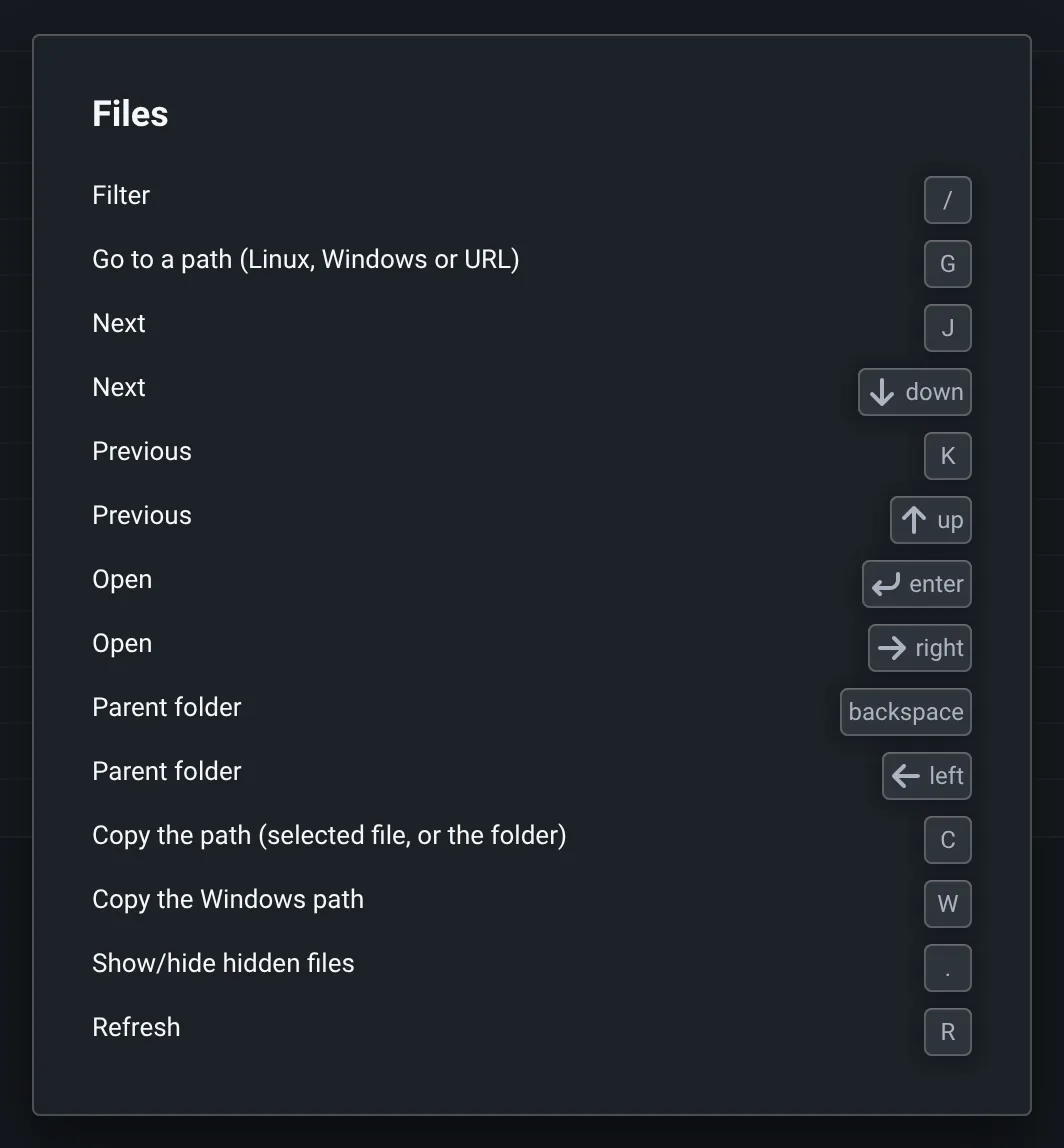
| Key | What it does |
|---|---|
| / | Filter. Enter opens the first match, Esc clears the filter. |
| g | Go to a path |
| j k or ↓ ↑ | Select the next or previous file |
| Enter or → | Open the selected file or folder |
| Backspace or ← | Go to the parent folder, with the folder you were in selected |
| c | Copy the path of the selected file, or of the folder |
| w | Copy the Windows path |
| . | Show or hide hidden files |
| r | Refresh, e.g. while a run is writing files |
Restricted folders
Your admins can restrict who can see the files of some projects or folders. If you see Sign in to see these files, sign in with its Sign in button. If you see You don't have access, ask them for access.
The plain index
Scripts and tools like curl and wget still get the plain index of the folders. To see it in your browser, click Plain index at the bottom of the page, or add ?view=nginx to the link.
Where to go next
- SharingLinks to what you see, paths, exports for a report, bug reports.
- Logs and failed runsWhy a run failed, its live log, and the cluster's report.
- Tips & FAQKeyboard shortcuts, and answers to common questions.