Logs and failed runs
When a run fails, or seems stuck, its log says why. The commit page's Logs view has the log of every run of the batch, updated live while they run, the cluster's report when it stopped a run, and the commands that started the batch.
A run failed: find out why
Kaito changed how the inference gateway fills its batches. On his commit, the CI batch has a failed run: the
bursty-high load profile.
-
Open the commit. The sidebar's Logs item is red, with the number of failed runs, and a N failed message above the views lists them. Click Logs, or Open the logs in the message.
-
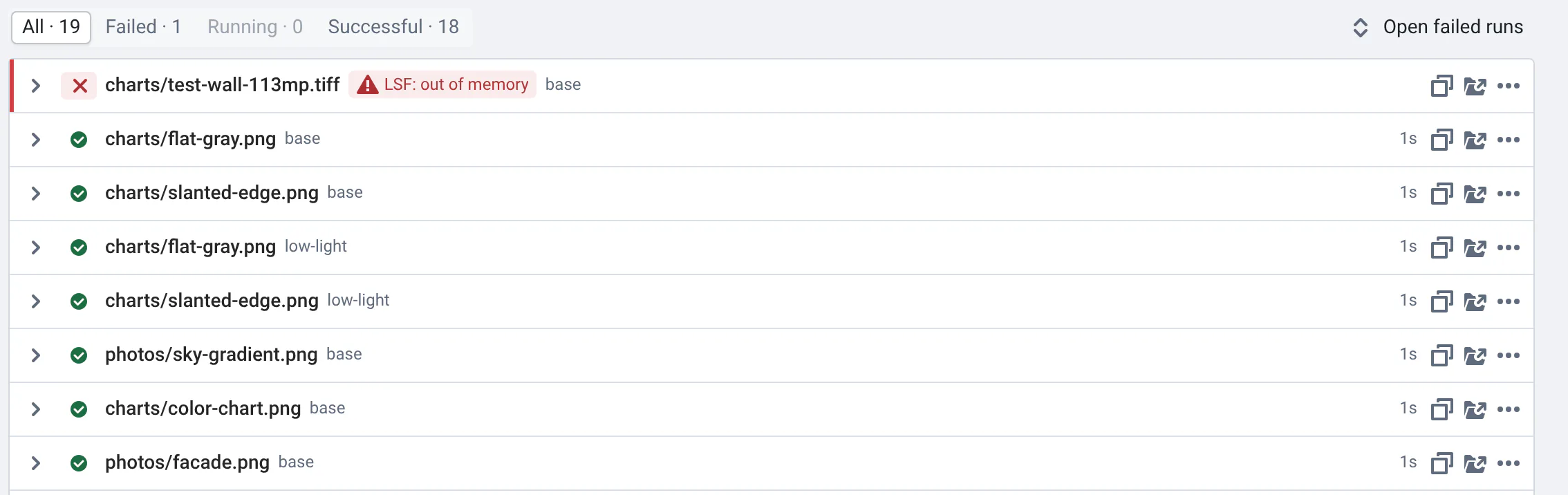
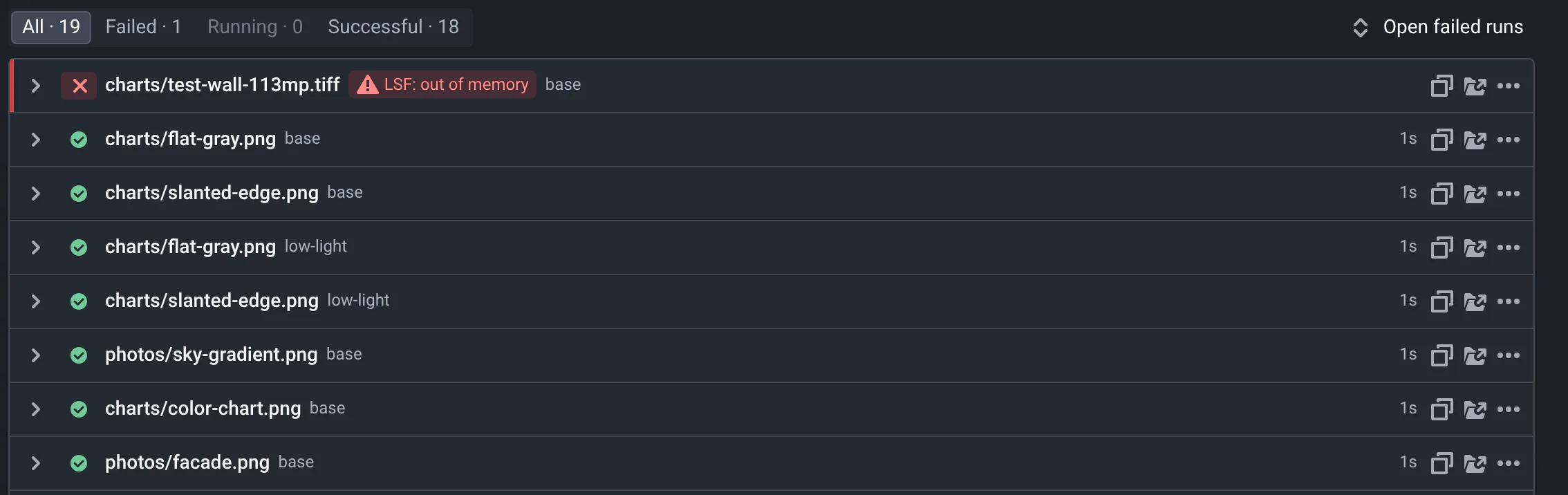
Above the list of runs, click Failed to keep only the failed ones, then Open failed runs to show their logs.
-
Each log opens on its last lines, where crashes usually are. Error lines are highlighted in red: click the N errors button to jump from one to the next.
-
Search the log: type in Search…, then Enter for the next match. Here,
panickedfinds the panic, an index out of bounds in src/batcher.rs at line 163.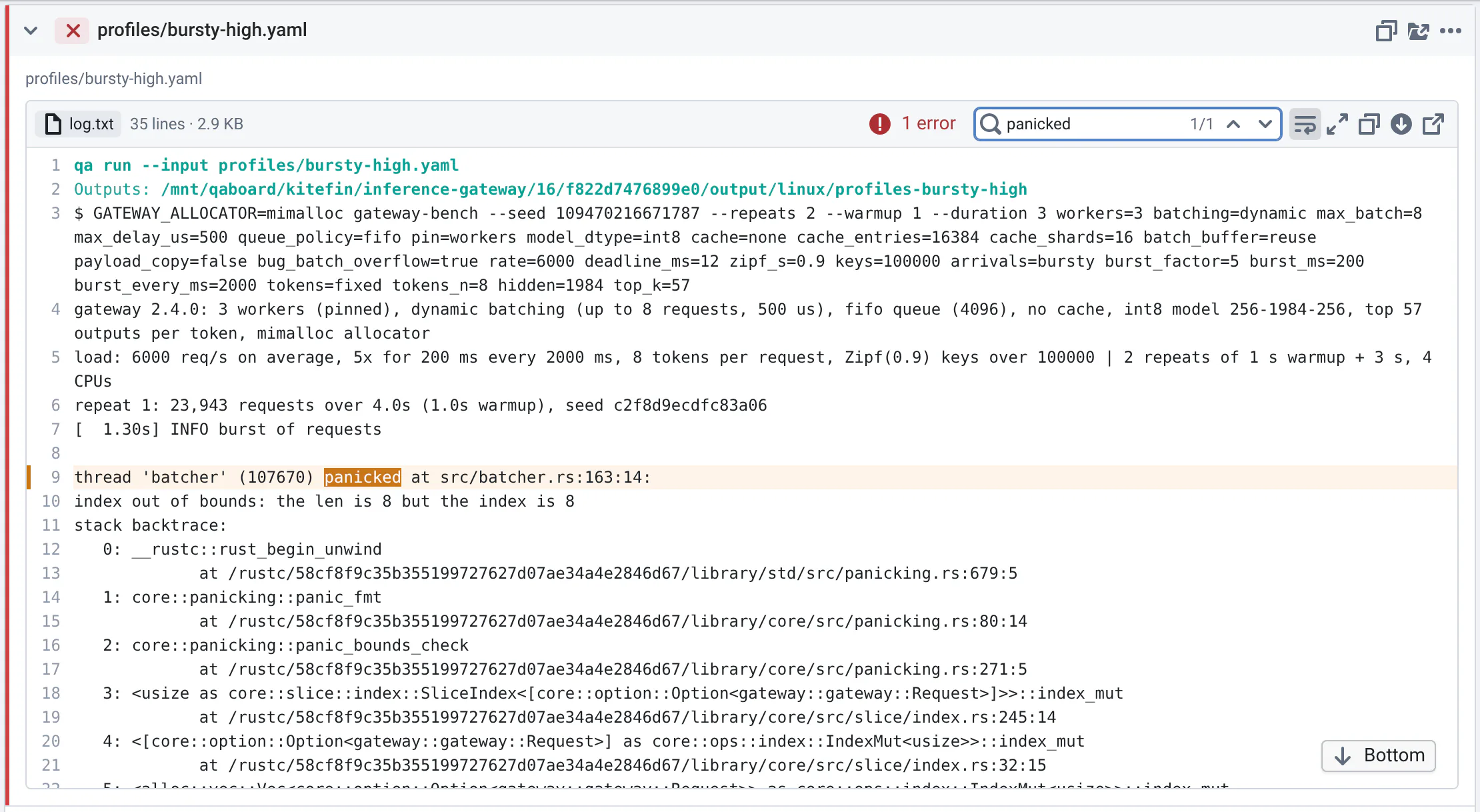
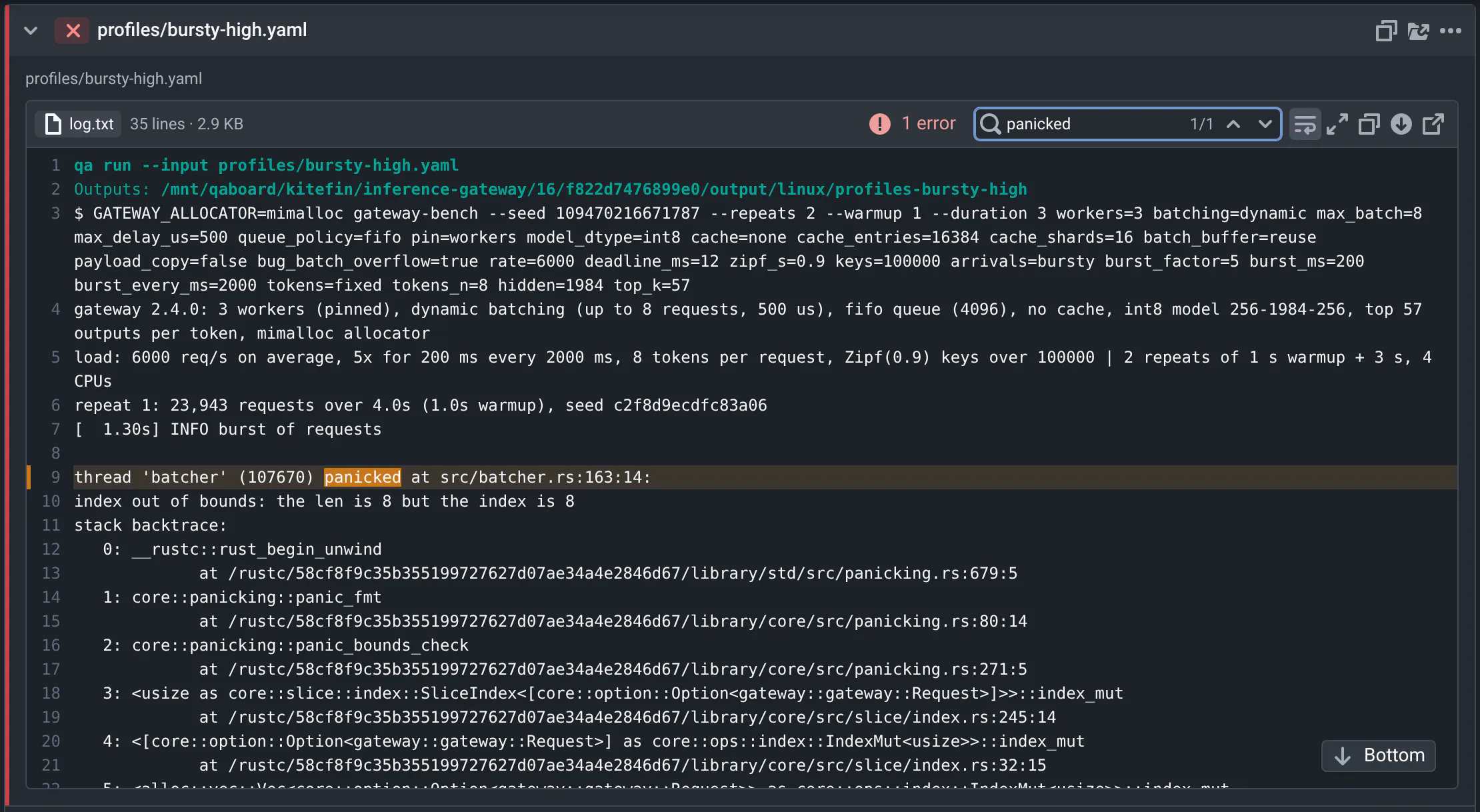
Filtered on Failed, the failed run's log, searched for its panic: the match is highlighted, with the source line that raised it. -
If the cluster stopped the run, for instance at its memory limit, a red summary above the log says why and what to change: see LSF reports.
-
Once it's fixed, redo the run from its ⋯ menu, or all the failed runs from the commit bar's menu: see Running from the web app.
Kaito's next commit, "batcher: fix off-by-one when the batch is full", brings the run back.
A run is missing from the list? The Logs view only shows the runs left by the new bar's filter box: clear it.
Is it still running?
While runs are pending or running, the Logs item says how many (for instance 1 running), and so do the counters under the filter box and a message above the views. Hover N running or N pending in the message to list the runs; Stop runs cancels them. The page refreshes by itself every 15 seconds.
In the Logs view, Running keeps the runs that are not finished (and Successful the ones that succeeded). Open one: its log has a Live tag and updates as the run writes it, following the end like a terminal. Scroll up to read in peace, Follow goes back to the end. New errors add to the count as they arrive.
A run stuck as pending or running whose job is gone never reports: its ⋯ menu's Mark as failed marks it as failed, so that you can redo it.
Reading a log
Click a run to open it. Above its log, its input path and full configuration: hover a setting to copy it. In the log:
- colors, line numbers and progress bars show as in a terminal; error lines are red, warnings orange;
- N errors jumps to the next error;
- Search… highlights the matches, with the previous and next ones (Enter, Shift Enter). With the log focused, Ctrl F (⌘ F on a Mac) goes to the search box;
- the buttons on the right wrap lines, make the log taller, copy it, download it, or open the raw file;
- when a run has several logs, switch between them at the top left: log.txt, and log.lsf.txt or log.dask.txt when the run used LSF or Dask.
Each run's line says how long it ran, and has buttons to copy the path of its output directory, open it in the file browser, and a ⋯ menu: its input's History, its batch, input path and database (click to copy), who ran it, its compute time, date and storage, and the actions to redo, mark as failed or delete the run.
Long logs, missing logs and other details
- Very long logs show their last 50,000 lines, to keep the page fast: Show 50,000 more (or Show them) shows the rest. If the hidden lines have errors, or matches for your search, the notice says how many.
- Large files: the web app first reads the last 512 KB of the file. Load everything reads the whole file. Until then, the lines have no numbers.
- Live logs check for new lines every 2 seconds, and only download what was added.
- No log yet: while a run is starting, the log says it will show as soon as the run writes it. A finished run without a log may have failed before it started, or had its files deleted.
- log.lsf.txt shows up in the list once the LSF job has started.
- Searches count up to 5,000 matches. Whether lines wrap is remembered for next time.
- Big batches list their runs 100 at a time: Show 100 more below the list. Open failed runs opens the first 20.
- The N failed message above the views links each failed run's name to its raw log, in a new tab.
When the cluster stopped the run: LSF reports
On LSF, a job that goes over its memory or run time limit is killed by the cluster, often without a word in your own log. QA-Board reads LSF's job report, and tags the failed run with the reason, like LSF: out of memory, as soon as it's on screen.
Tobias made the camera ISP process each frame in one tile. On his commit, the run of the 113 MP test wall fails. Open
it: a red summary says LSF killed the job at its memory limit (TERM_MEMLIMIT), compares the memory it used with
the 3 GB it requested, and says what to change: ask for more memory in the batch's definition, with
lsf: {max_memory: 8000} (in MB).
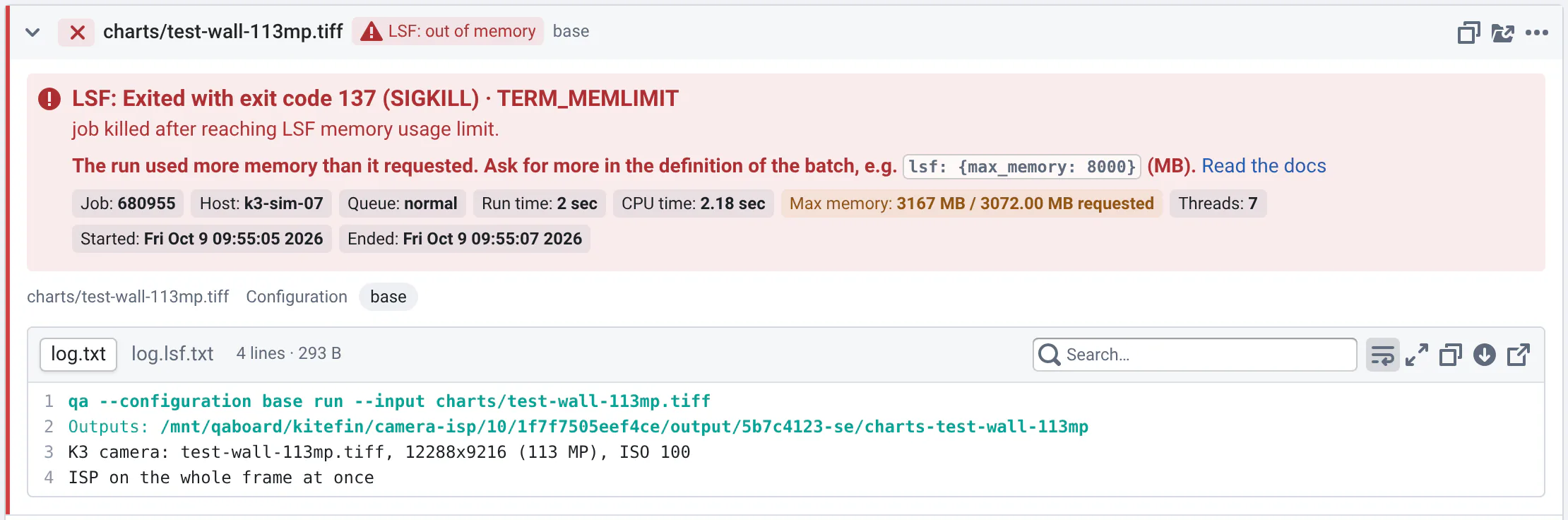
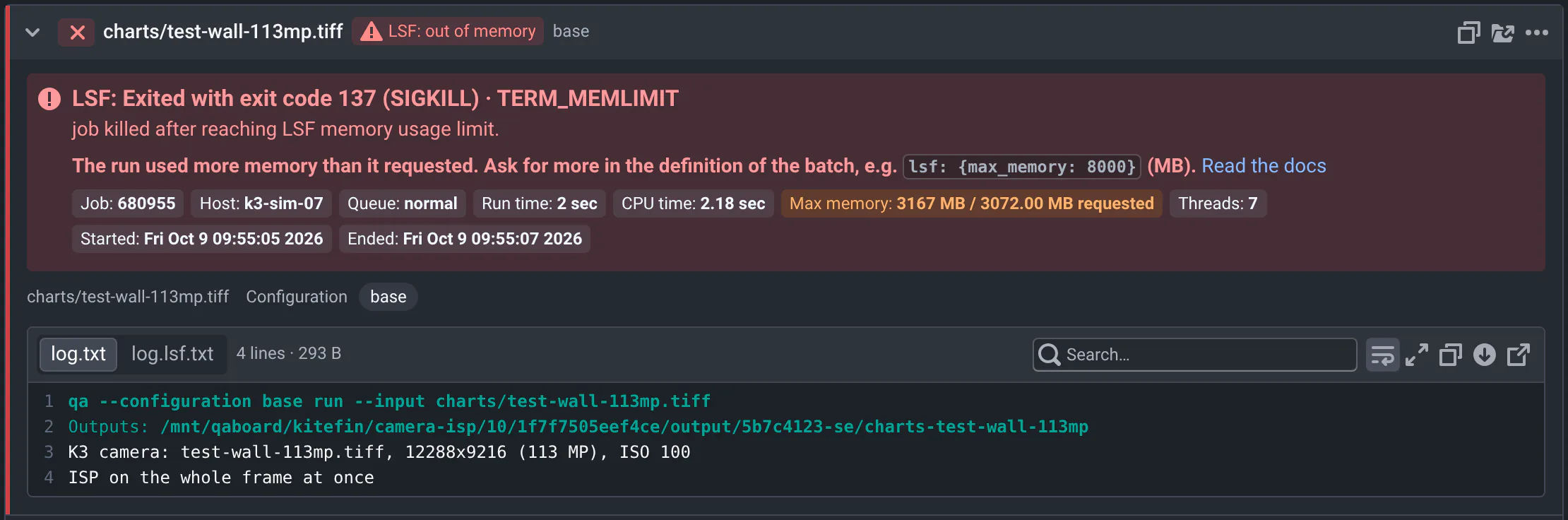
The summary also gives the job id, host, queue, run time, CPU time, threads, and when the job started and ended. The memory is orange when the run used 90% of what it asked for, or more. Click the tag to open log.lsf.txt: everything the job printed, including what doesn't go through Python, like subprocesses, native code and crashes, then LSF's report.
Tobias went back to 512×512 tiles: in one tile, the 113 MP wall needs more than the job's 3 GB. To change the memory, time or queue of a batch's jobs, see LSF options per batch.
What each reason means
When a job exits with an error by itself, there is no summary: its log says more than LSF.
| Tag | LSF's reason | What to do |
|---|---|---|
| LSF: out of memory | TERM_MEMLIMIT | Ask for more memory in the batch: lsf: {max_memory: 8000} (MB). |
| LSF: time limit | TERM_RUNLIMIT | Use a queue with a longer limit (lsf: {queue: ...}), or ask for more time (lsf: {options: -W 24:00}). |
| LSF: CPU time limit | TERM_CPULIMIT | Use a queue with a longer limit. |
| LSF: too many threads | TERM_THREADLIMIT | Ask for more: lsf: {max_threads: 8}. |
| LSF: out of swap, too many processes | TERM_SWAP, TERM_PROCESSLIMIT | The run went over the swap or process limit. |
| LSF: killed by its owner | TERM_OWNER | Someone stopped the job, for instance by stopping the batch from QA-Board. |
| LSF: killed by an admin, preempted, requeued | TERM_ADMIN, TERM_PREEMPT, TERM_REQUEUE_* | An administrator killed the job, a job with a higher priority preempted it, or it was requeued. |
| LSF: host overloaded, run window closed, deadline | TERM_LOAD, TERM_WINDOW, TERM_DEADLINE | The cluster stopped the job: because of the host's load, the queue's run window, or the job's deadline. |
| LSF: no working directory | TERM_CWD_NOTEXIST | The host can't see the working directory: check the shared filesystem. |
| LSF: job lost, killed | TERM_ZOMBIE, TERM_UNKNOWN, TERM_EXTERNAL_SIGNAL | The host may have gone down or rebooted, or the system's out-of-memory killer stopped the job. |
Batches started from QA-Board
When you redo runs or start tests and tuning from the web app, QA-Board runs qa batch for you: on a cluster, with
Celery, or on the server. Until its runs show up, a message on every view of the commit page says how it's doing, with
Show the logs:
- Your batch is waiting for LSF: the job is queued, the cluster may be busy.
- Starting your batch…:
qa batchis running, its runs will show up. - The batch you started from QA-Board failed: why, e.g.
qa batchexited with an error, or the cluster killed it, with the last error of its log. - qa batch didn't start any run: maybe there were no inputs, or all the runs already existed. To run them again, turn on Overwrite previous identical runs in the form.
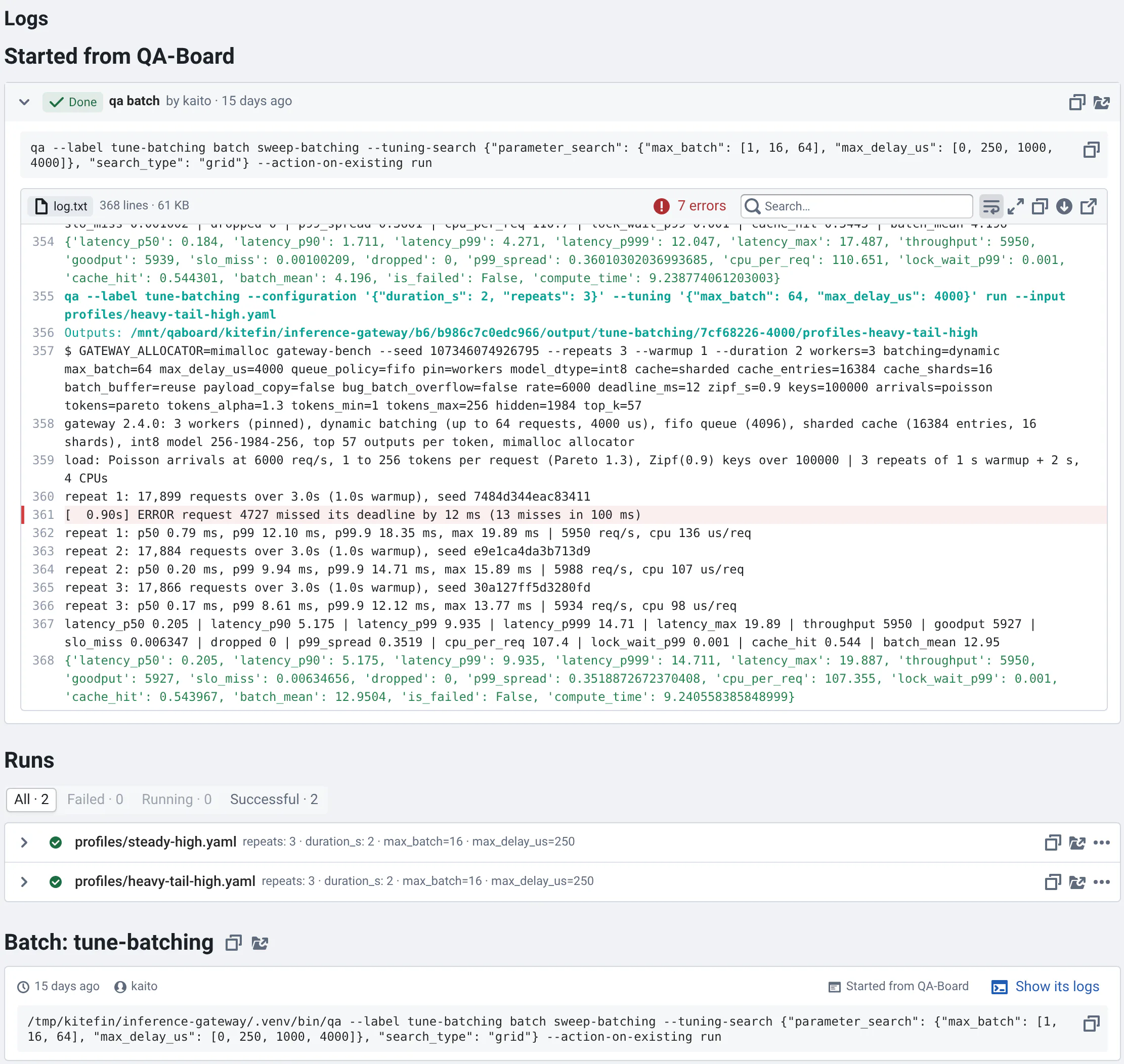
In the Logs view, Started from QA-Board lists these qa batch commands, most recent first (Show N older for
more than three): their status (Queued, Running, Failed, Done), who started them and when, and the
batch files their batches come from (e.g. from qa/batches.yaml, or your private batches' file). Open one for which file
defines each batch, the command it ran and its log, live while it runs. qa batch reads copies of these files, saved
in the batches folder next to its log so you can see what ran and run it again: like on your computer, it reads them in
order, uses their file-level defaults (database, configurations, platform), and when several files define a batch,
the last one wins. Its folder buttons copy the path of, or open, the folder with
the script QA-Board ran and its logs.
The commands that started a batch
At the bottom of the Logs view, the Batch section has buttons to copy the path of the batch's directory or open
it, and lists the qa batch commands that started the batch, the latest first: when, by whom, on which host, and the
command, to copy. On the right, where their logs are:
- Logs in the CI job: a link to the CI job that ran it.
- Show its logs: QA-Board has them. The command was started from a terminal with
qa --share batch(orqa optimize), which saves what it prints; or from QA-Board; or it's an older batch that logged in its directory's log.txt, shown as Batch logs. - Logs not saved: for instance, it was started from a terminal by an older version of
qaboard, which only printed its logs there.
Whatever started the batch, each run's own logs are saved, in the list above. With the Dask runner, Dask workers' logs opens the logs of the workers. For CI jobs you started from the Integrations menu, click their status tag to open the job's page and its logs: see Integrations.
Where the log files are
Each run writes its logs in its output directory:
- log.txt: what
qa runand your code print, with every runner. - log.lsf.txt: on LSF, everything the job printed, then LSF's job report. See LSF integration.
- log.dask.txt: with the Dask runner.
Batches started from a terminal with qa --share batch save what qa batch prints in the batch directory, under
qa-batch-logs/ (see qa --share). In the CI, the CI job keeps them.
Where to go next
- Redo and clean up runsRedo failed runs, stop pending ones, delete what you don't need.
- Project integrationLSF options per batchMemory, threads, queues and time limits for a batch's jobs.
- Reading metricsOnce the runs are back: did the commit make things better?