Your first review
Was this commit better? This page answers that question for one real commit of the demo data, in ten short steps. On the way, you meet the parts of the web app you'll use every day.
The camera team of Kitefin Robotics, a fictional company, works on kitefin/camera-isp: the image pipeline of their
robot's camera, from the raw sensor data to the displayed image. Ines replaced its denoiser with a bilateral filter.
Her commit said "+1.6 dB PSNR in low light", and she merged it into main. Check it yourself.
You need a QA-Board server with the demo projects: run one on your computer, then
open http://localhost:5151. Steps 7 and
9 need you to sign in: click Sign in (top right of Explore, or at the bottom of the
sidebar) and sign in as ines, password kitefin-demo. Every person of the demo world has an account.
1. Open the project
On Explore (Explore in the top bar, or the home page when you are signed out), click camera-isp in the kitefin group. You get its commits with results, on every branch, newest first, grouped by day. Signed in, the page starts with your own batches: click Everyone above the list to see every commit.
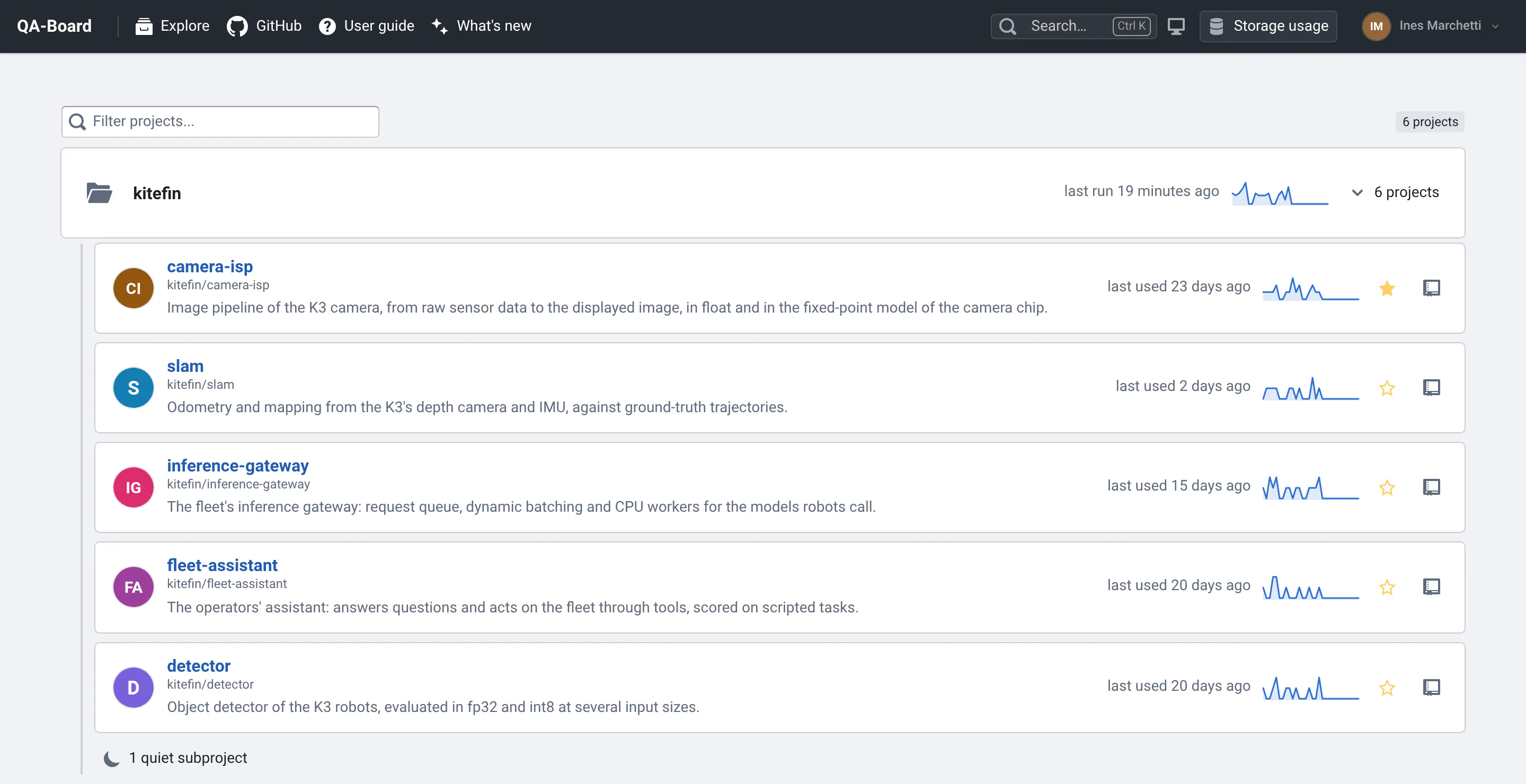
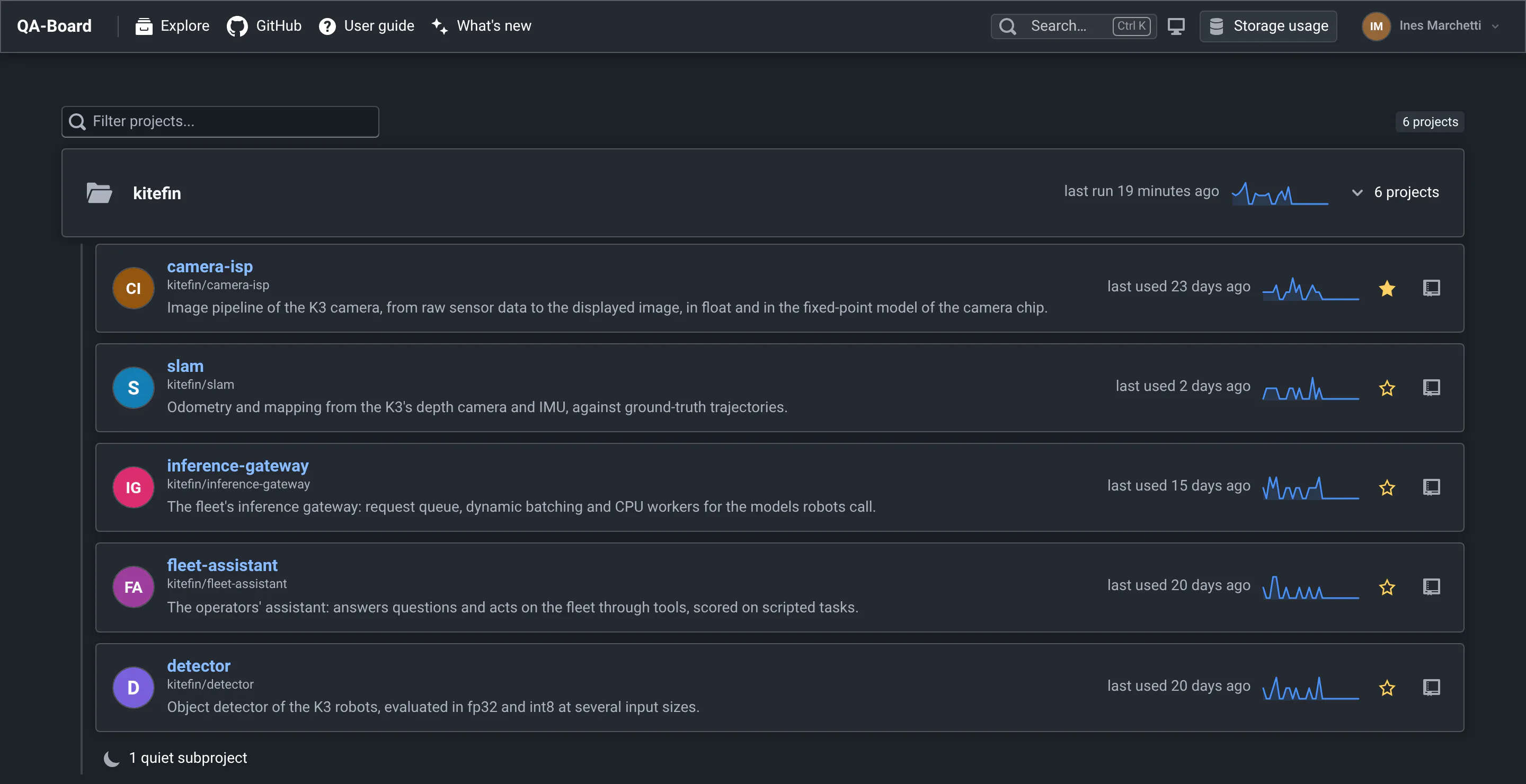
The list shows the last 3 days at first: the demo history ends when your QA-Board first started, so you see its latest commits. If it started days ago, the list may be empty: the search in step 2 looks at every date. More in Finding results.
2. Find the commit
- Type
bilateralin the Search commits box at the top right. After a moment, the list shows every commit that mentions it, on any branch and at any date. - Find Merge branch 'isp/bilateral-denoise', on
main, and click 26 runs on the right of its row.
The commit page opens. More in Searching commits.
3. Compare it with the release
The page has two bars at the top: the commit you opened, tagged new, and below it the reference it's compared
with, tagged ref. By default, the reference is the latest commit with results on the project's reference branch,
main. For a commit in the past, that's a later one. To judge the denoiser, compare it with the release before it,
which the team saved as a milestone:
- In the reference bar, click Change.
- Under Shared with the project, click isp-4.1.
The reference bar now shows the release, isp: release 4.1, gaussian denoise and detail boost 1.2, with a crown: it's a milestone shared with the project. Tables and viewers now call it isp-4.1.
More in Picking a reference.
4. Read the metrics
The page opened on the Summary: each main metric's median over the runs, new against reference, with its change, green when it gets better and red when it gets worse. Medians say that something moved. To see which runs moved:
- Click Metrics Diff in the sidebar: one row per run, the change of each metric.
- Type
base linuxin the Filter runs… box of the new commit's bar. The table keeps the 10 runs at ISO 100, on the float pipeline (thehw-modelplatform runs the camera chip's fixed-point model).
On the facade photo, PSNR is up 1.34 dB (5%). On the slanted-edge chart, PSNR is up too, but Overshoot is up 163%, in red: the sharpened edge now overshoots by 11% of its step, against about 4% in the release. That's what halos look like in numbers.
More in Reading metrics.
5. Look at the images
- Click Visualizations in the sidebar, and type
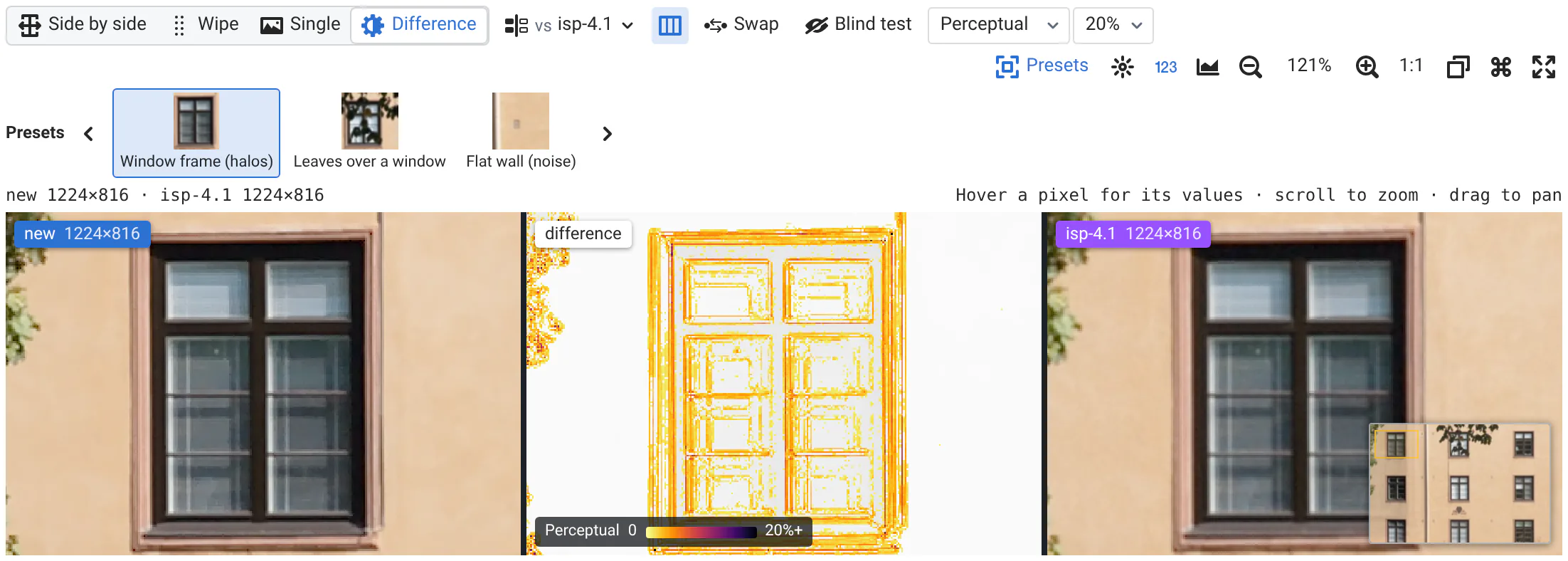
facadebeforebase linuxin the filter box. - On the card of photos/facade.png, click the preset Window frame (halos), then scroll on an image to zoom and drag it to move.
Each card is one run: its main metrics against the reference, then its images, new and reference side by side. When you zoom into one image, the other follows.
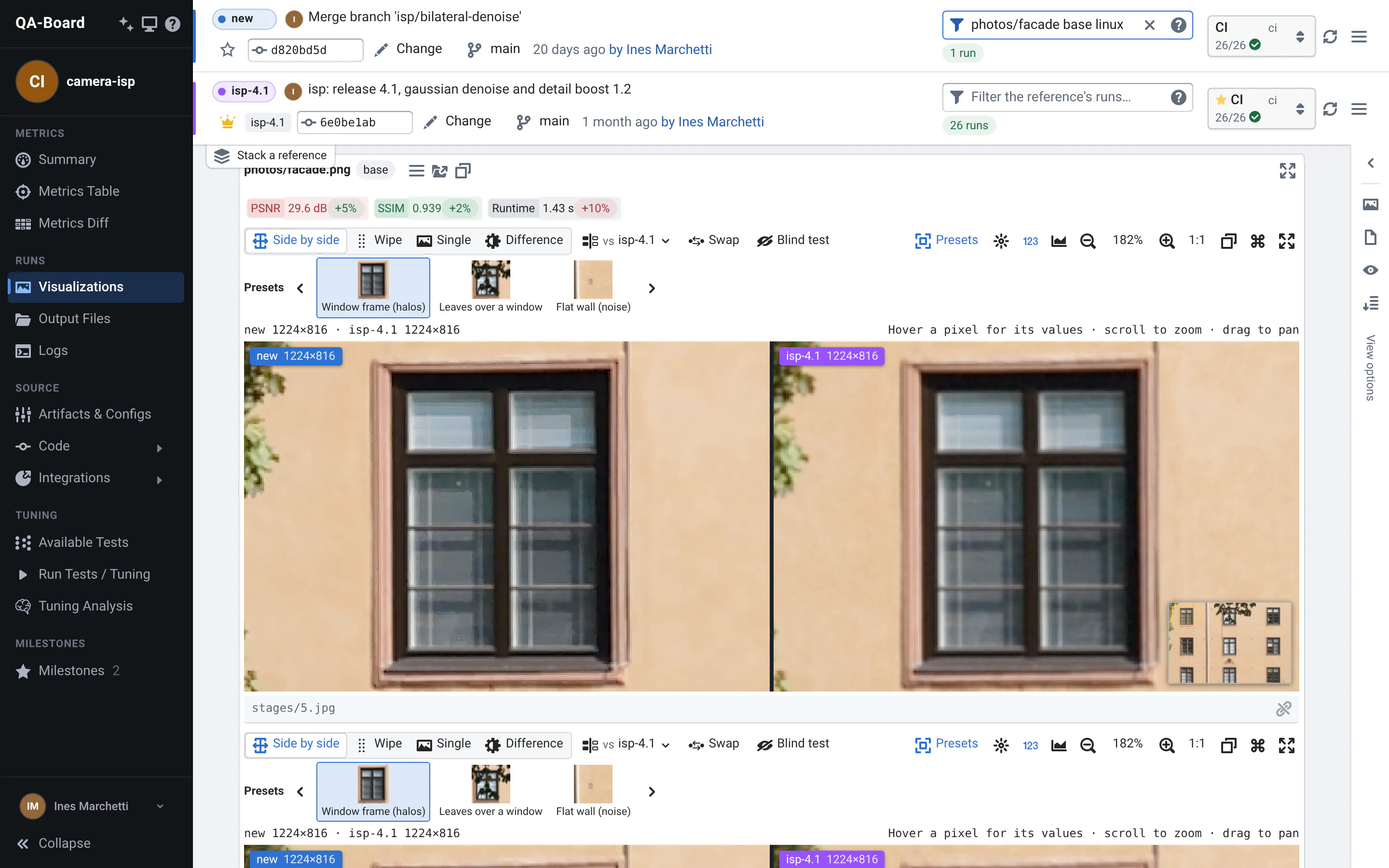
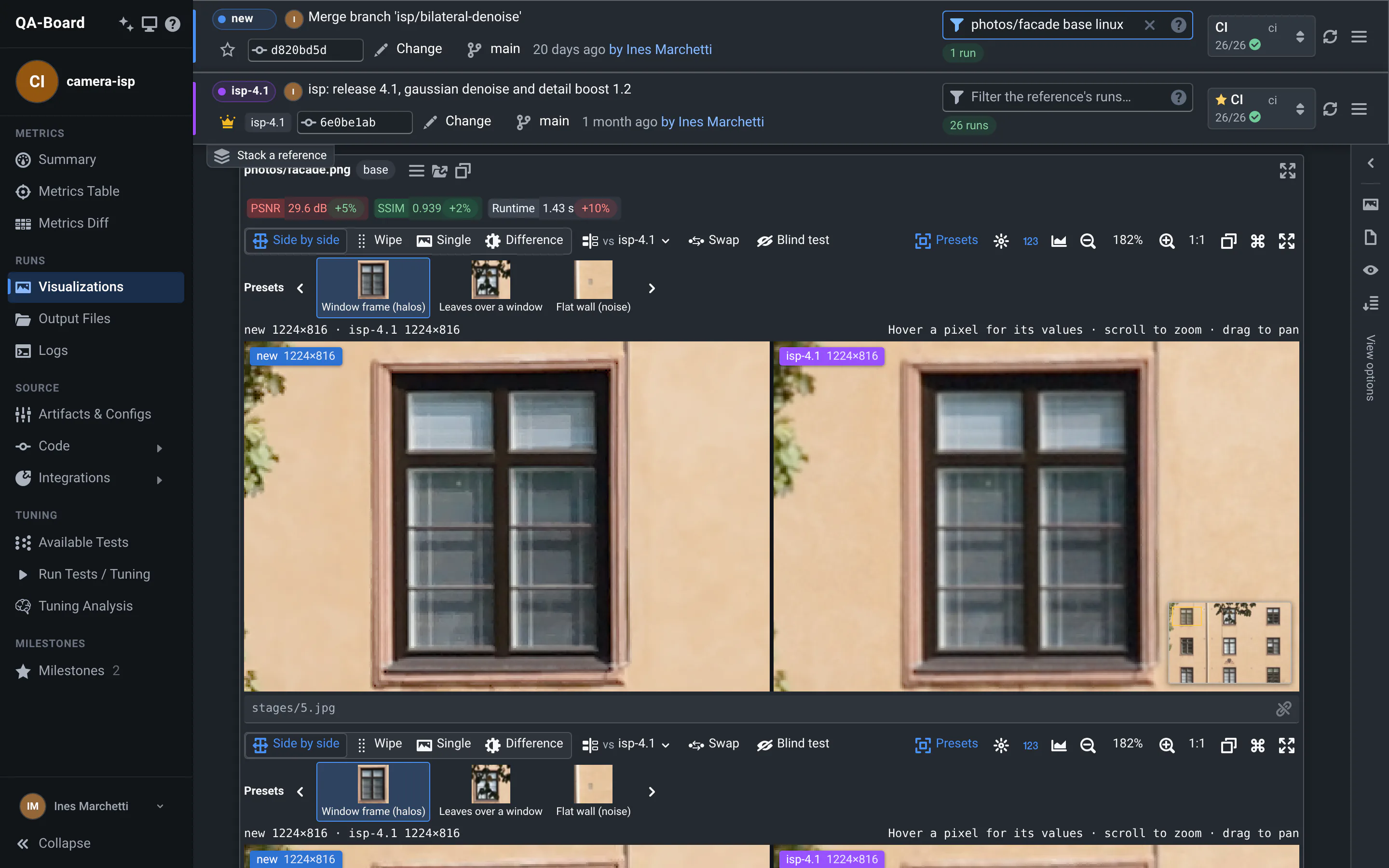
More in Synced zoom and pan.
6. Show their difference
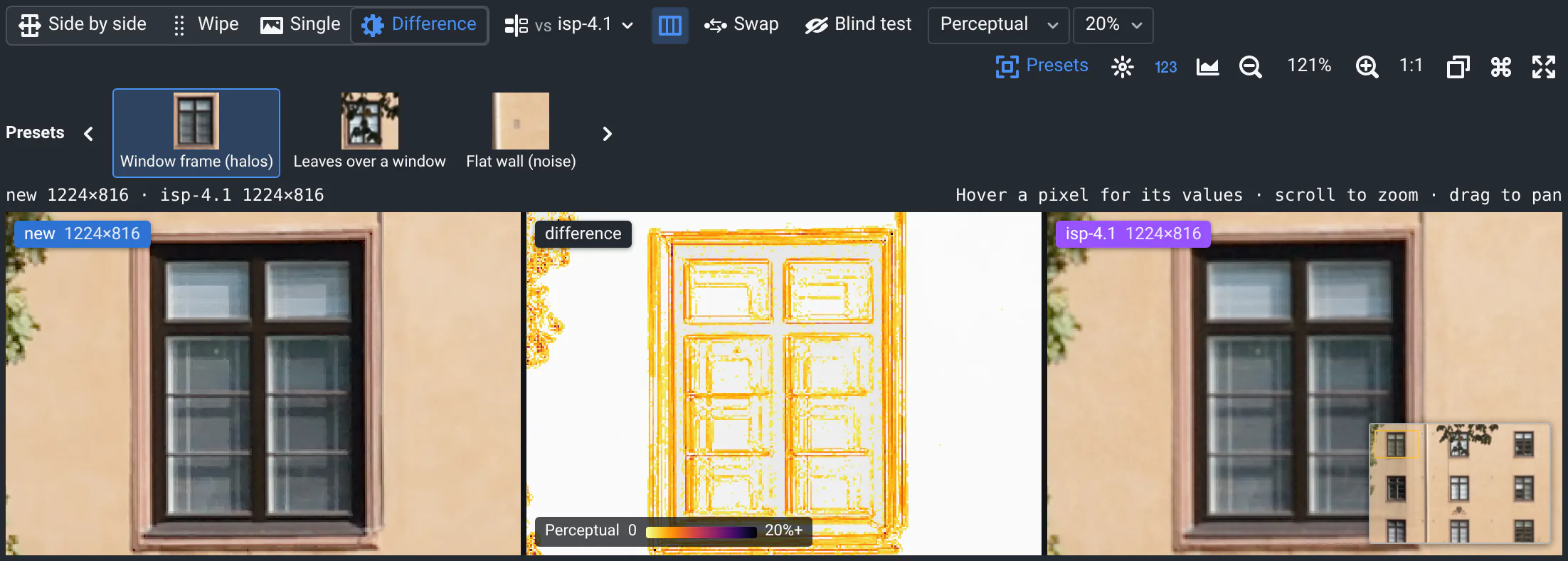
- In the card's toolbar, click Difference. Their difference shows between the images: small differences, like the noise the denoisers leave, color it everywhere.
- In the menu next to Perceptual, pick 20%.
Small differences fade. What's left outlines the window frame: the halos that PSNR missed.
More in The difference.
7. See which runs changed most (optional)
Did other images change as much?
- Remove
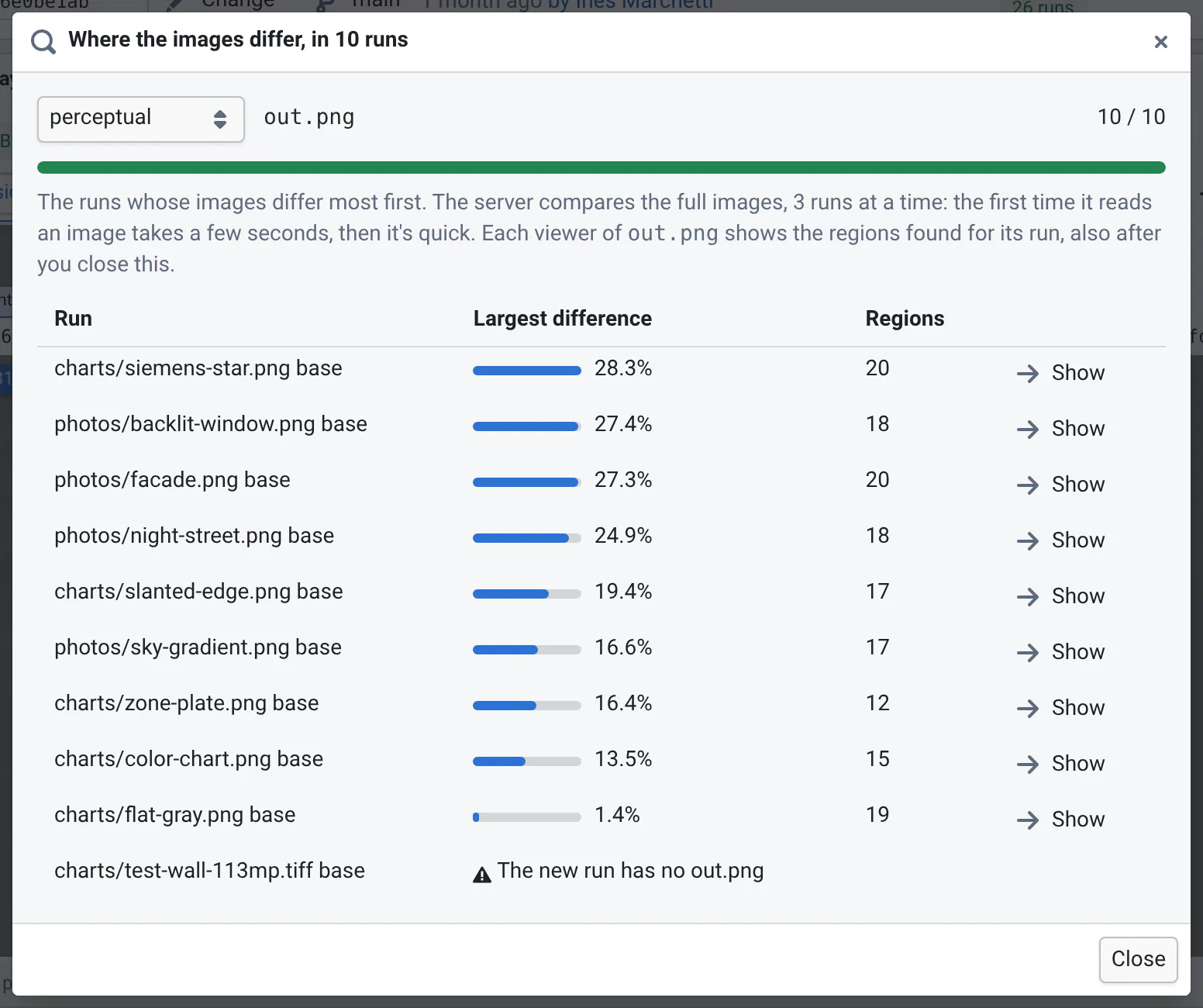
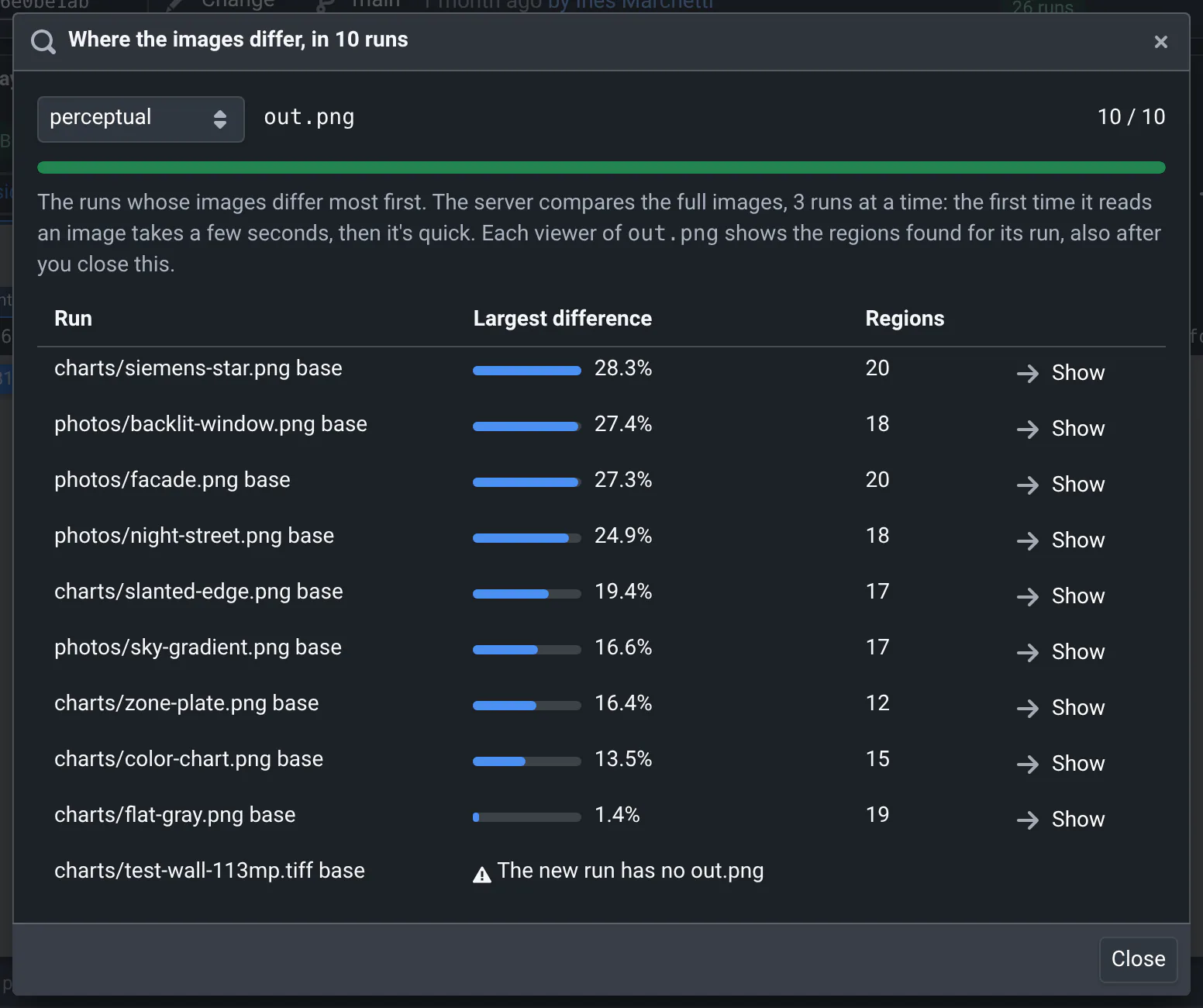
facadefrom the filter box, so the page shows the 10 runs again. - On any card, open the regions menu at the right of the toolbar (it says Presets), and click Where they differ, in all 10 runs…
The server compares each run's images with the reference's, and ranks the runs. Show scrolls to a run's card and zooms on the regions found.
More in Which runs changed most.
8. Find when it started
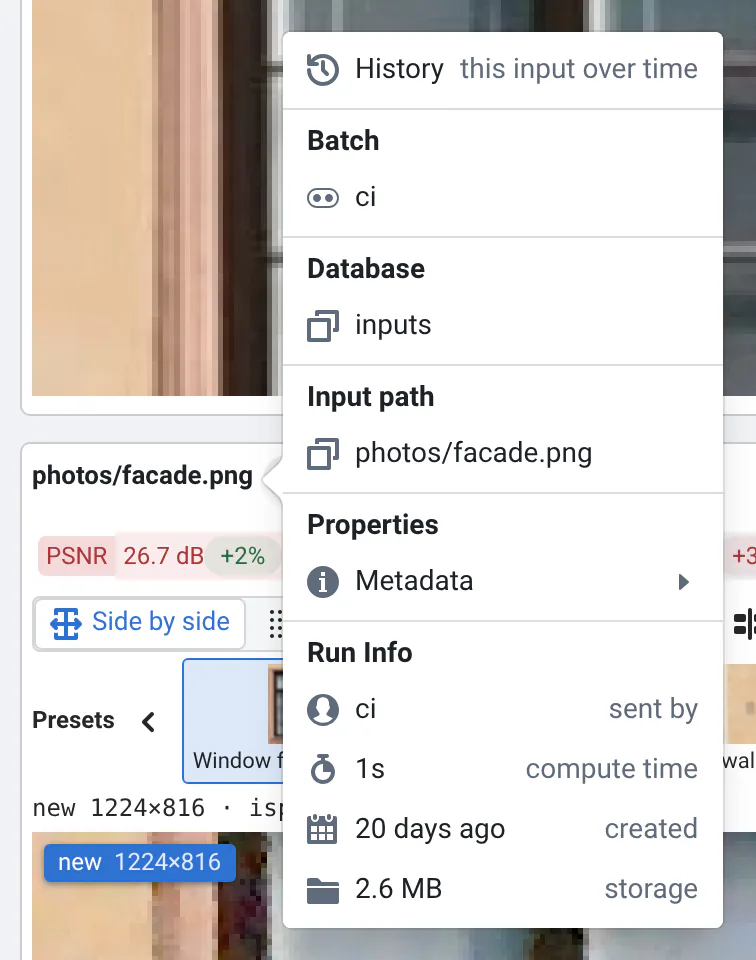
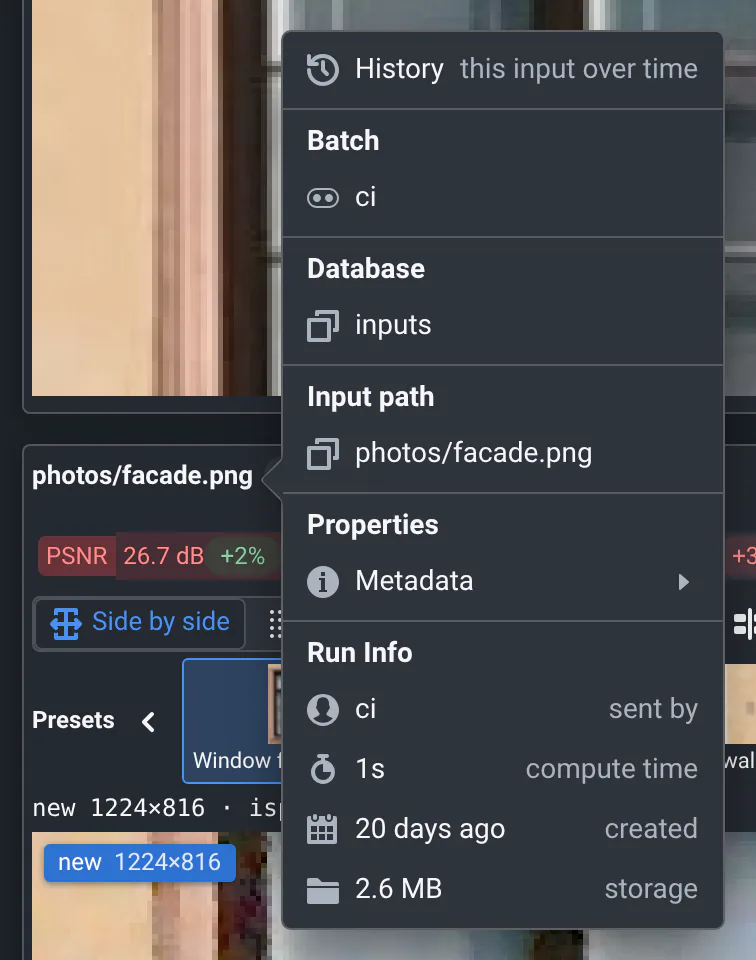
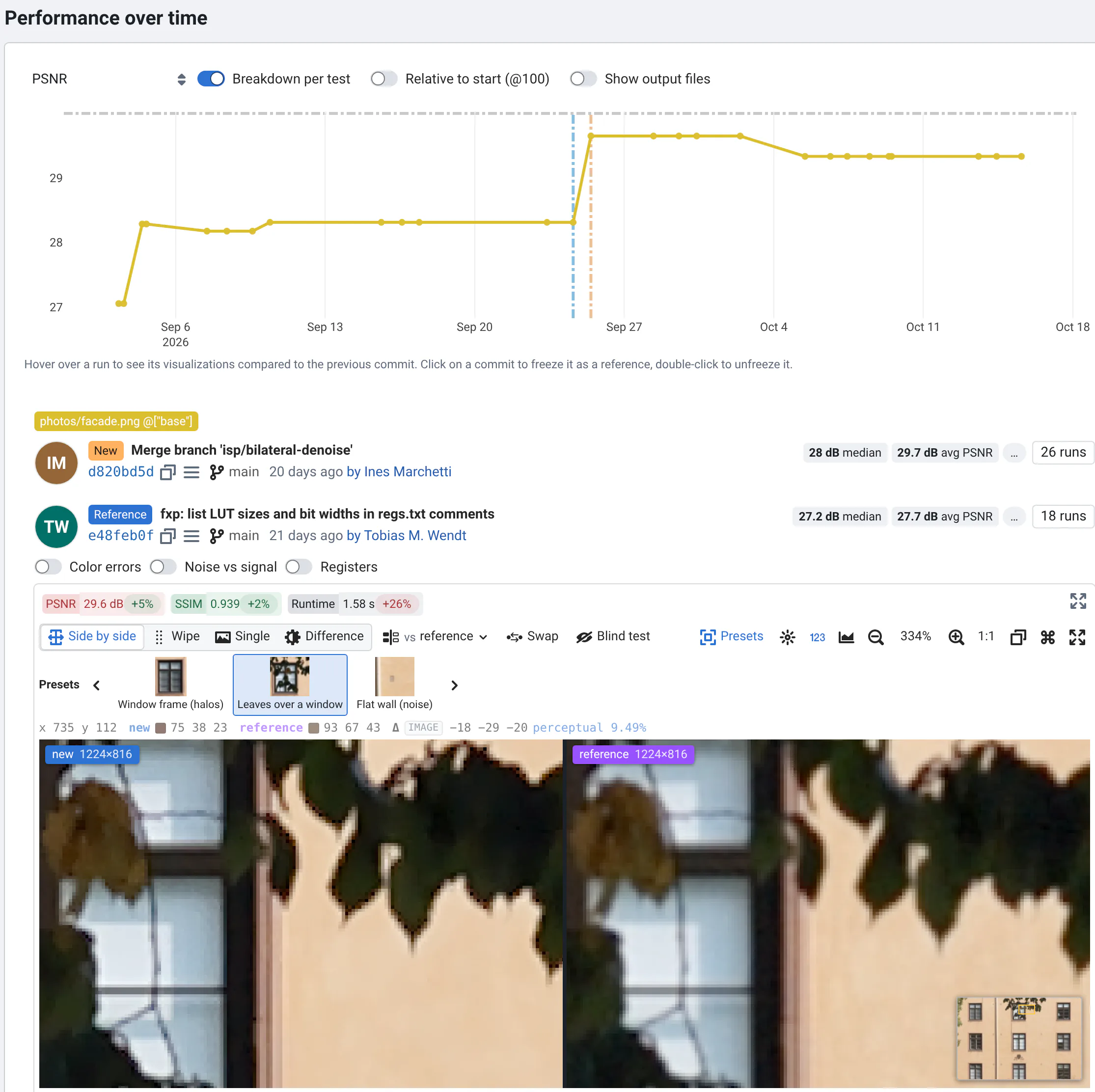
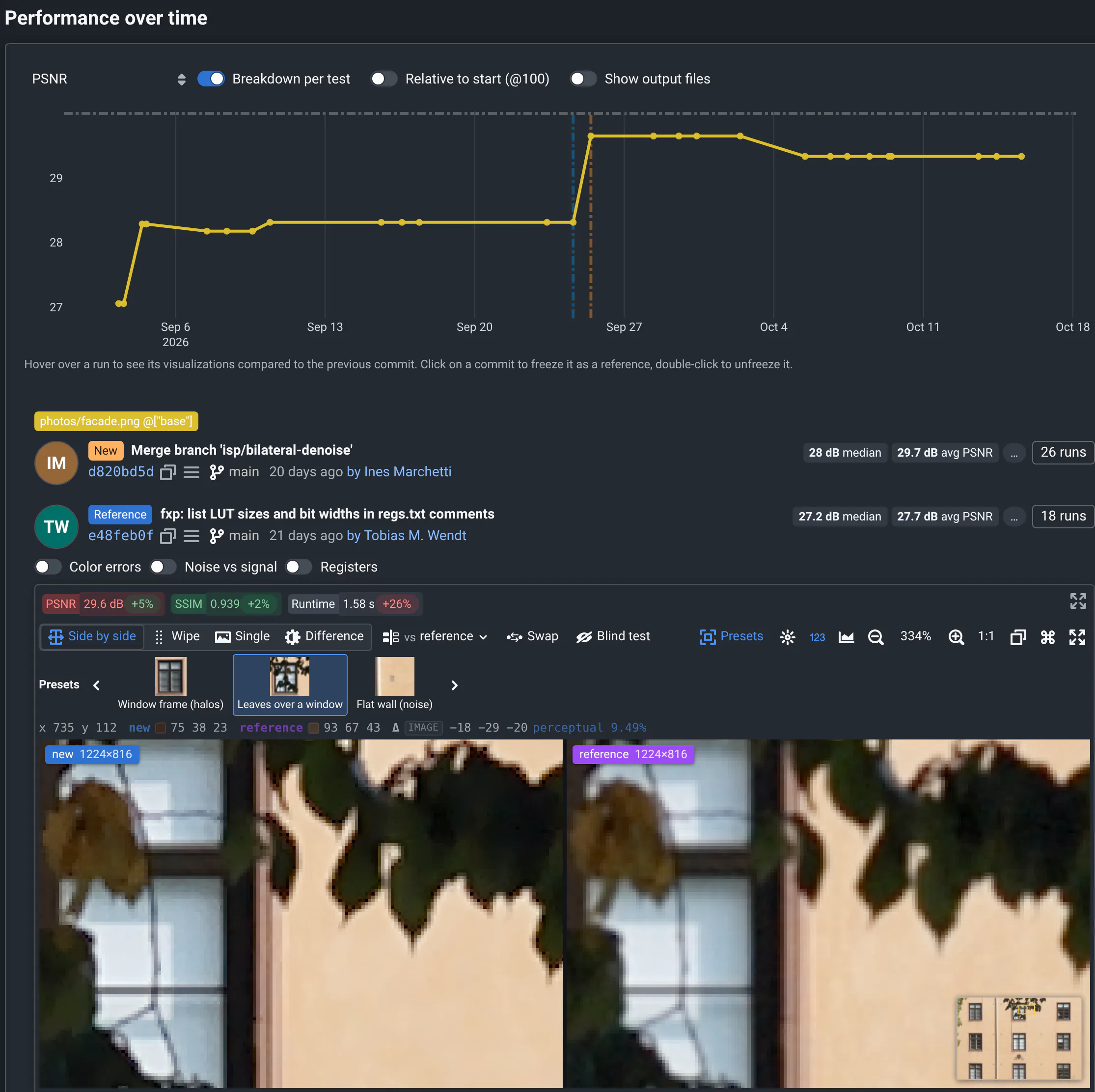
- On the card of photos/facade.png, hover its name, then click History (this input over time). History
opens: the facade's metrics over the commits of
main, from 3 days before the merge to today. - Hover the points of the PSNR chart, from right to left.
Below the chart, the hovered commit shows as New and the commit before it as Reference, with their images. Where the PSNR jumps, the new commit is the merge, and the leaves get halos.
Press your browser's Back button to return to the commit page. More in History.
9. Save it as a milestone
A milestone keeps these results, so that you can compare the fix with them later.
- Clear the filter box (its ✕): a milestone keeps the batch and the filter you're looking at.
- Click the star next to the new commit's hash.
- Name it, like
bilateral, with halos, leave Only me selected, and click Save milestone.
The star turns gold, and the name shows next to it. The milestone is saved in your account: you'll find it under My milestones, in the Change menus and in the sidebar's Milestones. More in Milestones.
10. Share what you found
Copy the page's link from your browser, and paste it in your bug report or chat. The link keeps the commits, the
reference, the filter, the view and how images are compared, but not the zoom: whoever opens it gets the same
comparison, even after main moves on. To point at a spot, paste a copy of the image too (the copy button above the
images), or name the region, e.g. Window frame (halos).
To share the milestone, click its star again, then Copy link. More in Sharing.
Check the fix
Ten days later, Ines merged a fix: near strong edges, the sharpening now stays within the range of the neighboring pixels. Compare it with your milestone:
- Click the project's name, camera-isp, in the sidebar: its commits show again. Search for
halo-clamp, and open the runs of Merge branch 'isp/halo-clamp'. - In the reference bar, click Change, then your milestone under My milestones.
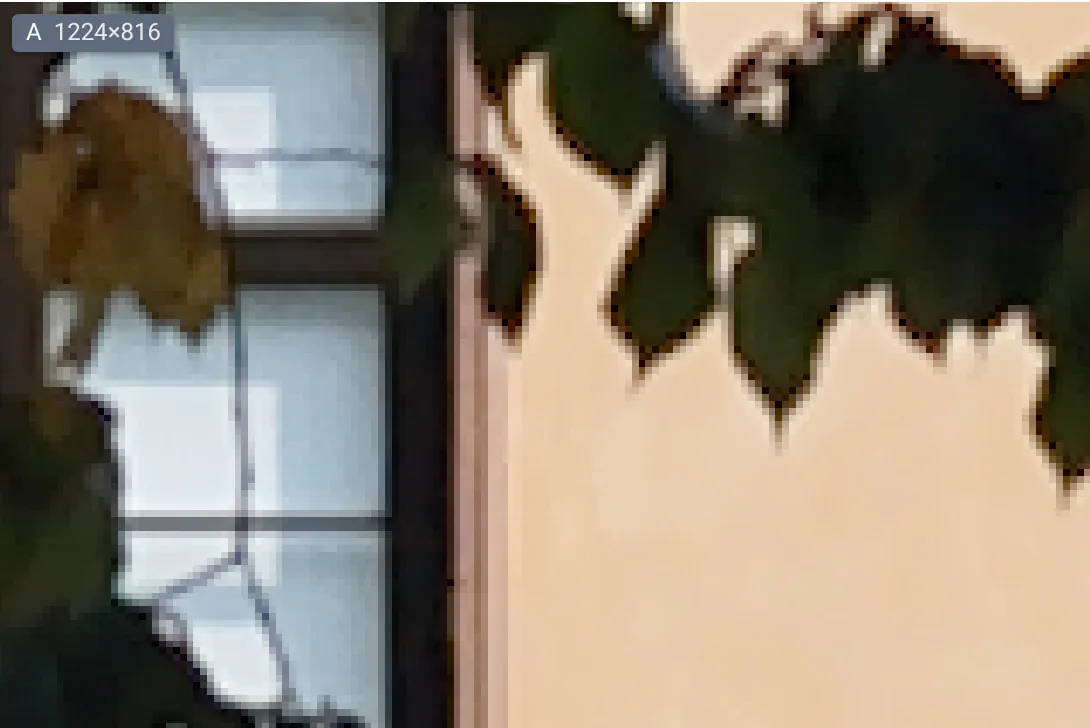
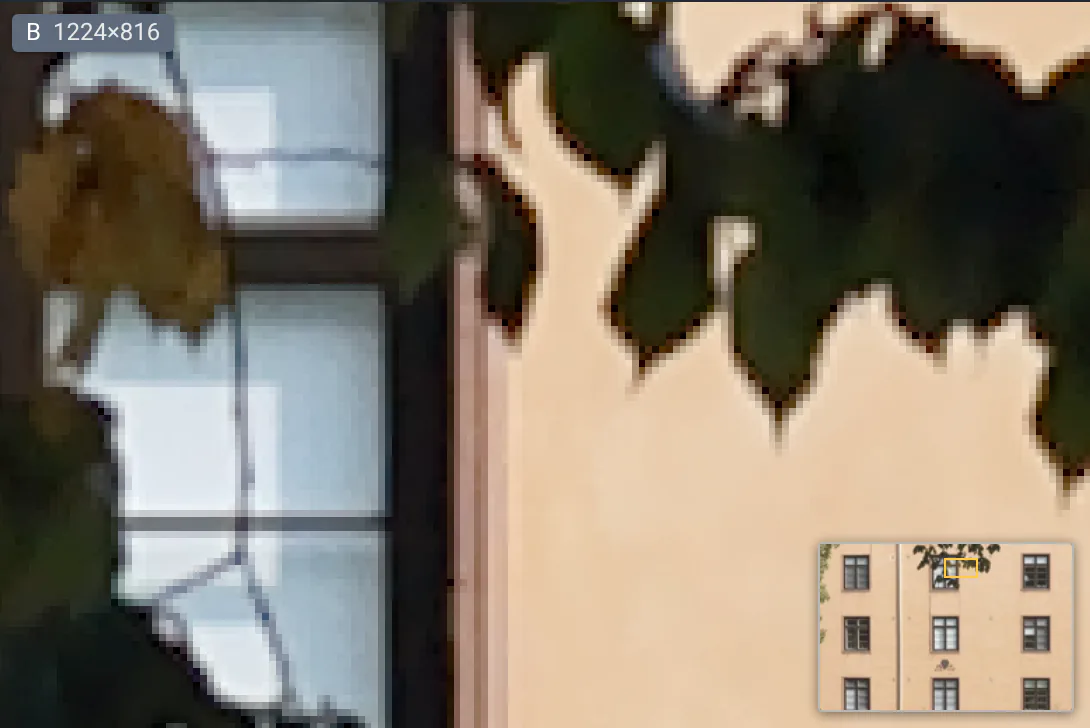
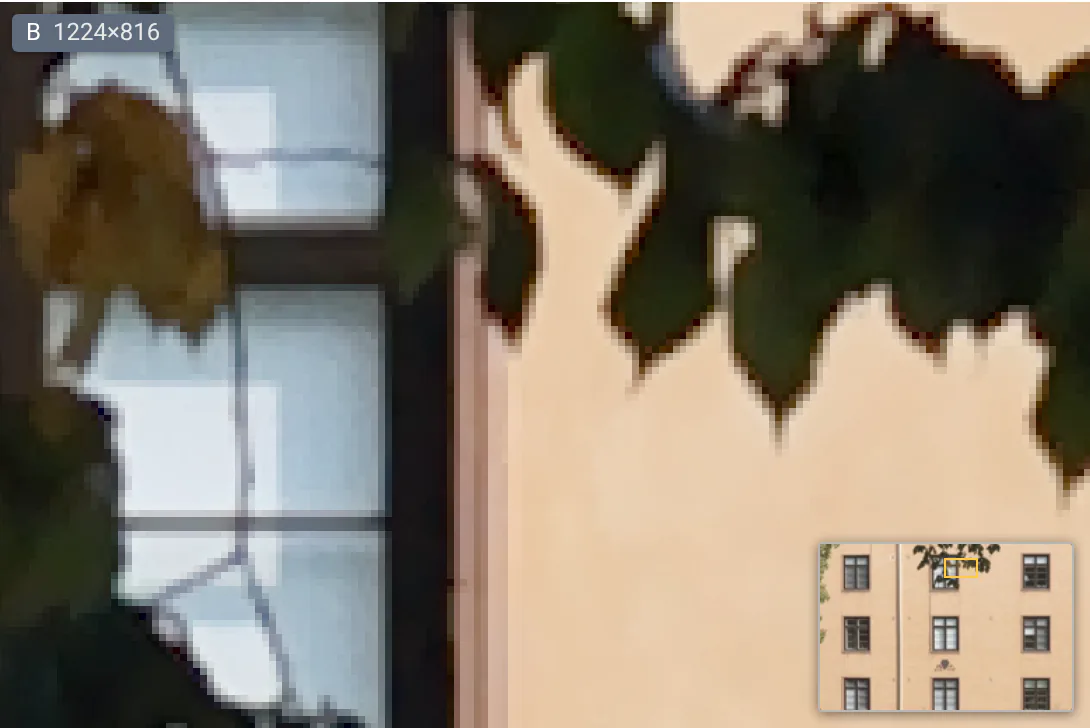
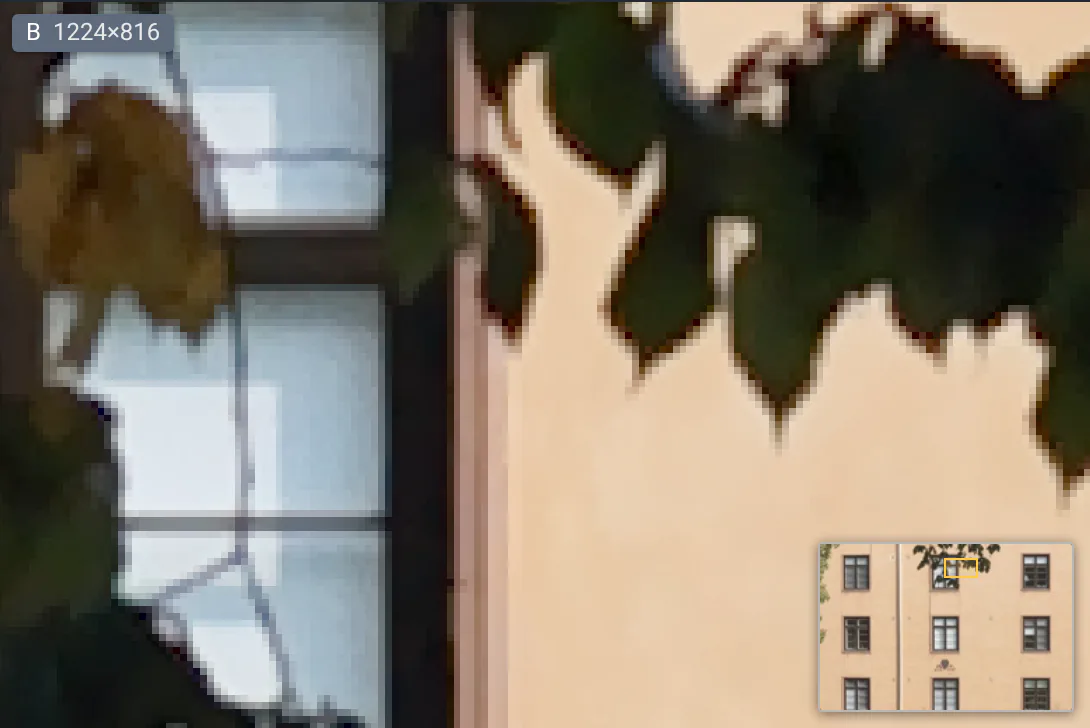
The edge overshoot is back to about 5%, and on the facade, the dark rims around the leaves fade.
Try the other demo projects
Each demo project has a story of its own. Its use case page says what to look for.
- kitefin/detectorAn int8 model that misses small objects
The quantized detector is 72% smaller. Sort the Metrics Diff to find the slice that paid for it.
- kitefin/inference-gatewayA p99 regression on one load profile
The median over all tests hid it. Follow one test's p99 in History to the commit that more than tripled it.
- kitefin/slamA false loop closure, in 3D
Trajectories, point clouds and depth videos against the ground truth: watch the path jump meters away.
- kitefin/fleet-assistantAn agent that stopped asking
Diff an LLM agent's transcripts with the reference's: after a change, it reboots robots without asking.
What else you can do
- Compare with several references at once, like isp-4.1 and the latest
main: hover the reference bar, then Stack a reference. See Several references. - Run more tests, or tune parameters, from the web app, on any commit: see Running from the web app.
- Find why a run failed: on the camera project, search
one tile, open isp: process frames in one tile, then its Logs: the 113 MP test wall's run was killed at its 3 GB memory limit. See Logs and failed runs. - Compare videos frame by frame: on the merge commit, against isp-4.1, pick the video batch in both bars. See The video viewer.
- Put your own project on QA-Board, and fail CI when a metric gets worse: see the tutorial and the quality gate (experimental).