Run QA-Board on your computer
Start a QA-Board server on your computer, run an example project, and look at its results in the web app. Most of the time goes to downloading images.
Start the server
- Docker Compose
- Kubernetes (Helm)
You need Docker with Docker Compose (docker compose), and about 7 GB of free
disk space.
-
Create the results folder. QA-Board reads the results you save in
/tmp/qaboard, at the same path as on your computer. Create the folder first, or Docker creates it, owned byroot.mkdir -p /tmp/qaboard -
Download the Compose file and start QA-Board. The first start downloads QA-Board's images, about 2 GB, then restores the demo projects, which takes a few seconds.
curl -fsSLO https://raw.githubusercontent.com/Samsung/qaboard/master/deployments/quickstart/compose.ymldocker compose up -d --waitWhat's in
compose.ymldeployments/quickstart/compose.yml# QA-Board on your computer, with demo projects: https://samsung.github.io/qaboard/docs/get-started/quickstart## mkdir -p /tmp/qaboard# curl -fsSLO https://raw.githubusercontent.com/Samsung/qaboard/master/deployments/quickstart/compose.yml# docker compose up -d --wait## Then open http://localhost:5151 (QABOARD_PORT_HTTP picks another port). The first start downloads the images (about# 2 GB) and restores the demo data.## Not for production: the database has a default password, and the API that saves results doesn't require a login.# QA-Board only answers on this computer (127.0.0.1). If you open it to your network, keep it behind a firewall.# To run QA-Board for a team: https://samsung.github.io/qaboard/docs/deploy## - Images: ghcr.io/samsung/qaboard:<service>, the latest version. QABOARD_VERSION picks a release (e.g. 1.2.0),# QABOARD_IMAGE another registry, e.g. the images a fork publishes (ghcr.io/<owner>/qaboard).# - demo-data restores the demo projects the first time, then exits: their database, and their results in the# demo-results volume, mounted at /mnt/qaboard, the path the database has.# - Your own results: `qa` saves them in /tmp/qaboard (QA_STORAGE=/tmp/qaboard), and QA-Board reads them there, at# the same path. Create the folder first, or Docker creates it, owned by root. QABOARD_RESULTS picks another folder.# - `docker compose down` stops QA-Board and keeps its data; `docker compose down --volumes` deletes it, except# what's in /tmp/qaboard.# - Tested in CI: the quickstart job of .github/workflows/ci.yaml.name: qaboardvolumes:db: {}data: {} # the backend's own filesdemo-results: {} # the demo projects' resultsfrontend: {} # the web app, copied by the frontend imagecantaloupe-cache: {}services:db:image: postgres:16-alpineenvironment:POSTGRES_USER: qaboardPOSTGRES_PASSWORD: passwordPOSTGRES_DB: qaboardvolumes:- db:/var/lib/postgresql/datahealthcheck:test: ["CMD-SHELL", "pg_isready -U qaboard -d qaboard"]interval: 5stimeout: 5sretries: 20restart: unless-stopped# Restores the demo projects into the database and the demo-results volume, unless they're there already, then exits.# It never touches a database that already has QA-Board's tables.demo-data:image: "${QABOARD_IMAGE:-ghcr.io/samsung/qaboard}:demo-data${QABOARD_VERSION:+-$QABOARD_VERSION}"depends_on:db: {condition: service_healthy}volumes:- demo-results:/mnt/qaboard# It's built on the postgres image (for psql), which declares a volume there: nothing is written to ittmpfs: [/var/lib/postgresql/data]redis:image: redis:7restart: unless-stoppedbackend:image: "${QABOARD_IMAGE:-ghcr.io/samsung/qaboard}:backend${QABOARD_VERSION:+-$QABOARD_VERSION}"depends_on:demo-data: {condition: service_completed_successfully}redis: {condition: service_started}environment:QABOARD_URL: http://localhost:${QABOARD_PORT_HTTP:-5151}# Where results are: the backend only lists, deletes or runs code thereQABOARD_STORAGE_ROOTS: /mnt/qaboard:${QABOARD_RESULTS:-/tmp/qaboard}# The web app links to the online docsQABOARD_DOCS_ROOT: https://samsung.github.io/qaboard/REDIS_HOST: redisUWSGI_PROCESSES: 2UWSGI_LISTEN_QUEUE_SIZE: 100QA_NO_CHECK_FOR_UPDATES: 1volumes:- data:/var/qaboard- demo-results:/mnt/qaboard- ${QABOARD_RESULTS:-/tmp/qaboard}:${QABOARD_RESULTS:-/tmp/qaboard}networks:default:# nginx's configuration has a /flower/ location (the task queue's UI), and nginx only starts if its host# resolves. There's no task queue here: /flower/ answers 502.aliases: [flower]healthcheck:test: ["CMD", "python", "-c", "import urllib.request as u; u.build_opener(u.ProxyHandler({})).open('http://127.0.0.1:3001/api/v1/health', timeout=5)"]interval: 10stimeout: 10sretries: 3start_period: 120srestart: unless-stopped# Copies the web app where nginx serves it, then exitsfrontend:image: "${QABOARD_IMAGE:-ghcr.io/samsung/qaboard}:frontend${QABOARD_VERSION:+-$QABOARD_VERSION}"volumes:- frontend:/builds# Image tiles for the image viewers (IIIF): it reads /iiif/2/<path> from /repository/<path>cantaloupe:image: "${QABOARD_IMAGE:-ghcr.io/samsung/qaboard}:cantaloupe${QABOARD_VERSION:+-$QABOARD_VERSION}"command: sh -c 'java -Dcantaloupe.config=/etc/cantaloupe.properties -Dcom.sun.media.jai.disableMediaLib=true -Xms256m -Xmx1g -jar /usr/local/cantaloupe/cantaloupe-$${VERSION}.jar'volumes:- cantaloupe-cache:/var/cache/cantaloupe- demo-results:/repository/mnt/qaboard:ro- ${QABOARD_RESULTS:-/tmp/qaboard}:/repository${QABOARD_RESULTS:-/tmp/qaboard}:rorestart: unless-stopped# nginx: serves the web app, proxies the API and the image server, and serves results under /s/<path>proxy:image: "${QABOARD_IMAGE:-ghcr.io/samsung/qaboard}:proxy${QABOARD_VERSION:+-$QABOARD_VERSION}"command: ["/bin/bash", "-c", "sh /tmp/etc/nginx/configure.sh && exec nginx -g 'daemon off;'"]environment:NGINX_USER: nginxdepends_on:backend: {condition: service_healthy}frontend: {condition: service_completed_successfully}cantaloupe: {condition: service_started}ports:- 127.0.0.1:${QABOARD_PORT_HTTP:-5151}:80volumes:- frontend:/builds:ro- demo-results:/var/qaboard/mnt/qaboard:ro- ${QABOARD_RESULTS:-/tmp/qaboard}:/var/qaboard${QABOARD_RESULTS:-/tmp/qaboard}:rohealthcheck:test: ["CMD", "bash", "-c", "exec 3<>/dev/tcp/127.0.0.1/80"]interval: 5stimeout: 5sretries: 10restart: unless-stopped -
Open http://localhost:5151. Explore, the list of projects, shows the demo projects.
The demo data comes from the demo-data image: the first time, it restores the demo projects' database and their
results, in the demo-results volume. Later starts leave your data as it is. docker compose down stops QA-Board and
keeps its data; docker compose down --volumes deletes it, except the results in /tmp/qaboard.
On every commit, GitHub CI starts this Compose file with the images it built in the same run and a small test
project as demo data, then checks it through the API and in a browser (the quickstart job). The demo data is
tested the same way before it's published.
You need Docker,
kind,
kubectl and Helm 3.8 or later.
With Helm 4, avoid 4.2.1: it waits out the whole --timeout after the chart's database migrations
(helm#32214).
-
Get the chart and its quickstart settings:
git clone https://github.com/Samsung/qaboard.gitcd qaboard -
Create a cluster.
kind.yamlshares your computer's/tmp/qaboardwith the cluster, at the same path: that's where results go. Create the folder first, or Docker creates it, owned byroot.mkdir -p /tmp/qaboardkind create cluster --name qaboard --config charts/qaboard/kind.yamlWhat's in
kind.yamlcharts/qaboard/kind.yaml# A local Kubernetes cluster to try QA-Board, with kind (https://kind.sigs.k8s.io) and quickstart.yaml:# mkdir -p /tmp/qaboard# kind create cluster --name qaboard --config charts/qaboard/kind.yaml## The qa CLI tells the server where it saved results, so the server must see them at the same absolute path.# The node (a container) gets your computer's /tmp/qaboard at /tmp/qaboard, and quickstart.yaml mounts it in# QA-Board's pods at that same path. Create it first: otherwise docker creates it, owned by root.# To use another folder, change both paths here, and in quickstart.yaml.kind: ClusterapiVersion: kind.x-k8s.io/v1alpha4nodes:- role: control-planeextraMounts:- hostPath: /tmp/qaboardcontainerPath: /tmp/qaboard -
Install QA-Board. The quickstart settings run one replica of each service, a PostgreSQL pod and the image server, without an ingress, and restore the demo projects before QA-Board first starts. The first install downloads QA-Board's images, which takes a few minutes.
helm install qaboard charts/qaboard -f charts/qaboard/quickstart.yaml --wait --timeout 15mWhat's in
quickstart.yamlcharts/qaboard/quickstart.yaml# QA-Board on your laptop, on a kind cluster created with kind.yaml. Not for production: see values.yaml.# mkdir -p /tmp/qaboard# kind create cluster --name qaboard --config charts/qaboard/kind.yaml# helm install qaboard charts/qaboard -f charts/qaboard/quickstart.yaml --wait --timeout 15m# kubectl port-forward svc/qaboard-proxy 5151:80# GitHub CI runs these same commands (the helm-e2e job of .github/workflows/ci.yaml).# Docs: website/docs/backend-admin/kubernetes.mdxconfig:# For the links QA-Board creates (e.g. in exports), through the port-forwardQABOARD_URL: http://localhost:5151# A single PostgreSQL poddatabase:embedded:enabled: truestorage: {size: 2Gi}# One replica of everything, with small resource requestsbackend:replicas: 1uwsgi: {processes: 2, cheaper: 1, cheaperInitial: 2}resources:requests: {cpu: 100m, memory: 512Mi}limits: {memory: 4Gi}# kind's storage class only supports ReadWriteOnce, enough with a single nodedata: {size: 1Gi, accessMode: ReadWriteOnce}podDisruptionBudget: nullproxy:replicas: 1podDisruptionBudget: null# No ingress: open it with the port-forward aboveingress:enabled: false# Image tiles in the image viewercantaloupe:enabled: truememory: {start: 256m, max: 1g}# Results: kind.yaml shares /tmp/qaboard between your computer and the cluster's node, at the same path.# The qa CLI saves results there (`storage: /tmp/qaboard` in qaboard.yaml), the server reads them there.# To use another folder, change it here and in kind.yaml.results:enabled: truemountPath: /tmp/qaboardhostPath: {path: /tmp/qaboard}# The docs' demo projects, restored the first time QA-Board starts. Their results are in a volume of their own.demoData:enabled: trueaccessMode: ReadWriteOnce -
Open the web app. Forward a local port to QA-Board, and leave the command running:
kubectl port-forward svc/qaboard-proxy 5151:80Open http://localhost:5151: Explore, the list of projects, shows the demo projects.
On every commit, GitHub CI runs these commands with the images it built in the same run, checks the demo data
through the API and in a browser, runs a qa batch in the cluster, checks its results through the web server, then
upgrades the release (the helm-e2e job).
By default, the API that qa uses to save results doesn't require a login: anyone who can reach the server can add
or delete results. The quickstarts only answer on your computer (the Compose file publishes the port on 127.0.0.1,
kind through the port-forward). Never expose a QA-Board server to the internet: keep it on a network you trust. A
server for your team can require tokens to save results: see results sent by qa.
Look at the demo projects
The demo projects belong to Kitefin Robotics, a fictional company that builds camera robots. Their history is made
up, but every number and image comes from running the projects in
examples/.
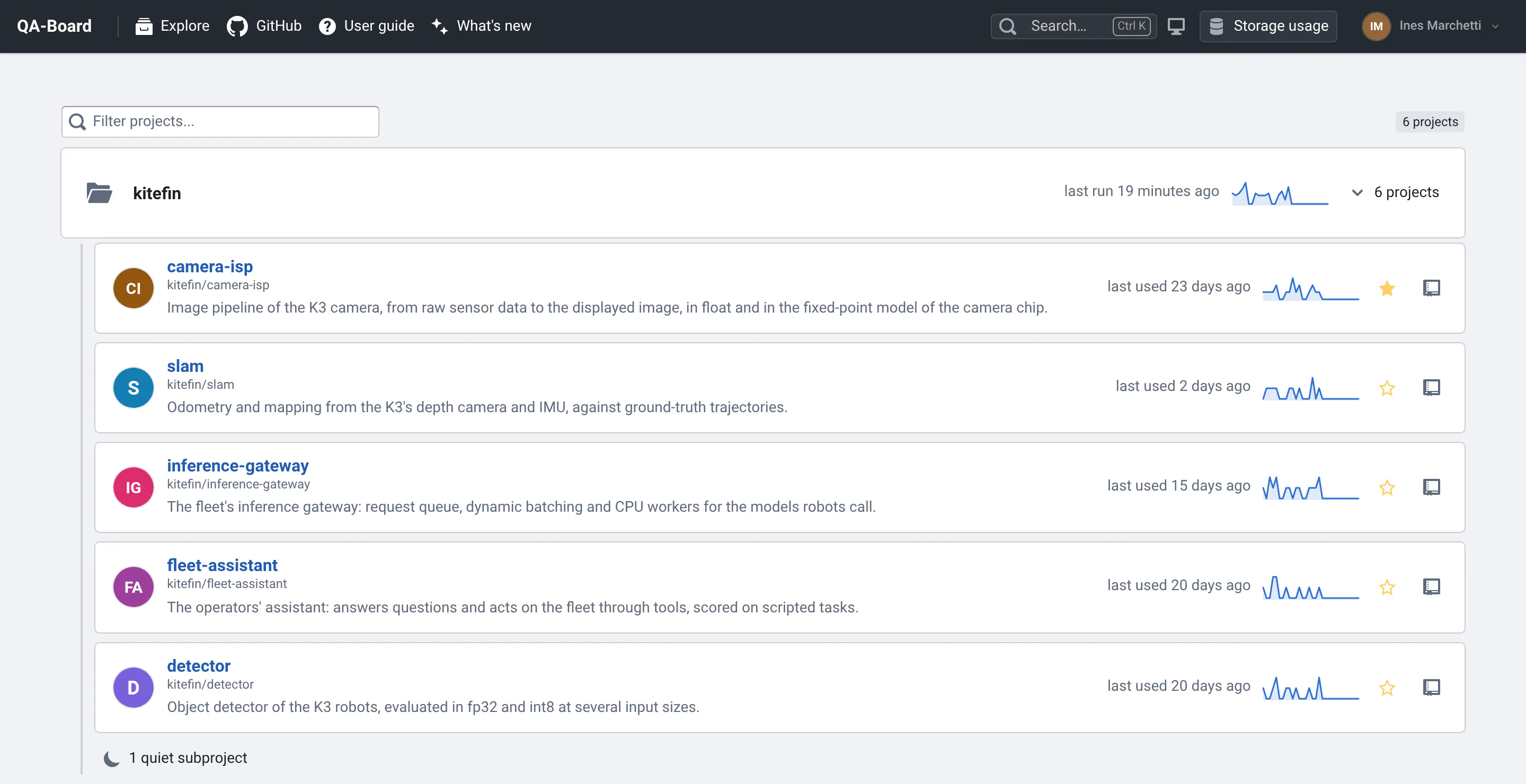
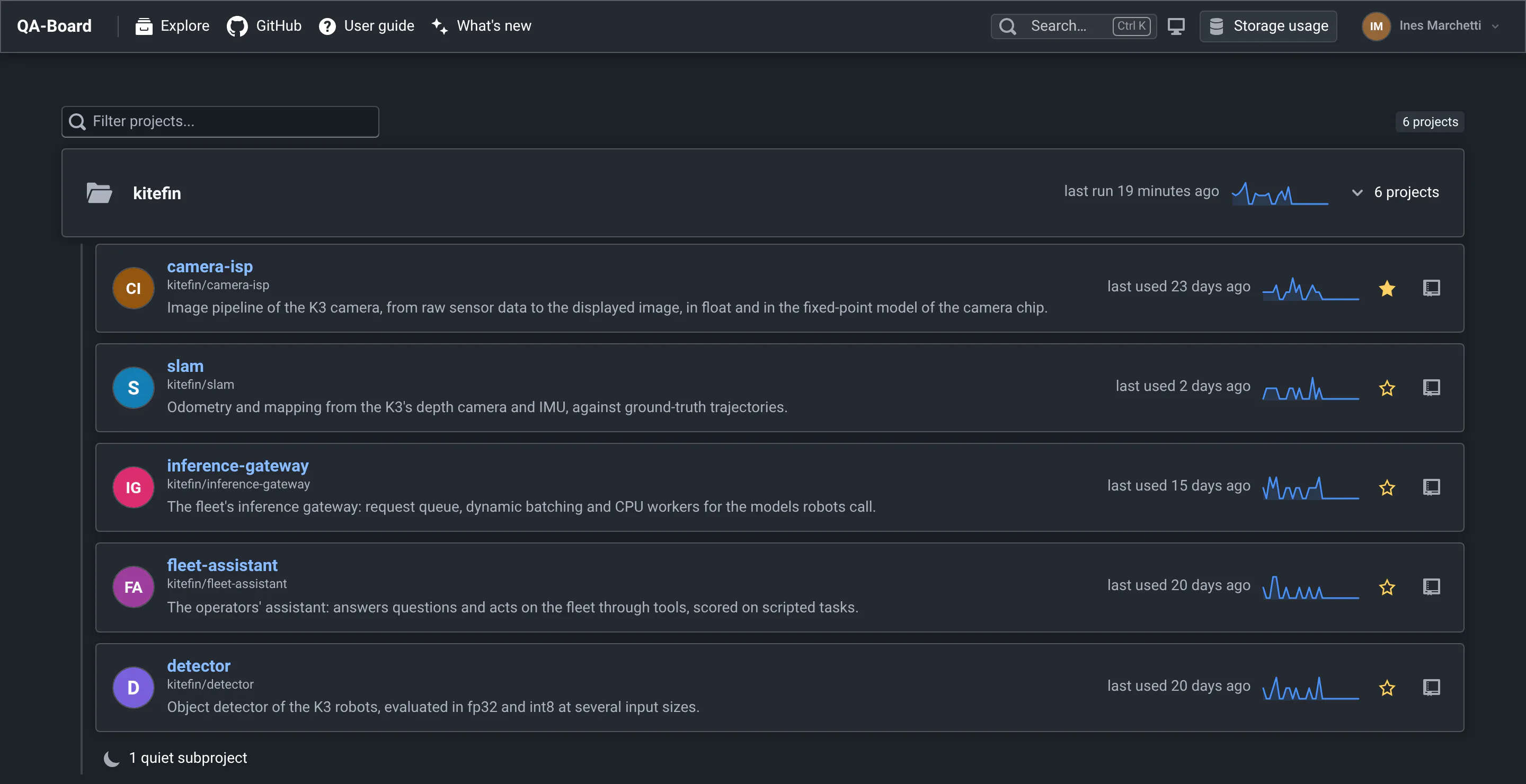
- Follow a review step by step: Your first review checks one commit of kitefin/camera-isp, the camera team's image pipeline, from its metrics down to the halos its new denoiser adds.
- Sign in (top right) as any person of the demo world, e.g.
ines, with the passwordkitefin-demo: some tools, like finding where images differ or saving a milestone, need it. Signed in,/becomes your home page: your projects and the batches you ran. - No commit in the list? The commit list starts with the last 3 days. The demo history ends when QA-Board first
started, with commits from a few hours before: if that was days ago, search for a word, like
bilateral, or widen the date range at the top.
Save results from your computer
The qa command line runs your code where you start it. It saves the outputs in a folder that the server reads at
the same path, then sends the metrics to the server. Try it on the camera ISP example: it simulates a robot's camera
and runs its image pipeline on test charts and photos.
-
Get the example. With Kubernetes, you already cloned the repository: stay in its
qaboardfolder. With Docker Compose, clone it:git clone https://github.com/Samsung/qaboard.gitcd qaboard -
Install
qaand the example's dependencies, from theqaboardfolder:cd examples/image-qualitypython3 -m venv .venvsource .venv/bin/activatepip install qaboard -r requirements.txt -
Point
qato your server and to the results folder. With both quickstarts, it's/tmp/qaboard:export QABOARD_URL=http://localhost:5151export QA_STORAGE=/tmp/qaboardQA_STORAGEreplacesstoragein the example's qaboard.yaml,/mnt/qaboard: the quickstart's server only reads your results in/tmp/qaboard. -
Run the example's CI batch: 5 test charts and 4 photos, each at ISO 100 and 3200. The first time, the example downloads its photos and generates its charts.
qa --share batch ci -
Open the link that
qaprints afterResults:. It's the commit page of thekitefin/camera-ispproject, with your 18 runs: their metrics, then their output images, which you can zoom into, all in sync. Your commit joins the demo commits of the project.
Without --share, qa saves the results in output/ and doesn't tell the server.
Docker Compose: docker compose down --volumes, in the folder of compose.yml, deletes QA-Board and its data.
Kubernetes: kind delete cluster --name qaboard deletes the cluster. Your results stay in /tmp/qaboard.
Next steps
- Your project on QA-Board: wrap your own code, run it in CI, compare every commit.
- Key concepts: projects, commits, batches, runs and references, in one page.
- Your first review: the web app, step by step, on a demo project.
- The image viewer and the video viewer: every tool to compare outputs, down to the pixel and the frame.
- A server for your team: Starting a QA-Board server with Docker Compose, or Running QA-Board on Kubernetes, from this quickstart to a cluster.