Reading metrics
Did this commit make things better, and where? The three Metrics views of the commit page answer it from the top down: the Summary for the big picture, the Metrics Diff for the runs that changed, the Metrics Table for each value against its target.
Example: what does int8 cost the detector?
Arjun quantized the detector to int8, so that it fits the K3 robot's accelerator. His commit runs the four test slices
(indoor, outdoor, warehouse, small objects) with both models. He compares it with the last fp32 release, the milestone
kd-1.2, and types int8 in the new bar's filter box to keep only the int8 runs.
-
Summary: the medians over the int8 runs, against the release's. The model is 3.86 MB instead of 13.8 MB, 72% smaller, in green. The median mAP only drops 5%, but AP on small objects drops 21%, in red.
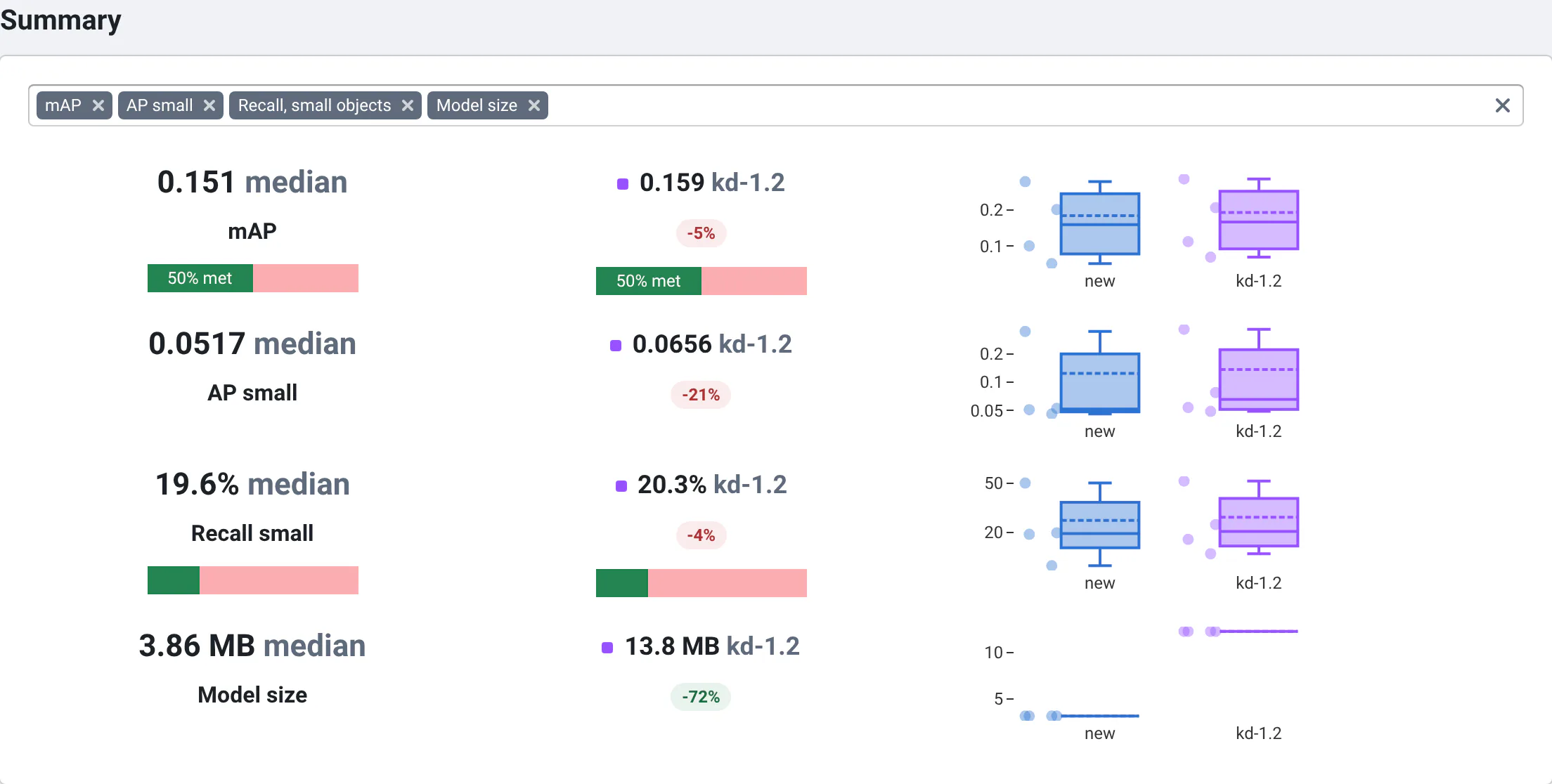
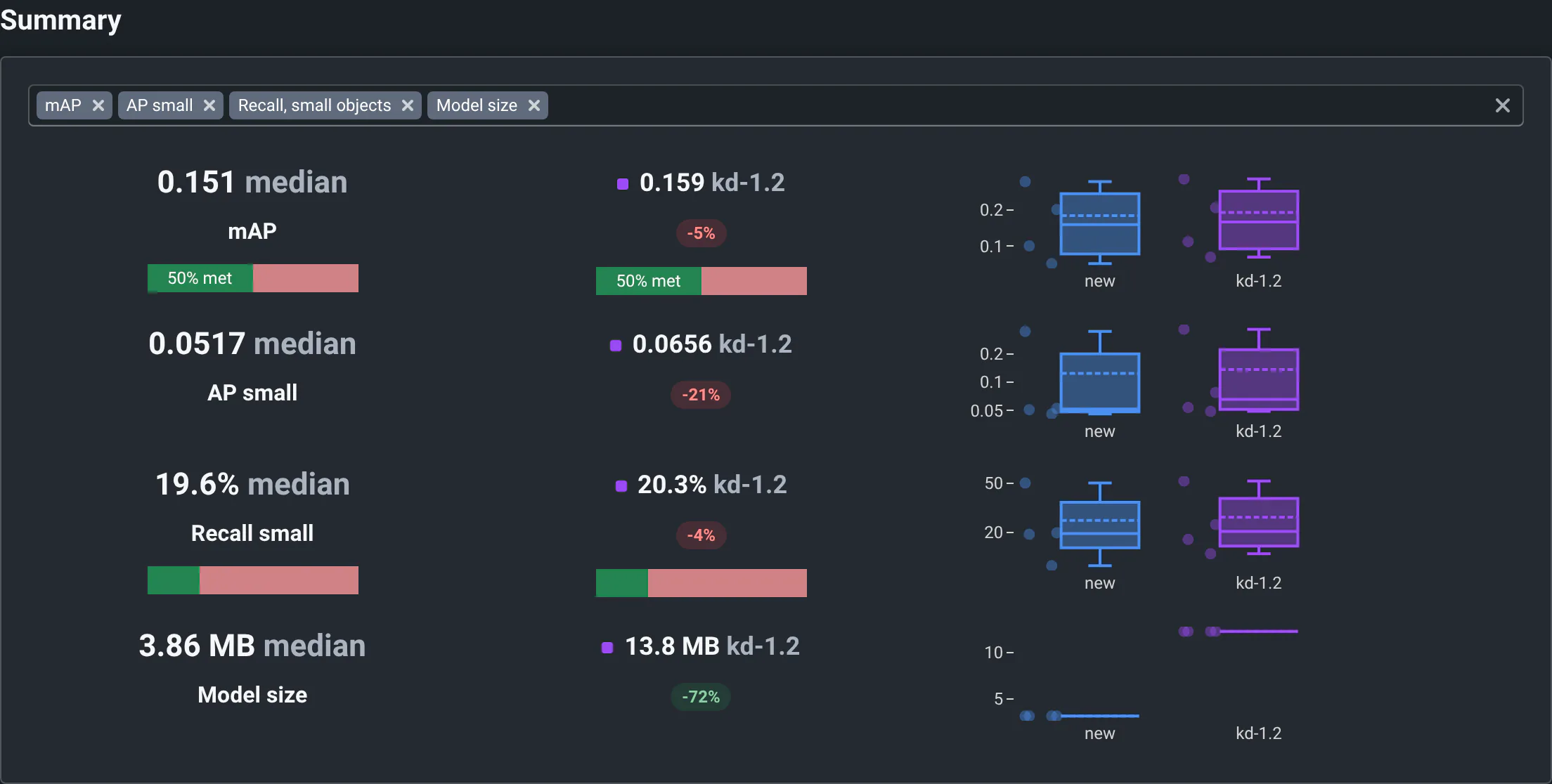
The int8 model is 72% smaller and its median mAP barely moves; AP on small objects, in red, is what it costs. -
Metrics Diff: one row per slice, with its change. The model is smaller everywhere and the warehouse slice even improves, but the indoor slice loses 35% of its mAP and 34% of its AP on small objects. The median hid it.
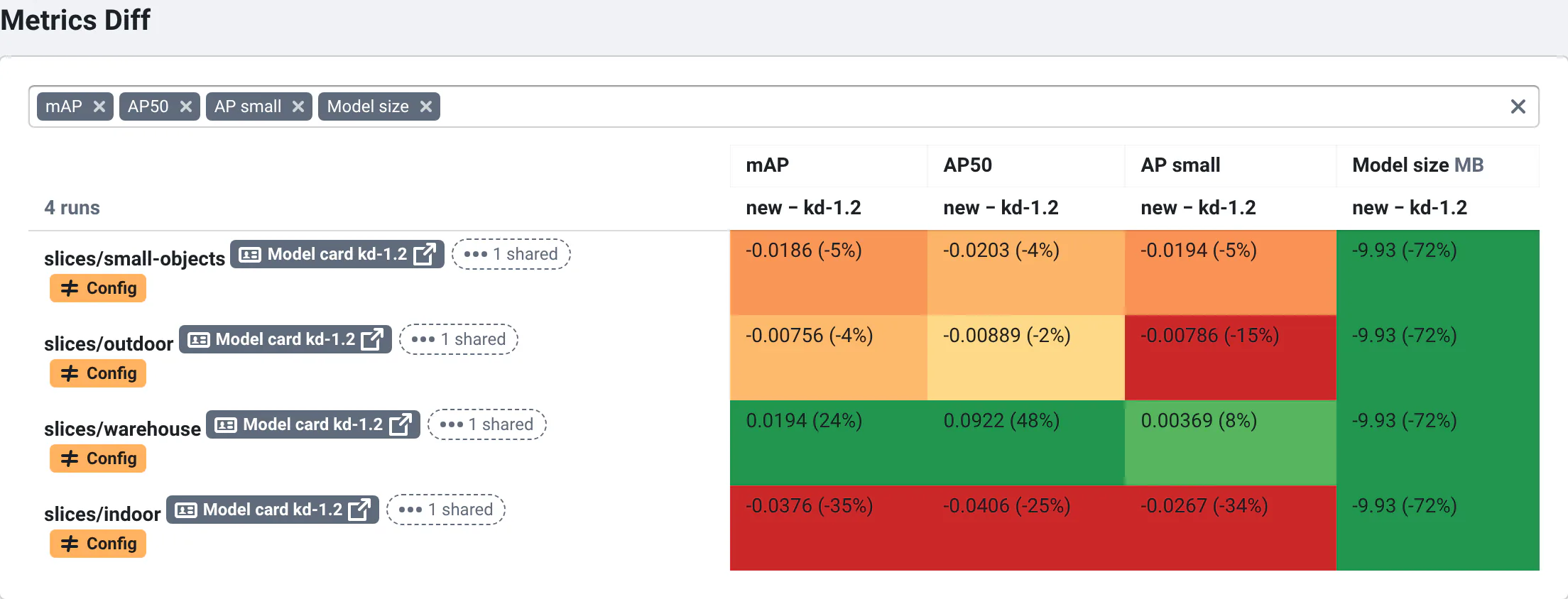
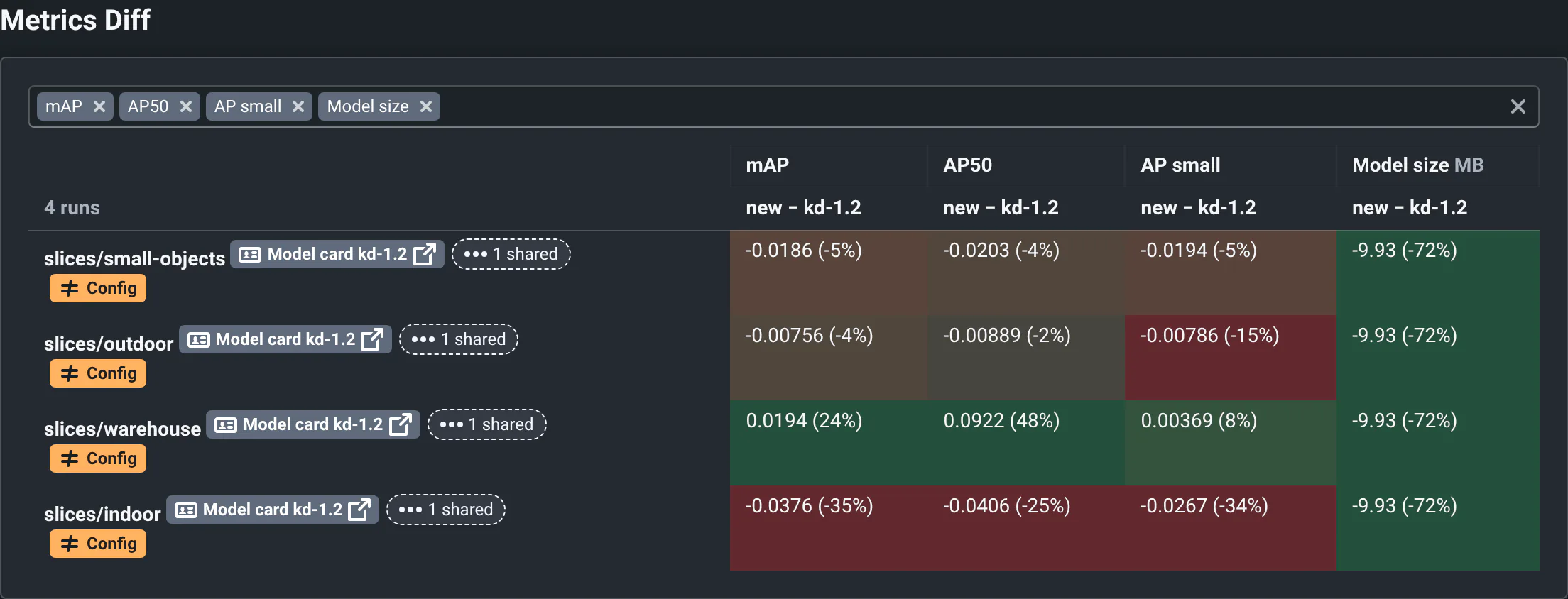
int8 against fp32, slice by slice: green where int8 is better (the model size everywhere, the warehouse slice), red where it's worse, worst indoors. -
With many tests, sort them: in the View options, Sort runs by mAP, Lowest first. The indoor slice comes to the top.
From the Summary to each slice's change, then sorted by mAP, lowest first: the indoor slice, -35%, comes to the top. -
Metrics Table (here with the filter cleared, fp32 runs included): the values themselves, colored by how far they are from their target. Indoor and warehouse miss the 0.15 mAP target in fp32 already; int8 makes indoor worse.
The verdict: int8 isn't ready to ship. The next commits fix the indoor slice: see the detection use case.
Summary
For each summary metric:
- the new runs' median, and the reference's, with the change in percent, green when it improves, red when it gets worse;
- when the metric has a target, a bar with the share of runs that meet it, for each side;
- box plots of the new and reference values, over the target's zone in green and red.
Hover a median for its exact value and the number of runs, the change for which way is better, and a box plot for its quartiles, mean and whiskers.
Pick other metrics in the box at the top of the view. When the project doesn't choose its summary metrics, the Summary shows up to 8: those that changed the most vs the reference.
The Summary aggregates the finished runs, and only the reference's runs on the same inputs. Failed runs count only for the metrics they saved: check the N failed message above the views before you trust a median.
If the runs have different tuning parameters, a warning says the Summary mixes them all together. Filter the runs
(e.g. threshold:0.5) to compare like with like.
Metrics Diff
One row per run, and for each metric the difference with its reference run, new − ref, then the change in percent.
The greener a cell, the more it improved; the redder, the more it got worse. Small changes are yellow, and = means
identical. Hover a cell for both values.
- It only shows the metrics the reference runs have too. If the reference has no matching runs, it says so: pick another reference.
- Orange Input, Config or Platform tags (with a
≠) mean the run was compared with a reference run that is not exactly the same. Hover them for what differs. See How runs are matched. - To bring the worst runs to the top, Sort runs by a metric in the View options. It sorts by the new runs' values, not by their change.
The metrics box above the tables is shared by the Metrics Diff and the Metrics Table, and saved in the page's link: whoever opens it sees the same columns.
Metrics Table
One row per run, with its input, configuration and platform, and for each metric the New and Ref values side
by side. The header gives the metric's target and unit, like mAP [0.15] or Latency [25 ms].
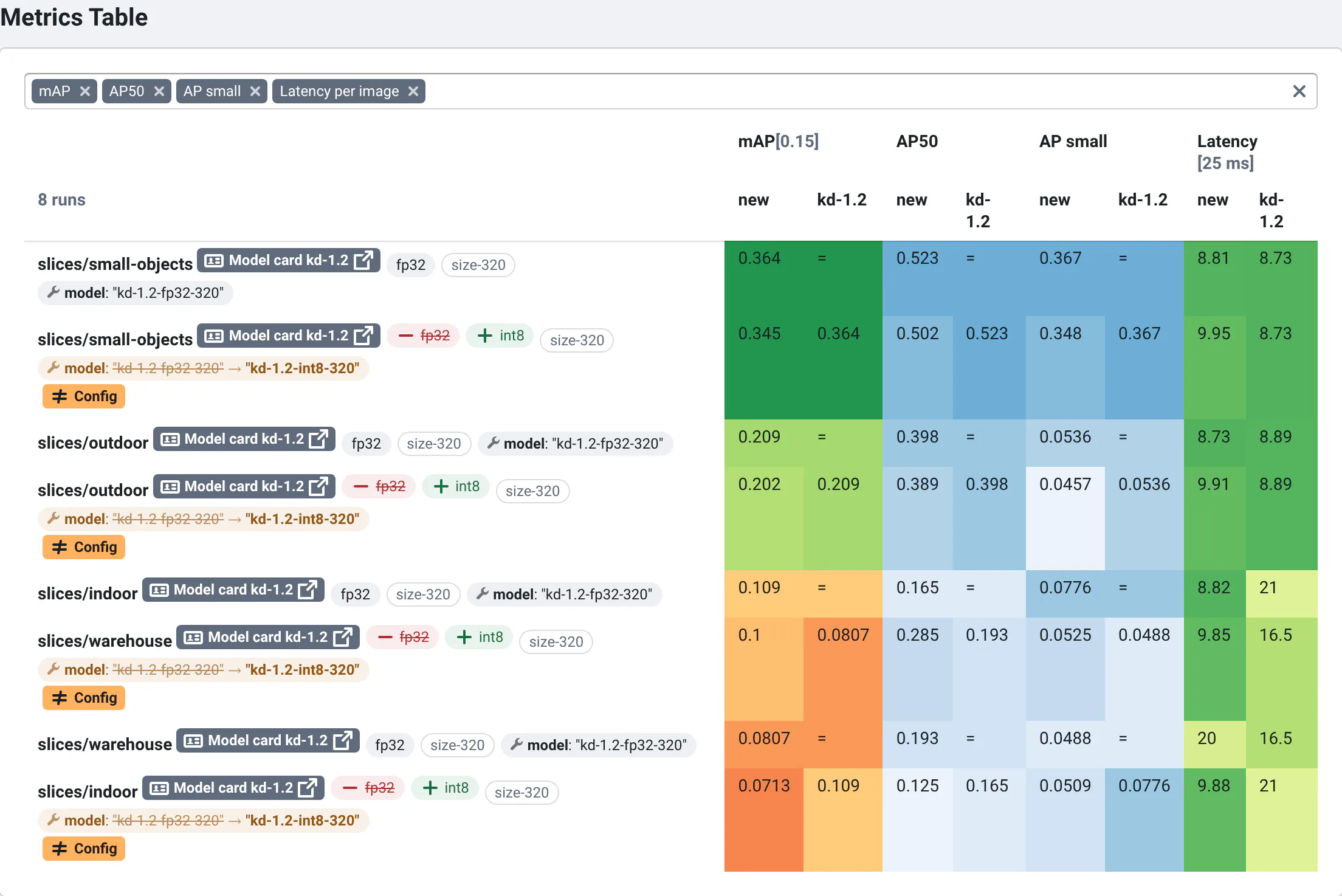
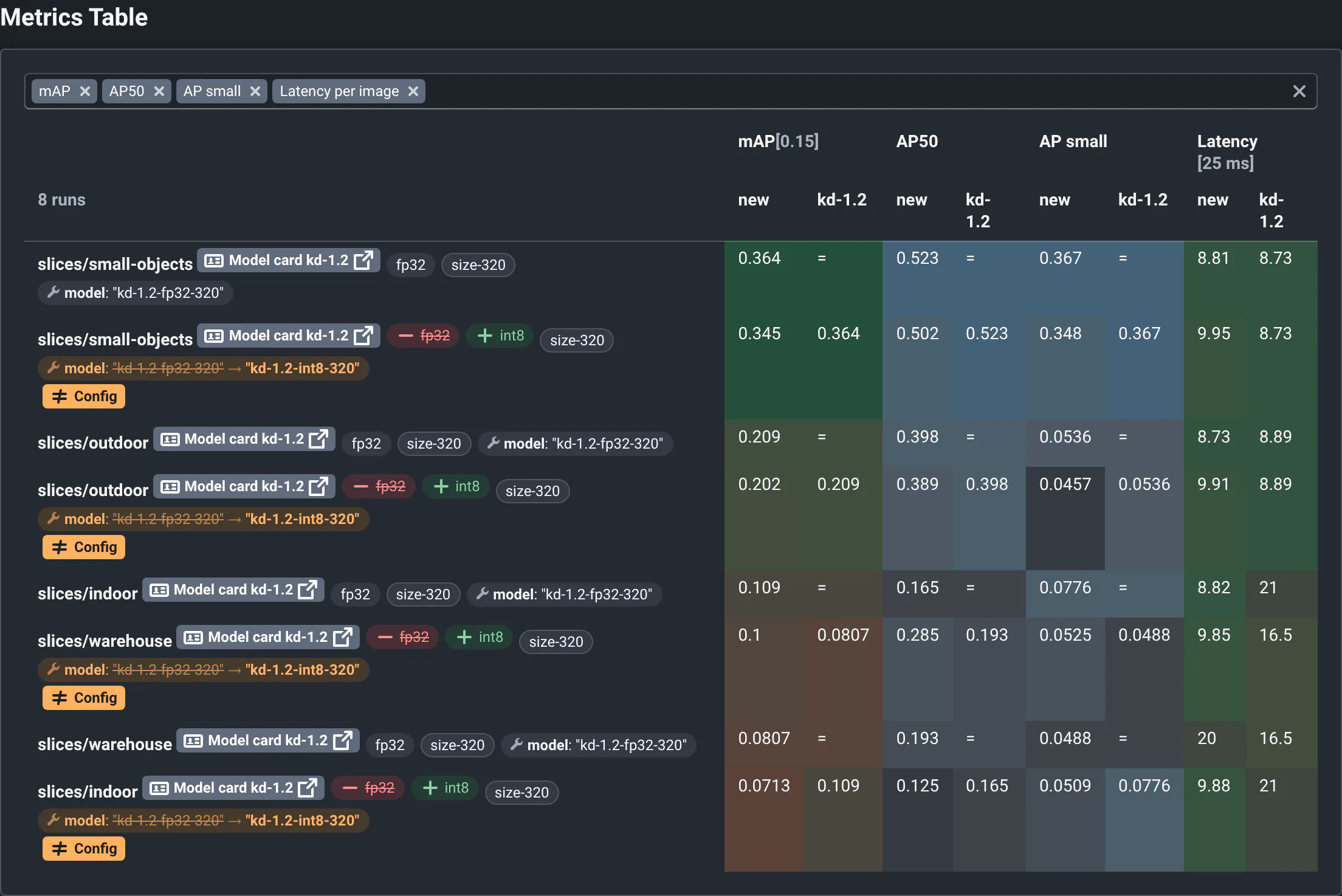
- Cells are colored from red to green by how far they are from the metric's target. Metrics without a target are shaded in blue: the darker, the larger the value compared with the other runs.
- A reference cell shows
=when it's the same as the new value. - Failed runs have a red Failed tag. Runs still running show up when they finish.
By default, both tables show the project's main metrics. Without a choice, they show the declared metrics, and others up to 20 columns: pick more in the metrics box.
What the colors mean
Green is better, red is worse, everywhere. What "better" means depends on the view:
| Where | Green | Red | Neutral |
|---|---|---|---|
| Summary, and the changes on run cards | Better than the reference by more than 1% | Worse by more than 1% | Gray: a change under 1% |
| Metrics Diff | Better than the reference run | Worse than the reference run | Yellow for small changes, = when equal |
| Metrics Table | Beats the target, greener the further | Misses the target, redder the further | Yellow near the target, blue without a target |
| Metric tags on run cards, the Summary's bars | Meets the target | Misses the target | No color without a target |
The Metrics Diff's colors are made for changes of a few percent: past about 10%, cells have their strongest color. Hover a metric's name for its full label and description, and a value for its exact number.
For some metrics, QA-Board doesn't know whether higher or lower values are better: a metric the project didn't declare, or a count where neither is better. Their changes are gray in the Summary and on run cards, and shaded in blue in the tables (the darker, the larger the change or the value), never green or red. Hovering their name says so, and the Summary lists them. Ask the project's maintainers to declare them.
Targets
A target is the value a metric should reach: a mAP of at least 0.15, a latency under 25 ms. You see it:
- in the Metrics Table's headers,
mAP [0.15], and in the cells' colors; - in the Summary, as the share of runs that meet it (hover the bar for the exact target) and the green and red zones of the box plots;
- on the run cards, where the metric's tag is green or red.
Some targets are pass or fail: their cells are green or red, without shades. The Metrics Diff doesn't use targets: it compares with the reference.
Targets are set by the project, with the metric's definition: see Declaring metrics. A target needs to know which way is better: without it, cells stay blue.
Failed runs
A failed run has a red Failed tag in the tables, and the N failed message above the views lists it. Most failed runs crashed, or were stopped by the cluster: Logs and failed runs shows how to find out why. Projects can also fail runs on purpose, for instance below a minimal quality: see Failed runs in the project integration docs.
Where to go next
- Look at the outputsThe run cards of the Visualizations view: images, videos, plots, next to the reference.
- Choose what to compare withAnother commit, a branch, a release milestone, several references.
- Metrics over timeFind the commit where a metric started to drift.