Your account and access tokens
Sign in, to redo runs, tune and save milestones, keep your settings on every computer, and create tokens for your scripts and CI.
Signing in
Sign in with the Sign in button, at the top right of Explore, or at the bottom of a project's sidebar. Depending on your server, you use your company's single sign-on (its button comes first), your directory account (e.g. your Windows credentials), or a QA-Board account. If your server requires signing in, you see the sign-in page first, and come back to the page you asked for.
When something goes wrong, the message says what to do: a wrong password, a disabled account (ask your QA-Board admins), or a sign-in to start again. Single sign-on errors come with a reference: give it to your admins, it tells them what happened.
If your account waits for an admin, you see a page saying so after you sign in. Say why you need QA-Board (your team, your projects): the admins are told, and you get an email when they decide.
Signed in, what you save follows your account: your milestones, your pinned projects, the theme and your other preferences.
Settings
Open Settings from your account menu, at the bottom of the sidebar (or the top right of your home page), next to Runs activity and Storage usage:
- Profile: your name, email and user name, as your server knows them. Add Your other git emails, so that the commits you made with them count as yours.
- Preferences: the theme (Same as your system, Light or Dark), Compact or Comfortable commit lists, the values written on the pixels, the runs' settings... When you're signed in, your preferences and pinned projects follow you to other browsers and computers.
- Access tokens: tokens for scripts and CI (below).
- Sessions: the browsers where you're signed in. Sign out of the ones you don't use anymore, or of all the others at once.
- Sign-in methods: the ways you sign in to this account. Add your company's single sign-on to the account you already have, so you don't get a second one, or remove a method you don't use (you keep at least one).
- CLI sign-ins: the computers where you ran
qa auth login. Revoke the ones you don't use anymore. - Activity: your recent sign-ins, the tokens you created or revoked, and the CLI logins you approved. If you see something you didn't do, revoke your tokens and tell your admins.
Access tokens
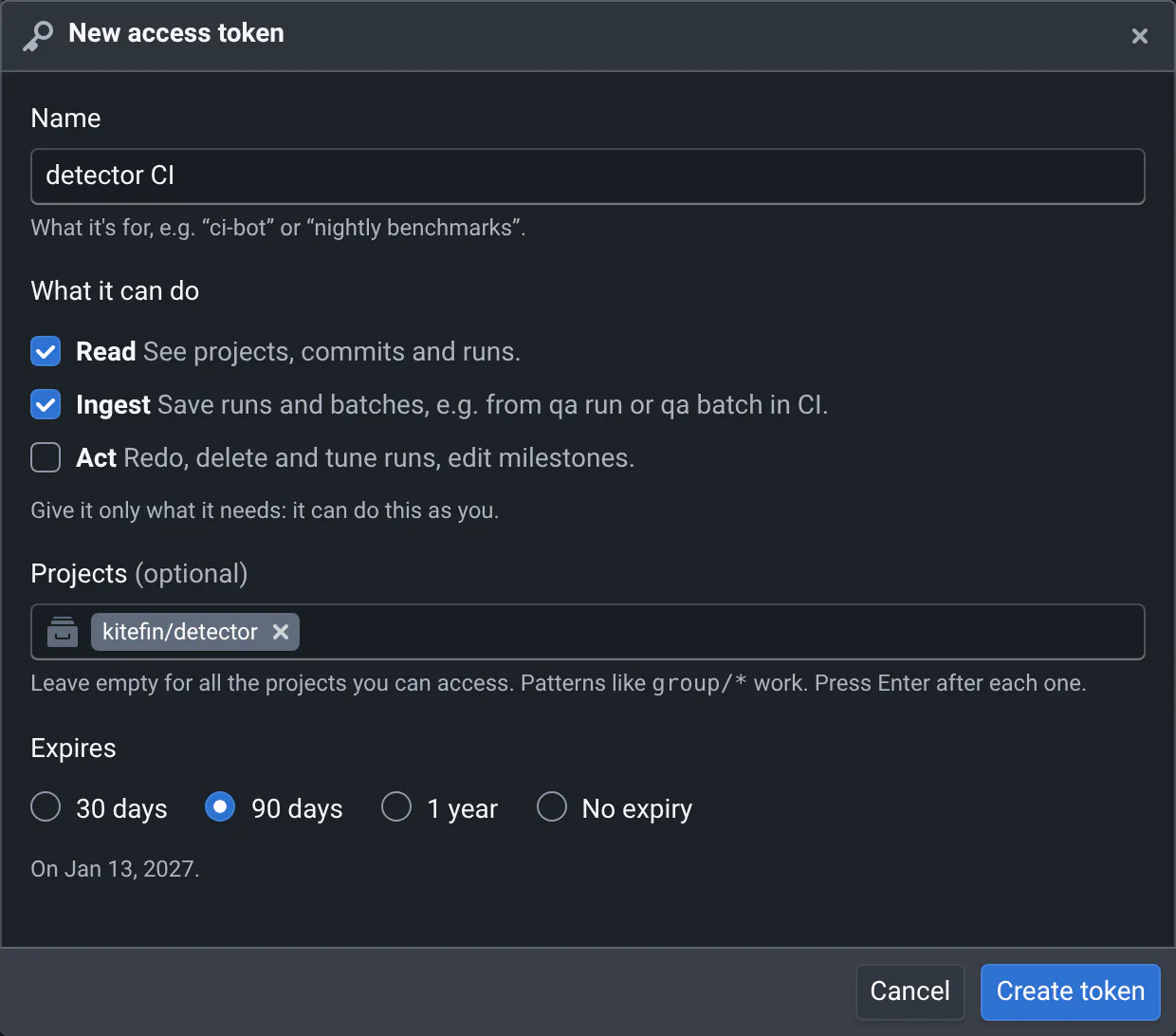
Scripts and CI jobs use tokens to act as you. Create one in Settings → Access tokens:
- A name that says where you'll use it, e.g. "nightly CI of group/repo".
- What it can do: Read sees projects and results, Ingest sends results (
qa run,qa batch), Act redoes runs, starts or deletes batches and edits milestones. Give it only what it needs. - Projects (optional): restrict it to some projects, e.g.
group/repo(and its subprojects) orgroup/*. - Expires: in 30, 90 or 365 days, or never if your server allows it.
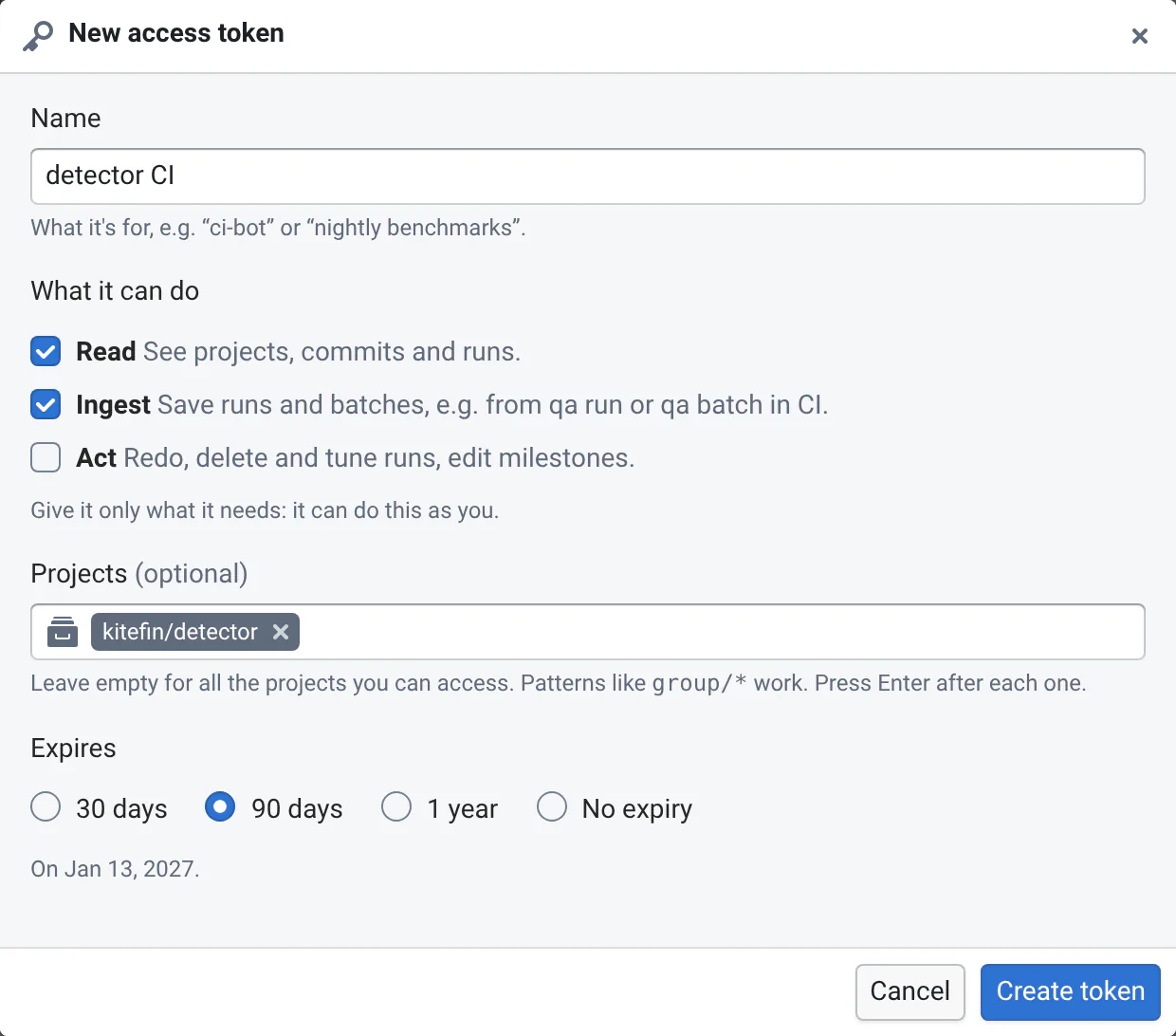
The token is shown once: copy it then, and store it like a password, e.g. in your CI's secrets as QABOARD_TOKEN.
The list shows when and from where each token was last used. Revoke a token as soon as you don't need it, or if it
may have leaked: it stops working at once.
See CI integration and APIs for how to use tokens.
Signing in from the qa CLI
Run qa auth login, open the link it prints in any browser (it also works when qa runs on a server you reach over
SSH), check that the code is the one in your terminal, and approve. See Signing in.
Verified runs
Runs sent with a token show who really sent them: hover a run's name on its card, and its Run Info reads "Sent by
ines with token nightly CI". The batch logs show a check mark next to the user of each qa batch. Runs sent without
a token only carry the user name qa found on the computer that ran them: your server can mark them as unverified,
or require tokens to send results.