Choosing the tests to run
Before you run a commit on more tests, check which tests a batch runs, or write your own batch.
A batch of tests is a named list of inputs, each with its configurations: quant-search is the detector's outdoor
and small-objects slices, with the int8 model at 320 px. Batches are defined in YAML files: the commit's own, from its
repository, and two files you edit in the web app. The Available Tests view, in the sidebar of the commit page
under Tuning, shows which tests each batch runs, and lets you write your own.
Check which tests a batch runs
- Open Available Tests. The Batches panel, on the right, lists the batches of the file you're looking at.
- Hover a batch and click its eye icon (List its tests). For another batch, like the commit's
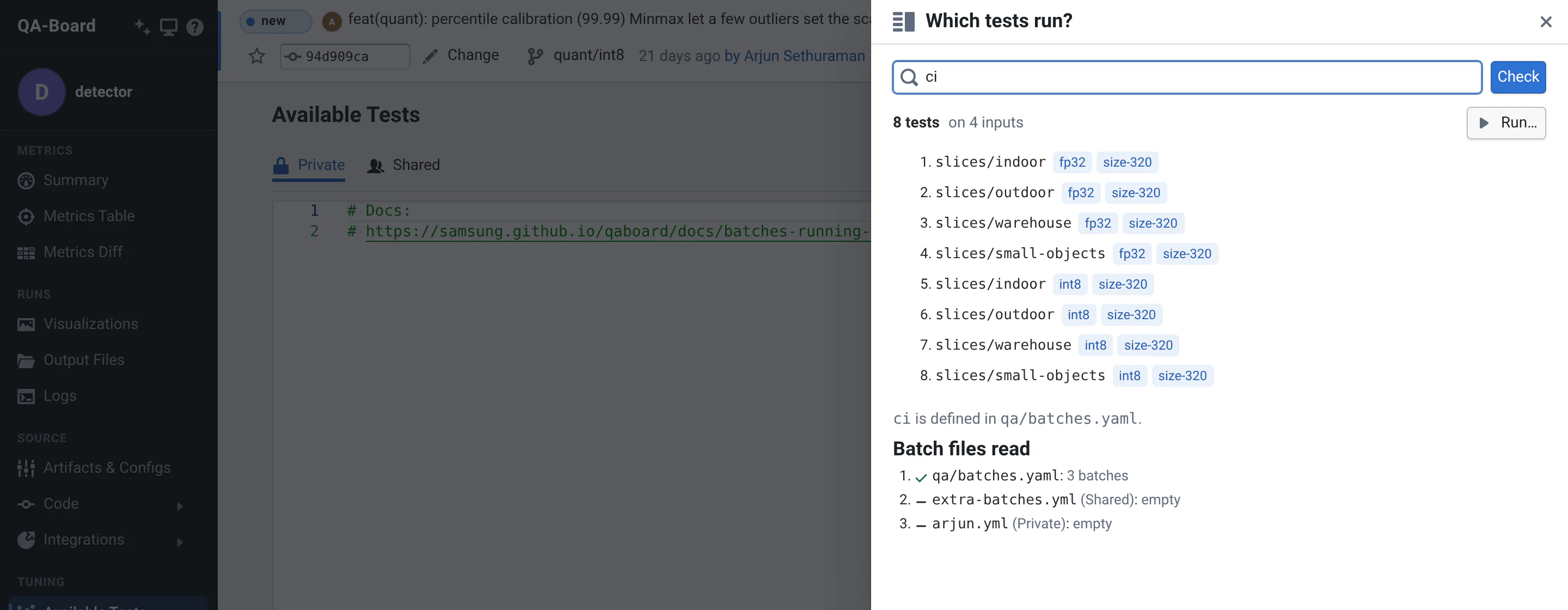
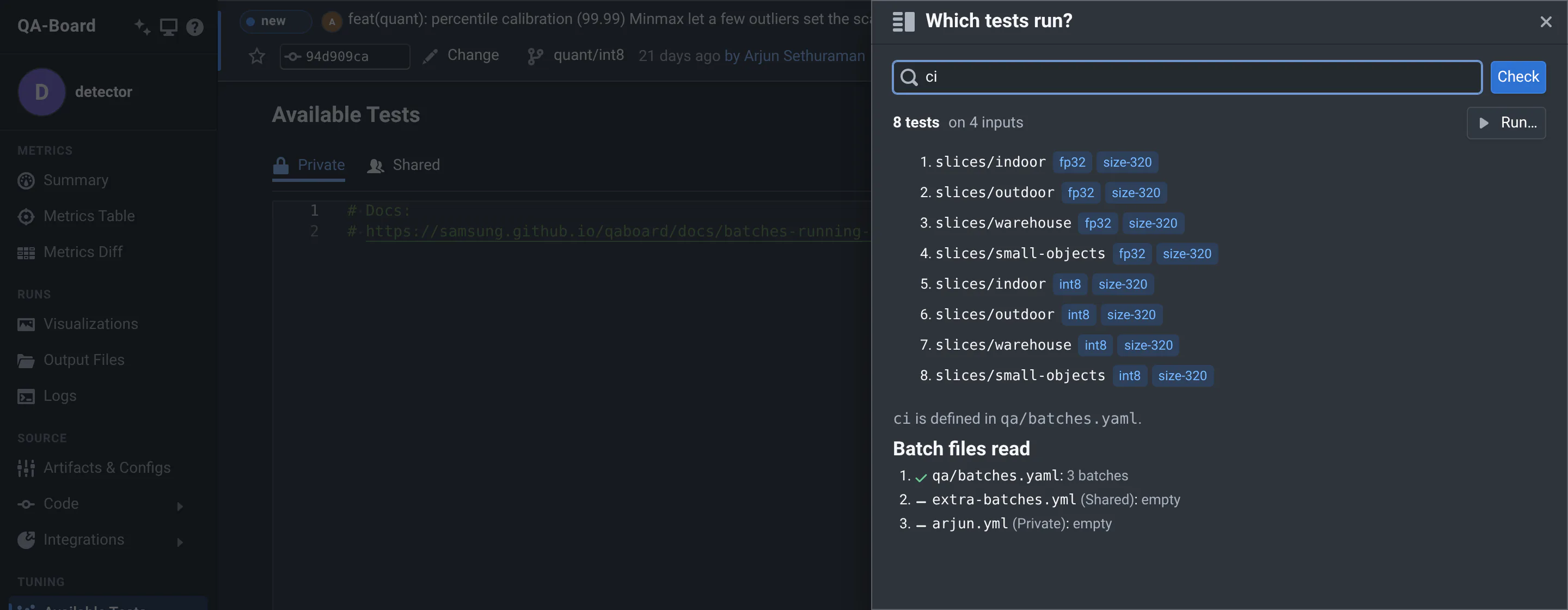
ci, or a pattern likenightly-*, click Check any batch or pattern… and type its name. - Which tests run? opens: the tests the batch resolves to on this commit, with all the batch files, and the file that defines it.
- Click Run… to open Run Tests / Tuning with this batch filled in: see Run tests or a tuning experiment.
Write your own batch
- Pick the file: Private (only you can see and edit it) or Shared (every QA-Board user can).
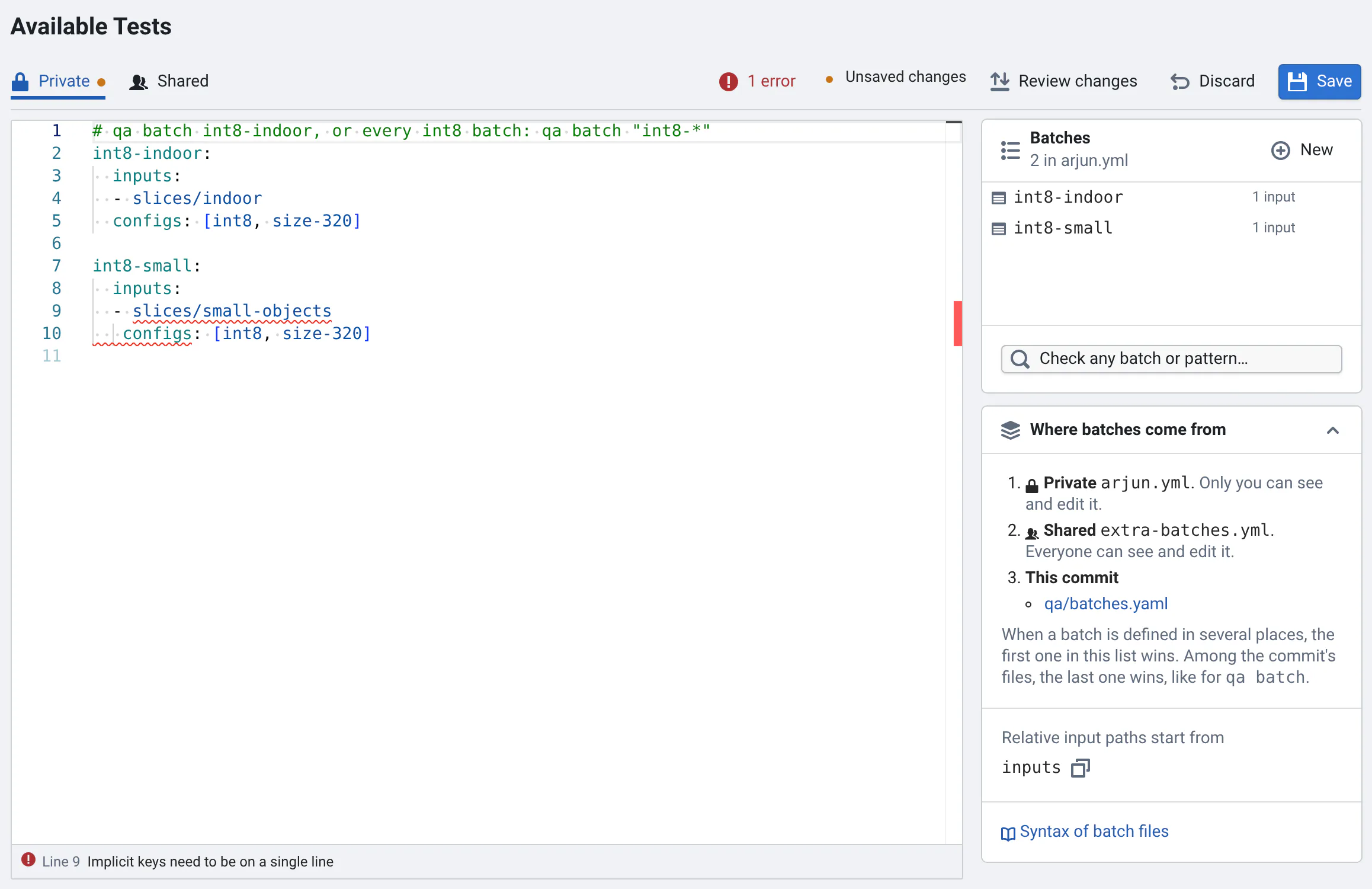
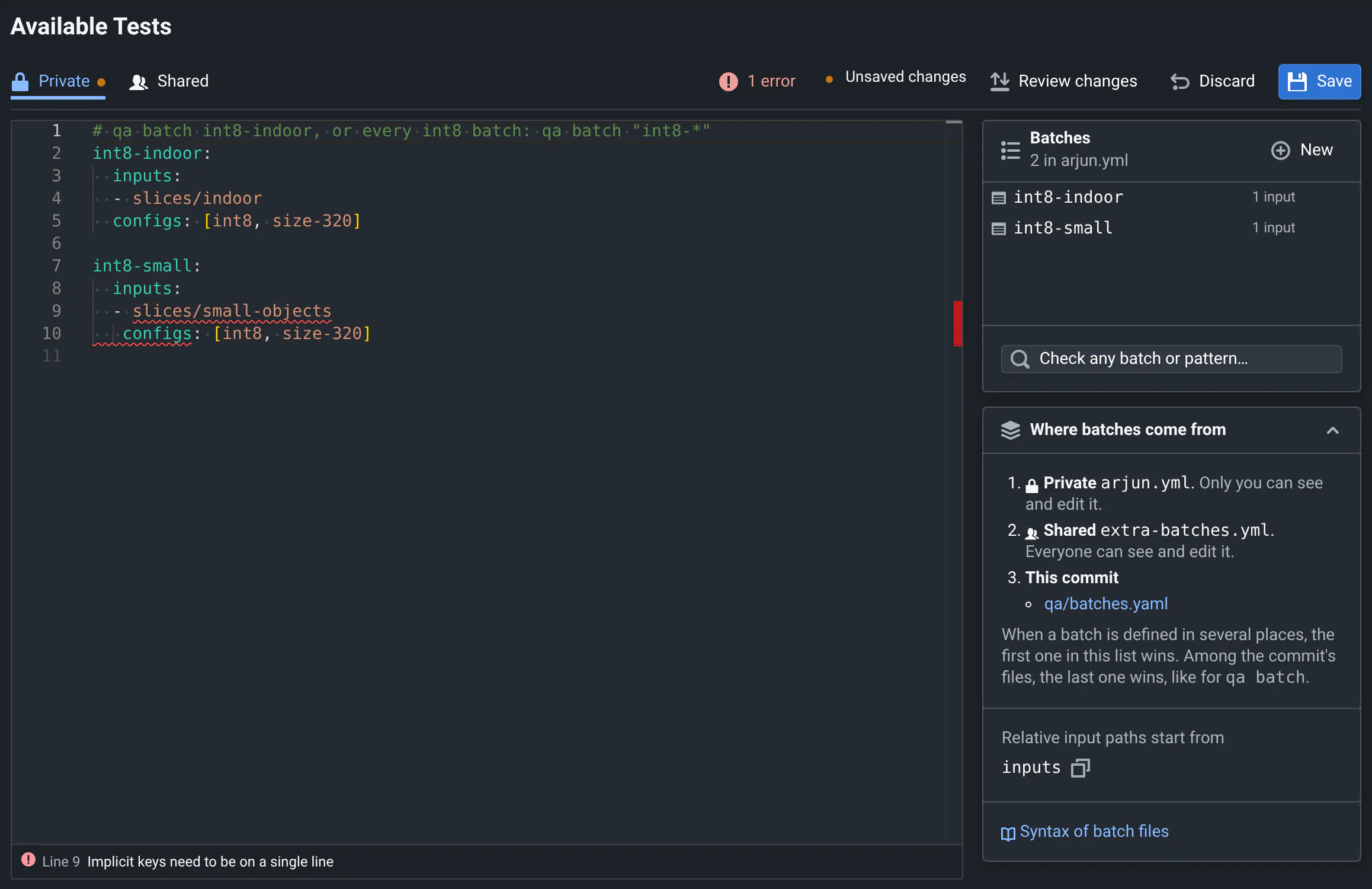
- Click New in the Batches panel. It adds an example batch at the end of the file, with its name selected.
- Edit its name, its
inputsand theirconfigs. Mistakes are underlined as you type, and listed below the editor: click one to go to its line. For the syntax, see Batches of inputs. - Click Save, or press Ctrl+S (⌘+S on a Mac). The status next to it says Saved.
- Hover your batch in the Batches panel and click its play icon (Run it on this commit…): the form opens with it.
More details
Where batches come from, and which definition wins
The Where batches come from panel lists the three places, in order:
- Private: a file named after you.
- Shared: a file of the project, for everyone.
- This commit: the files listed in
inputs.batchesof the commit's qaboard.yaml, with links to your git server. QA-Board reads them from the commit's artifacts, whereqa save-artifactssaves them.
When a batch is defined in several places, the first one in this list wins: Private, then Shared, then the commit's files. Among the commit's files, the last one wins, like for qa batch. Below, Relative input paths start from gives the folder that input paths are relative to, with a button to copy it.
In the Batches panel, each entry says what it is: a batch with its number of inputs, an alias (with the batches it stands for), a pipeline, a file setting, a value reused with a YAML anchor (like lab-db: &lab-db {linux: /mnt/data, windows: //data}, then database: *lab-db), or a batch replaced by a later definition, struck through. With many entries, a box filters them.
Every problem the editor and Which tests run? flag
While you type, the editor flags, with N errors and N warnings buttons above it that go to the first one:
- YAML mistakes, like a wrong indentation;
- a batch defined twice: only its last definition is used;
- what
qa batchwould ignore or misread, checked against the batch files' schema: unknown keys likeinpts(with a suggestion: Did you mean "inputs"?), values of the wrong type likematrix: {size: 320}instead of a list, unknown runners or runner options, and input types (type:) the commit's qaboard.yaml doesn't define. Keys that are input settings in qaboard.yaml are allowed; - inputs
qa batchcan't use: an empty-, or a value YAML reads as a number, a date, or true or false, which must be written in quotes; - a list where a batch should be: write its inputs under
inputs:, or group batches underaliases:.
When a batch has no tests, Which tests run? and the form say why:
- a file listed in
inputs.batchesis not in the commit's artifacts: the list shows where QA-Board looked for it. Check its name, and runqa save-artifactson the commit (the CI usually does it); - a file is not valid YAML;
- no file defines the batch (No batch matches … on this commit);
- the batch has an input
qa batchcan't use: the error gives the file and line; - the batch's inputs were not found under the database, as the QA-Board server sees it: for instance when the database is not mounted on the server.
Unsaved changes, and when someone else saved the file
- The status next to Save says Unsaved changes, Saved with when, or Not saved: hover it for why. A dot on a file's tab means it has unsaved changes.
- Review changes shows what you changed since the last save, side by side. Discard drops your changes, with an Undo.
- Your unsaved changes are kept in your browser. Switch views, reload or close the tab: they come back the next time you open the view (Restored the changes you didn't save). Your browser asks before you leave the page with unsaved changes.
- If someone saved the same file while you were editing, Save shows both versions side by side: Keep editing, Use the saved file, or Overwrite with mine.
- Which tests run? uses the saved files: it warns you when you have unsaved changes.
- Signed out, the view says Sign in to edit batches.
Where to go next
- Run tests or a tuning experimentRun your batch on a commit, with its own settings or a grid of parameters.
- Logs and failed runsFollow the runs you started, and find why one failed.
- Project integrationBatches of inputsThe syntax of batch files: inputs, configurations, matrices, aliases.